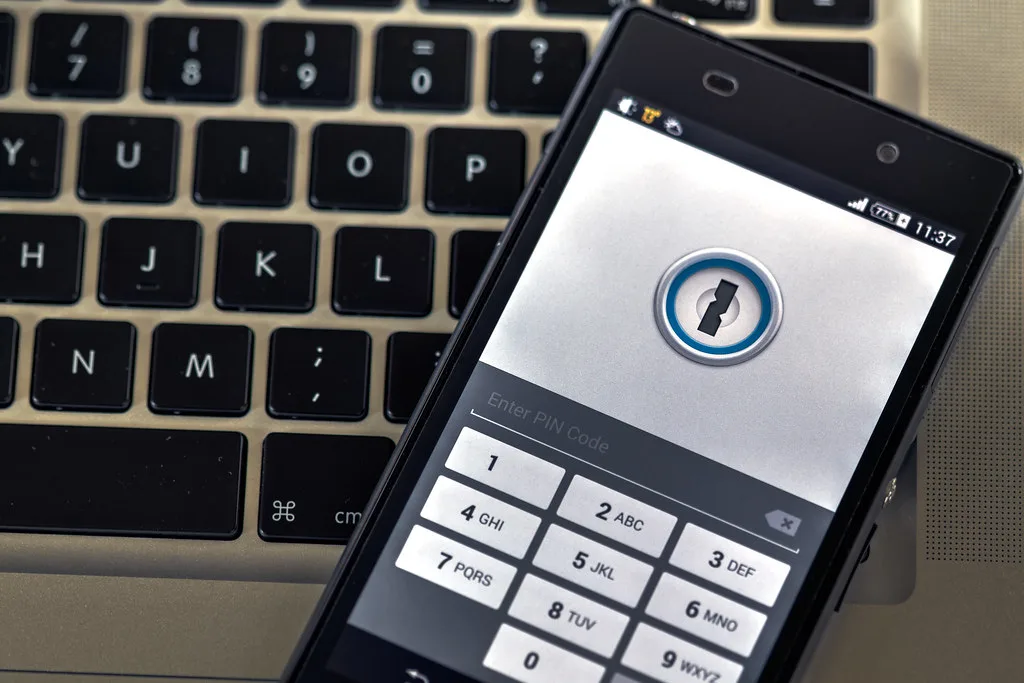
You opened your email and there it was: a notice from your password manager admitting that "a subset of user data" was accessed. Maybe it was the LastPass breaches that dragged on through 2022 and 2023, where attackers walked away with encrypted vaults and customer metadata. Maybe it was something smaller. Either way, your stomach dropped, because the thing you trusted to protect every login you own just became a liability.
Here is the uncomfortable truth most people miss: when a password manager is breached, the attacker often gets a copy of your entire encrypted vault. Your master password is the only thing standing between them and everything. And they have all the time in the world to brute-force it offline. A 2023 analysis suggested that vaults protected by older, low-iteration encryption settings could be cracked in days to weeks on rented GPU hardware. That changes the math on what "safe" means.
This guide walks you through how to migrate passwords after breach conditions in a way that actually closes the door behind you, not just locks the front while leaving a window open. We will cover triage, export, secure transfer, choosing a new home, and the credential rotation that most people skip and later regret. Let's get into it.
Key Takeaways
- Assume your vault is compromised, not just exposed. Treat every stored credential as potentially readable by an attacker, especially high-value accounts.
- Rotate before you relax. Migrating to a new manager does nothing if you reuse the same passwords the attacker may already have.
- Export carefully, then destroy the export. Plaintext CSV exports are the single most dangerous artifact in this whole process.
- Pick a new manager based on encryption architecture, not marketing. Zero-knowledge design and high KDF iterations matter more than the prettiest UI.
- Turn on 2FA everywhere so a leaked password alone can't unlock an account.
- Keep an offline, encrypted backup of your final vault so you're never locked out during a future incident.
First, Confirm What Was Actually Breached
Panic is not a plan. Before you touch a single password, figure out the scope. Breaches fall into roughly three buckets, and your response should scale to the severity.
- Metadata only: The attacker got emails, billing info, or URLs of saved sites but no vault contents. Annoying, low urgency.
- Encrypted vaults: The attacker copied your encrypted password blob. This is serious. The clock is now ticking against your master password's strength.
- Plaintext or partial decryption: Rare, but catastrophic. Treat every credential as already known.
Read the breach disclosure carefully and check independent sources. Tech journalists and security researchers often publish clearer breakdowns than the vendor's own carefully-worded post. If you maintain a security mindset for the rest of your stack, the same instincts that help you audit WordPress plugins for vulnerabilities before installing apply here: verify claims, don't take vendor reassurances at face value.
A worked example: scoping your exposure
Say you have 83 saved logins across personal and work accounts. Don't treat them as equal. Sort them into tiers:
- Tier 1 (rotate today): Email, banking, password manager master, primary cloud storage. In our example, that's 6 accounts.
- Tier 2 (rotate this week): Shopping with saved cards, social media, work SaaS tools. About 22 accounts.
- Tier 3 (rotate as you go): Low-value forums, newsletters, one-off signups. The remaining 55.
Now your overwhelming list of 83 becomes a manageable 6 you handle in the next hour. That prioritization is the difference between people who recover cleanly and people who give up halfway and stay exposed.
How to Safely Export Passwords From a Breached Manager
Almost every manager lets you export to CSV or JSON. This file is plaintext. It is the most dangerous object you'll handle in this entire process, so respect it accordingly.
- Disconnect from public networks. Do this on a machine you trust, ideally on your home network, never on café Wi-Fi.
- Export to a local drive, never cloud sync. If your
Downloadsfolder auto-syncs to Google Drive or iCloud, move the export out first or pause sync. - Open it once to verify completeness. Confirm field mapping: site, username, password, notes, TOTP seeds. Note any malformed rows.
- Encrypt the file immediately if you must keep it around during migration. A tool like LionPaste is handy for sharing or stashing snippets of sensitive text with encryption rather than pasting credentials into plain notes apps.
- Securely delete the plaintext export when migration finishes. On Windows, overwrite-delete rather than a simple recycle bin removal; on macOS, empty the trash and the file is gone from most recovery paths.
One more thing people forget: exports often include password history and old credentials. Those old passwords may still work on services that never forced a reset. Don't ignore them.
Watch for export gotchas
- TOTP secrets may not export in some managers. You may need to re-enroll 2FA manually on each site.
- Attachments and secure notes often export separately or not at all. Check before you delete the old account.
- Folder structure rarely survives a CSV round trip. Expect to reorganize.
Choosing a New Password Manager: What Actually Matters
This is where most guides hand-wave. The brand name is almost irrelevant. What matters is the encryption architecture and how it handles the exact failure mode you just lived through. Here's how the main approaches stack up.
| Option | Encryption model | Breach resilience | Offline access | Best for |
|---|---|---|---|---|
| Cloud-synced commercial manager | Zero-knowledge, server-stored vault | Depends on KDF iterations; vault copied in breach | Yes (cached) | Most users wanting convenience |
| Self-hosted manager (e.g. Vaultwarden) | Zero-knowledge, you control the server | High if your server is hardened | Yes | Technical users, small teams |
| Local-only encrypted database (e.g. KeePass) | Local file, you manage sync | Very high (no central target) | Yes | Privacy maximalists |
| Browser built-in manager | Tied to browser account | Moderate; broad attack surface | Limited | Casual, low-value logins only |
If you go the self-hosted route, your threat model shifts from "trust the vendor" to "trust your own server hygiene." That's a fair trade for many, but only if you actually patch and harden. The same diligence you'd apply to hardening a server with SiteGuard Pro or locking down a site with eDarpan WordPress Protection is exactly what a self-hosted vault demands.
Whatever you choose, verify it's legitimate before installing. Our walkthrough on how to verify open source software before you install it is worth reading if you're considering KeePass or Vaultwarden, since checksum and signature verification matter most for the tool guarding everything else.
Migrating the Data Without Recreating the Risk
Now you import your cleaned export into the new manager. The mechanics are easy; the discipline is what counts.
- Set a strong new master password first. Aim for a passphrase of 5+ random words, not a clever variation of your old one. The old one may be compromised.
- Confirm the KDF settings. If your new manager lets you set PBKDF2 iterations or use Argon2, max out what your device can tolerate. This is the single biggest factor in offline brute-force resistance.
- Import the CSV/JSON. Map fields carefully. Spot-check 5 to 10 entries to confirm usernames and passwords landed in the right columns.
- Re-enroll 2FA seeds that didn't migrate cleanly.
- Reorganize folders and tags so the vault is usable, not just complete.
- Run the built-in health report. Most managers flag reused, weak, and breached passwords. This becomes your rotation worklist.
If you're moving between machines during this process, do it cleanly. The principles in our guide on how to migrate software licenses to a new computer safely translate well: minimize the number of places sensitive data lands, and verify each step before deleting the source.
The Step Everyone Skips: Rotating Compromised Passwords
Migrating to a shiny new manager feels like progress, but if your old vault was breached, the attacker may already have your passwords. Moving them to a new vault doesn't change that. You have to rotate.
Here's the efficient way to do it without burning a weekend:
- Start with your email account. It's the reset hub for everything else. New password, new 2FA, review active sessions and app passwords.
- Hit financial and identity accounts next. Banking, brokerage, PayPal, government portals.
- Use the manager's generator to create unique 20+ character passwords for each. Never reuse.
- Batch the rest by login frequency. Rotate Tier 2 over a week, Tier 3 opportunistically each time you sign in.
- Revoke old sessions and API tokens wherever the option exists. A rotated password doesn't always kill an active session.
Layer on two-factor authentication
A rotated password is good. A rotated password plus 2FA means a leaked credential is nearly useless on its own. Prioritize app-based or hardware-key 2FA over SMS, which is vulnerable to SIM swapping
Cover image: My computer by heinousjay, licensed under BY-SA 2.0 via Openverse.