Passkeys were supposed to end the password nightmare. No shared secret to phish, no reused string to leak, no master password to keystroke-log. And on paper, they deliver: a passkey is a public-private key pair where the private half never leaves your device or your vault. Attackers cannot phish something the user never types.
But here is the uncomfortable reality most security marketing skips over. In 2024, malware families like Atomic Stealer and RedLine shifted their focus away from browser-saved passwords and toward the encrypted databases and session tokens of password managers themselves. A single info-stealer sold on Telegram for around $150 a month can now scrape a decrypted vault the moment you unlock it. If your passkeys live inside that same vault, the "unphishable" credential becomes very phishable indeed once the attacker owns the process holding the keys.
This article is a practical, hands-on guide to protect passkeys from malware that hijacks password managers. You'll get a realistic threat model, a worked example of how an attack actually unfolds, a comparison of where your passkeys should live, and a step-by-step hardening walkthrough you can complete this afternoon.
Key Takeaways
- Passkeys are phishing-resistant, but not malware-resistant. If malware controls the app holding the key, syncing and export flows become the weak point.
- Hardware-bound passkeys (security keys, Secure Enclave, TPM) are dramatically harder to steal than software-synced passkeys stored in a cloud vault.
- The real target is often the session token that a passkey login creates, not the passkey itself. Protect the session too.
- Reduce your attack surface first: remove unknown browser extensions and lock down the device before you optimize the vault.
- Keep an offline recovery path so a compromised primary vault never becomes a lockout.
Why Passkeys Are Not Automatically Safe From Malware
A passkey uses public-key cryptography. When you register, your device creates a key pair. The website stores the public key; your authenticator keeps the private key. During login, the site sends a challenge, your authenticator signs it with the private key, and you're in. Nothing secret crosses the wire, which is why passkeys defeat phishing.
The catch is where the private key lives and who can touch it. There are two broad categories:
- Hardware-bound passkeys stay inside a security chip. The private key is generated in and never leaves the Secure Enclave (Apple), TPM (Windows), Titan chip (Android), or a FIDO2 security key like a YubiKey.
- Synced (software) passkeys live in a cloud-synced vault: iCloud Keychain, Google Password Manager, 1Password, Bitwarden, Dashlane. They're copied across your devices for convenience.
Synced passkeys are wonderful for usability. But convenience creates surface. If malware compromises the machine while the vault is unlocked, or steals the vault database and cracks a weak master password offline, synced passkeys are exposed in ways hardware-bound ones simply are not.
The three ways malware actually reaches your keys
- Vault database theft. Info-stealers grab the encrypted vault file plus cached decryption material. Weak or reused master passwords fall to offline brute force.
- Unlocked-session scraping. Malware waits until you unlock the manager, then reads the decrypted contents from memory or triggers an export.
- Session token theft. Even without your key, malware copies the authenticated cookie your passkey login produced, then replays it from the attacker's machine.
A Worked Example: How a Vault Hijack Unfolds
Let's make this concrete. Say you have 93 credentials and 11 passkeys stored in a synced password manager, protected by a master password you also use (in a slightly modified form) for two other accounts. You've got the browser extension installed, plus 14 other extensions you accumulated over three years.
Here's the timeline of a realistic compromise:
- Day 0: You install a "PDF converter" extension with 4.6 stars. It has broad permissions you didn't read.
- Day 0, +20 minutes: The extension injects a script that watches for your password manager's DOM and clipboard activity.
- Day 2: You unlock the vault to autofill a login. The script captures the decrypted entries the extension can see and exfiltrates them to a remote endpoint.
- Day 2, +5 minutes: For sites protected by passkeys, the malware can't sign challenges without the private key, so it grabs the freshly minted session cookies instead and replays them.
- Day 3: The attacker logs into your email using the stolen session, resets everything not protected by a hardware key, and starts the cleanup on your behalf.
Notice the pattern. The passkey itself was never "cracked." The malware simply exploited the environment around it: an over-permissioned extension and a replayable session. That's why hardening the vault alone is not enough. You need to shrink the whole surface, which is exactly what our guides on detecting and removing silently installed browser extensions and auditing extension permissions before you install walk through.
Where Should Your Passkeys Live? A Comparison
Not all passkey storage is equal. The right choice depends on how much you value convenience versus how much malware resistance you need. Here's an honest breakdown.
| Storage location | Malware resistance | Cross-device sync | Recovery ease | Best for |
|---|---|---|---|---|
| Hardware security key (YubiKey, Titan) | Very high — key never leaves chip | No (physical device) | Needs a backup key | Email, banking, admin accounts |
| Platform authenticator (Secure Enclave / TPM) | High — hardware-bound per device | Limited | Moderate | Daily-driver logins on trusted devices |
| Synced OS keychain (iCloud, Google) | Medium — depends on account security | Yes | Easy | Everyday convenience across your ecosystem |
| Third-party synced vault (1Password, Bitwarden) | Medium — strong crypto, but vault is a target | Yes (cross-platform) | Easy | Mixed-OS households and teams |
| Browser-only password store | Low — often weakest protection | Varies | Easy | Low-value throwaway accounts only |
The practical rule: tier your accounts. Your most damaging accounts (primary email, financial, domain registrar, cloud admin) deserve hardware-bound passkeys. Everything else can sit in a synced vault. If you're still weighing the built-in browser option against a dedicated tool, our comparison of a browser password manager versus a dedicated app lays out the tradeoffs in detail.
Step-by-Step: Hardening Your Setup to Protect Passkeys From Malware
This is the part you can act on today. Follow it top to bottom; each step reduces a specific attack path from the worked example above.
Step 1: Clean the device before you touch the vault
- Open your browser's extensions page (
chrome://extensions,about:addons, oredge://extensions). - Remove anything you don't actively use or can't recognize. If you have 15 extensions, you probably need 4.
- For each survivor, click Details and review its site access. Anything set to "on all sites" that doesn't need it should be switched to "on click."
- Run a reputable malware scan. On Windows, defenders should also verify no unexpected startup entries exist.
AI-powered extensions deserve extra scrutiny because they routinely request full-page read access. If you use them, follow our guide to locking down AI browser extensions before they leak your data.
Step 2: Fix the master password and vault settings
- Change your vault master password to a unique passphrase of at least five random words (roughly 60+ bits of entropy). Never reuse it anywhere.
- Enable an additional unlock factor for the vault itself: a hardware key, biometric, or TOTP as a second gate.
- Set the vault to auto-lock after 5 minutes of inactivity and to lock on system sleep. This shrinks the "unlocked-session scraping" window.
- Disable clipboard-based autofill where possible; prefer direct field injection that clears itself.
Step 3: Move high-value accounts to hardware-bound passkeys
- Buy two FIDO2 security keys — one primary, one backup stored offline.
- For each critical account (email first, always), go to security settings and register both keys as passkeys.
- Remove SMS and weaker fallback methods once the keys are confirmed working.
- Print the recovery codes and store them physically, not in the vault you're trying to protect.
Step 4: Defend the session, not just the key
Session-token theft bypasses the passkey entirely. Reduce it by:
- Enabling "sign out everywhere" and short session lifetimes on email and financial accounts.
- Turning on login alerts so a new-device sign-in pings your phone.
- Using accounts that support token binding or device-bound sessions where available.
Step 5: Keep an offline recovery path
If your primary vault is ever compromised, you need a way back that malware can't reach. A durable, offline record of recovery codes and account inventory is essential. This is precisely the problem a tool like Lion's Legacy is built to solve — securely preserving critical access information so a single point of failure never locks you out permanently. For quickly capturing and organizing recovery text during setup, LionPaste keeps sensitive snippets contained instead of scattered across chat apps
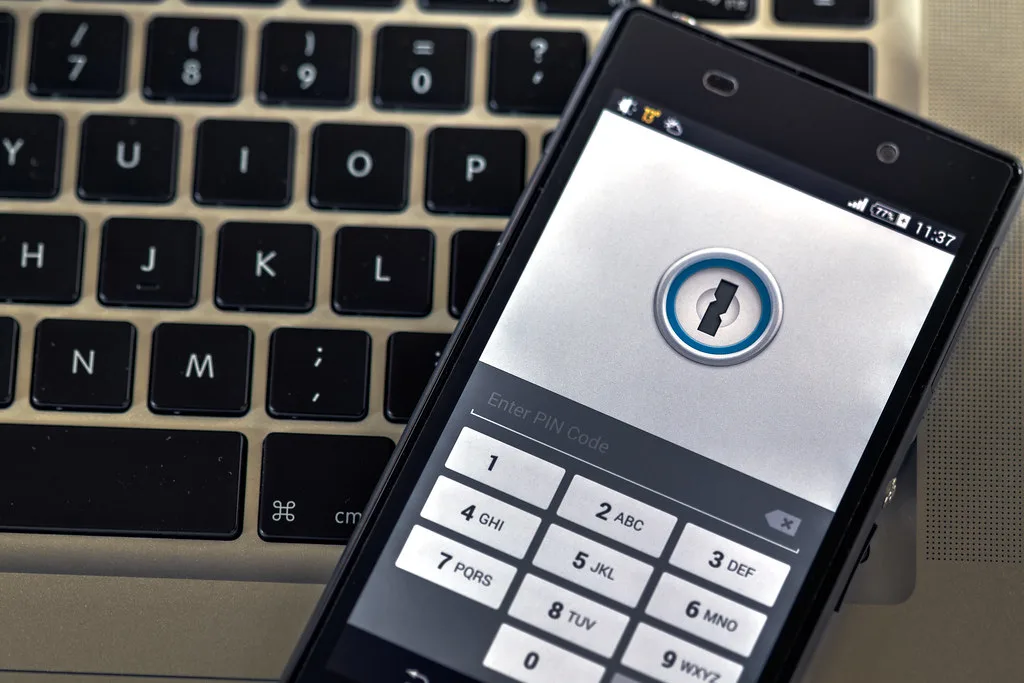
Cover image: Phone security by Ervins Strauhmanis, licensed under BY 2.0 via Openverse.