If you use Chrome, Edge, Firefox, or Safari, you already have a password manager. It offered to save your logins the first time you signed into a site, and you probably said yes. That convenience is exactly why roughly 4 in 10 people who use a password manager never install a separate app at all. The browser is right there, it's free, and it works.
But convenient and safe are not the same thing. Browser password managers have quietly gotten better over the last few years, while dedicated apps like Bitwarden and 1Password have quietly gotten cheaper and more capable. The gap between them is narrower than it was in 2018, but it still exists, and it shows up in specific, measurable ways: how your vault is encrypted, what happens if malware lands on your machine, and whether you can actually leave without losing everything.
I've run both setups for years across Windows, macOS, and Android. In this piece I'll break down the real security differences in the browser password manager vs dedicated app debate, walk through a concrete migration scenario with real numbers, and give you a framework for deciding which one fits your threat model. No fear-mongering, no "just trust the cloud." Just the tradeoffs as they actually are.
Key Takeaways
- Dedicated managers are generally safer because of a stricter master password, cross-app autofill, and a security model separated from your browser process.
- Browser managers are "safe enough" for most low-risk users — as long as you enable a device passcode and a strong OS account password.
- The biggest browser risk isn't encryption, it's autofill phishing and unlocked-by-default vaults tied to your logged-in browser profile.
- Passkeys are changing the game, and both camps now support them, but portability still favors dedicated apps.
- Whatever you choose, turn on the app's own master password or PIN, use MFA, and never sync an unencrypted export file.
- Migrating between managers is safer and cleaner than most people expect if you follow a checklist and delete the export afterward.
What a Password Manager Actually Does (and Where It Can Fail)
A password manager has three jobs: store credentials securely, fill them in when you need them, and generate strong new ones. The security question comes down to how each of those jobs is done and who can intercept them.
Every reputable manager, browser-based or standalone, encrypts your vault. The differences are in the details:
- Encryption strength: Modern managers use AES-256 or XChaCha20 with strong key derivation (PBKDF2 with high iteration counts, or Argon2). Browser managers often use lighter key derivation because the vault is tied to your OS or browser account, not a separate password.
- The unlock model: A dedicated app usually locks behind a master password you type. A browser manager is often unlocked automatically the moment you're signed into the browser.
- Autofill scope: Browser managers only fill inside that browser. Dedicated apps fill in other browsers, desktop apps, and mobile apps.
That last point about the unlock model is the crux. If your browser vault unlocks automatically whenever your Google or Microsoft account is signed in, then anyone who reaches your unlocked machine — or any malware running under your user account — can read your passwords in plaintext. A dedicated app that auto-locks after five minutes puts a real wall in the way.
Browser Password Manager vs Dedicated App: The Honest Comparison
Here's how the two approaches stack up on the criteria that actually affect your security and daily use. I've included the leading dedicated apps as a group because their models are broadly similar.
| Criteria | Browser Manager (Chrome, Edge, Safari) | Dedicated App (Bitwarden, 1Password, KeePassXC) |
|---|---|---|
| Encryption | AES-256, keyed to OS/browser account | AES-256 / XChaCha20 with Argon2 or high-iteration PBKDF2 |
| Master password | Optional (Chrome offers "on-device encryption") | Required, separate from everything else |
| Auto-lock | Rare by default; tied to browser session | Configurable, often on by default |
| Cross-app autofill | Browser only | Browsers, desktop apps, mobile apps |
| Passkey support | Yes, improving fast | Yes, with easier cross-device sync |
| Export / portability | Basic CSV, sometimes limited | Full encrypted and CSV export, easy migration |
The short version: dedicated apps win on security depth and portability. Browser managers win on zero-friction convenience. For a lot of readers, the deciding factor is whether you'll actually use the security features you're paying for.
The Real Threats: What Attackers Actually Target
Encryption strength is rarely how people lose their passwords. The real-world attack paths look different, and understanding them tells you which manager protects you better.
1. Malware that reads your browser profile
Infostealer malware like RedLine and Raccoon has one job: grab the local browser profile, decrypt saved passwords using the OS keychain, and exfiltrate them. Because browser vaults are often unlocked whenever you're logged into your OS, this attack works fast. A dedicated app with a separate master password and auto-lock significantly raises the bar — the malware grabs an encrypted blob it can't easily open.
This is the same category of risk as malicious extensions. If you haven't reviewed what your add-ons can access, our guide on how to audit browser extension permissions before you install is worth ten minutes.
2. Autofill phishing
Both types of manager can be tricked into filling credentials on a lookalike page if URL matching is sloppy. Dedicated apps tend to have tighter domain matching and let you disable auto-submit. This matters because many people paste API keys and secrets into insecure fields too — a habit worth breaking with a secure snippet tool like LionPaste rather than a plain notes app.
3. Malicious or over-permissioned extensions
AI-powered browser extensions in particular request broad access to page content, which can include what you type into login forms. We covered the specifics in how to lock down AI browser extensions before they leak your data. A dedicated app that lives outside the browser process is inherently less exposed to a rogue extension.
4. Shoulder surfing and shared machines
On a shared or family computer, a browser signed into one account exposes that person's whole vault to anyone who sits down. Dedicated apps with per-session locking handle shared machines far more gracefully.
A Worked Example: Migrating 47 Passwords Off the Browser
Let's make this concrete. Say you have 47 saved logins across 12 services in Chrome, including your bank, two email accounts, a work SSO, and a pile of shopping sites. You've decided the browser's auto-unlock behavior worries you and you want to move to a dedicated app. Here's exactly how I'd do it.
- Audit first. Open
chrome://password-manager/checkupand run the built-in checkup. In a typical set of 47 logins you'll find 8–15 reused passwords and 3–5 flagged in known breaches. Note them — you'll fix these during migration, not before. - Export from Chrome. Go to
chrome://password-manager/settings, choose Export passwords, and authenticate. You get a plaintext CSV. Treat this file as radioactive. - Import into the dedicated app. In Bitwarden or 1Password, use the CSV import option and map the columns. All 47 entries land in one pass.
- Rotate the weak ones immediately. For each of the ~12 reused or breached logins, generate a fresh 20-character password in the new app and update it at the source site. This is the step people skip, and it's the whole point.
- Set the master password and auto-lock. Choose a long passphrase (four to five random words beats a short complex string), enable Argon2 if available, and set auto-lock to 5 minutes or "on system lock."
- Turn off browser saving. Back in
chrome://settings, disable Offer to save passwords and Auto Sign-in so you don't end up with two half-synced vaults. - Delete the CSV and empty the trash. Then delete the saved passwords from Chrome once you've confirmed everything works in the new app.
Before: 47 logins, roughly a quarter of them weak, all auto-unlocking with your browser session. After: the same 47 logins encrypted behind a master password, the worst dozen rotated, and no plaintext export lingering on disk. That entire process takes about 40 minutes.
If you're moving passkeys as well as passwords, the process has a few extra steps. Our walkthrough on how to safely migrate passwords and passkeys between managers covers those in detail.
When a Browser Password Manager Is Actually Fine
I'm not going to pretend the browser option is worthless. For a lot of people it's a reasonable choice, and pushing them toward complexity they won't maintain does more harm than good.
A browser manager is genuinely fine if all of these are true:
- Your device has a strong login password or biometric lock, and it auto-locks when idle.
- You've enabled on-device encryption in Chrome (or the equivalent), which adds a passphrase separate from your Google account.
- You use MFA on your Google/Microsoft/Apple account, ideally with a hardware key.
- You don't share the machine.
- You mostly log into websites, not desktop or mobile apps.
Turn on on-device encryption and you close the single biggest browser gap. The catch: it's a one-way switch on some platforms, and if you forget the passphrase, those passwords are gone. That's the tradeoff dedicated apps make explicit and browsers hide.
When You Should Move to a Dedicated App
Switch to a standalone manager if you check any of these boxes:
- You store more than website logins — API keys, software licenses, secure notes, recovery codes.
- You use multiple brow
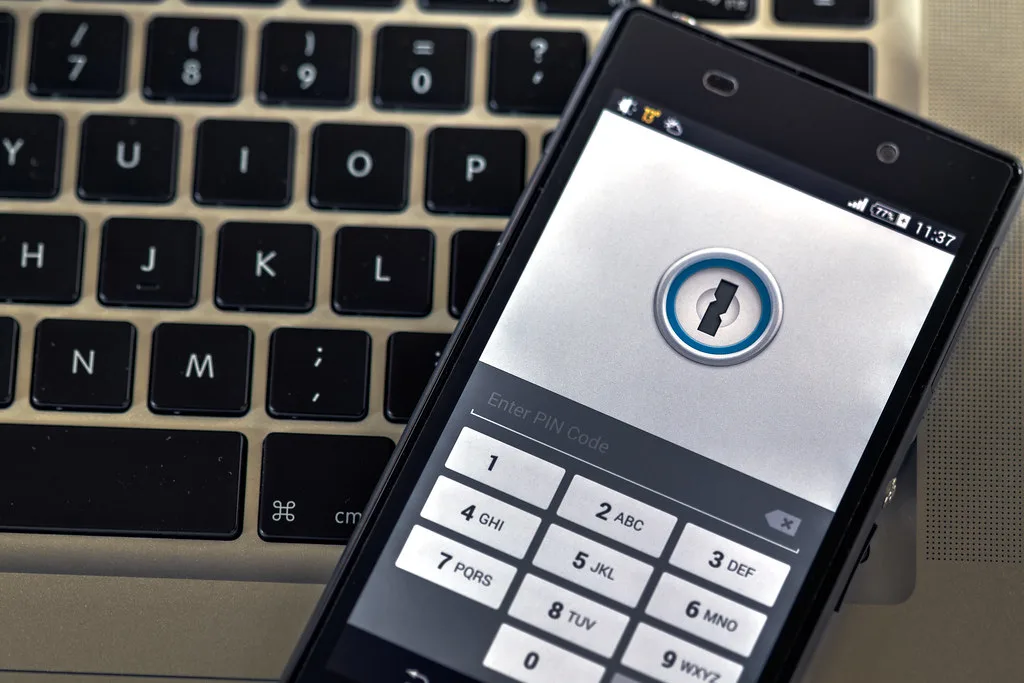
Cover image: Phone security by Ervins Strauhmanis, licensed under BY 2.0 via Openverse.