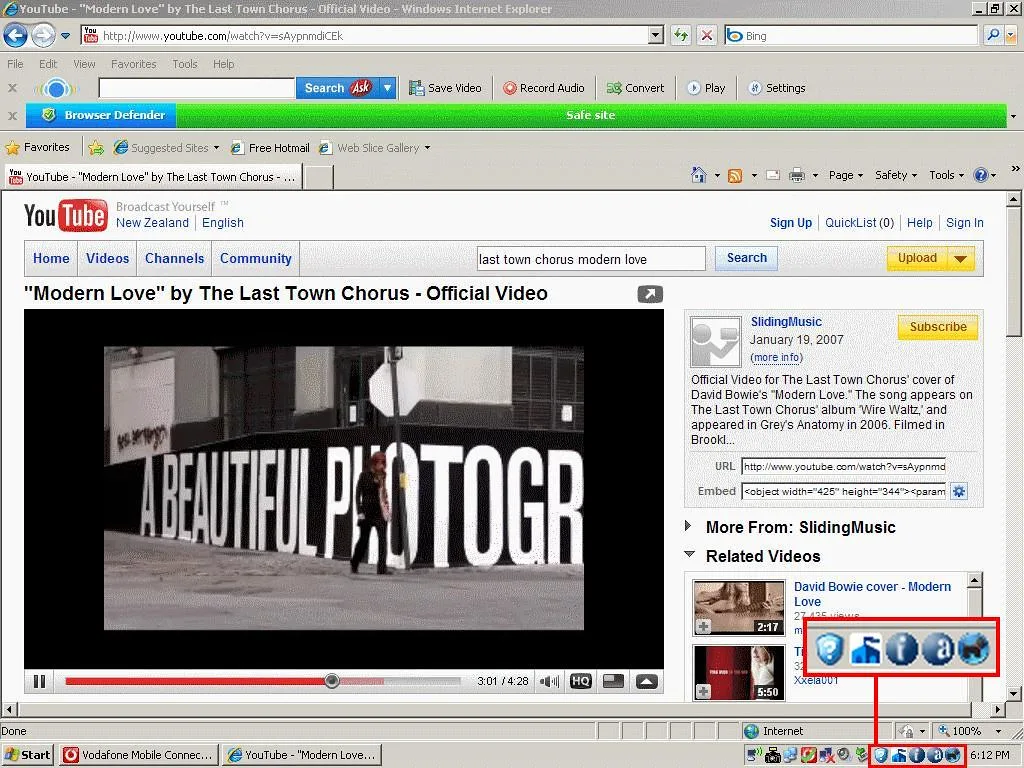
You installed a PDF converter last Tuesday. This morning your searches redirect through a domain you've never heard of, your homepage has changed, and there's a shopping helper injecting coupon popups into every checkout page. You never approved any of that. Welcome to the world of silently installed browser extensions, where a single careless click on a "free" tool can drag five other passengers into your browser without asking.
Here's a number that should worry you: security researchers who audited the Chrome Web Store have repeatedly found that a meaningful slice of extensions request permissions far beyond what their stated function needs, and many popular add-ons quietly change hands to new owners who monetize the existing user base with injected ads, affiliate hijacking, or outright data theft. The extension you trusted in 2022 is not necessarily the extension running in your browser today.
This guide walks you through exactly how to detect, investigate, and remove malicious browser extensions across Chrome, Edge, Firefox, and Brave, plus how to stop them from coming back. You'll get a real diagnostic walkthrough, a comparison of the tools that matter, and a hardening checklist you can run in fifteen minutes.
Key Takeaways
- Silently installed extensions usually arrive bundled with freeware installers, cracked software, or via "sideloading" registry keys and enterprise policies.
- Audit your extensions monthly. Sort by permissions, not by name, and delete anything you can't explain in one sentence.
- Symptoms to watch for: changed homepage/search engine, injected ads, redirected links, new toolbars, and browser slowdowns.
- Removing the extension isn't always enough — you often need to clear a registry key, policy, or scheduled task that reinstalls it.
- Prevention beats cleanup: vet permissions before install, disable developer-mode sideloading, and keep your endpoint and site defenses current.
What "Silently Installed" Actually Means
A silently installed extension is one that appears in your browser without you clicking "Add to Chrome" or its equivalent. It got there through a side channel. Understanding those channels is half the battle, because each one has a different removal path.
The four most common infection routes
- Bundled installers. You download a "free" video downloader or PDF tool. The installer offers a pre-checked box, buried on step 3, that adds a "search enhancement" extension. Most people click Next without reading.
- Registry-based sideloading (Windows). Malware writes a key under
HKLM\Software\Google\Chrome\Extensionsor the Edge equivalent. On next launch, the browser dutifully installs the listed extension ID. - Enterprise / group policy abuse. Attackers set a
ExtensionInstallForcelistpolicy so the extension can't even be removed from the normal UI. The Remove button is greyed out and shows "Installed by your organization." - Malicious updates to legitimate extensions. A trusted extension is sold or hijacked, and a routine auto-update turns it hostile. Nothing new appears in your list. The threat is already inside.
That last route is the sneakiest, which is why simply "not installing junk" doesn't fully protect you. You need ongoing hygiene, the same way you'd audit browser extension permissions before you install anything new.
How to Detect Malicious Browser Extensions
Before you delete anything, take inventory. You want a clear picture of what's installed, what each item can do, and which ones you never consciously added.
Symptoms that suggest a hidden extension
- Your search engine or homepage changed and reverting it doesn't stick.
- New ads appear on sites that don't normally run them (or extra ads layered on top).
- Clicking a Google result briefly bounces through an unfamiliar redirect domain.
- A toolbar, "shopping assistant," or "coupon finder" you don't remember installing.
- The browser feels sluggish and RAM usage spikes even with few tabs open.
- An extension shows "Installed by your organization" on a personal machine.
A worked example: auditing 18 extensions in 10 minutes
Say you open your extensions page and find 18 installed extensions. That's actually common; people accumulate them like browser tabs. Here's how a real audit shakes out.
- You recognize and use 6 of them daily (password manager, ad blocker, grammar tool, etc.). Keep.
- 4 are things you installed once for a specific task and forgot. You haven't used them in 90 days. Remove all 4.
- 5 you vaguely recognize but they request "Read and change all your data on all websites." Two of them were last updated 2 years ago. That stale, over-permissioned combination is a red flag. Investigate, then likely remove.
- 3 you genuinely do not recognize. One is named something generic like "Media View Helper." These are your prime suspects.
Result: you go from 18 to a defensible 6 to 8. That single pass typically cuts your attack surface by more than half and noticeably speeds up the browser.
Read the permissions, not the name
Names lie. Permissions don't. In Chrome, go to chrome://extensions, click Details on any extension, and read the Permissions and Site access sections. A weather widget that wants to "read and change all your data on all websites" is not a weather widget you should trust. This is the same logic we cover when explaining how to lock down AI browser extensions before they leak your data, since AI add-ons are among the hungriest for broad access.
Step-by-Step: How to Remove Malicious Browser Extensions
Follow these in order. The early steps handle normal extensions; the later steps handle the stubborn, policy-locked kind that keep reappearing.
Chrome and Brave
- Type
chrome://extensions(orbrave://extensions) in the address bar and press Enter. - Toggle on Developer mode (top right) so you can see each extension's ID, a 32-character string. Note the IDs of any suspects.
- Click Remove on each unwanted extension. Confirm.
- If Remove is greyed out and it says "Installed by your organization," skip to the policy and registry cleanup section below.
- Go to
chrome://settings/resetand choose Restore settings to their original defaults. This clears hijacked search engines and startup pages without deleting bookmarks or passwords. - Restart the browser and re-check the extensions list. If a suspect returns, it's being reinstalled by something on the system.
Microsoft Edge
- Open
edge://extensions. - Remove unwanted items. Edge also honors registry sideloading and policies, so treat "Installed by your organization" the same way as Chrome.
- Reset via
edge://settings/reset.
Firefox
- Open
about:addons, go to Extensions. - Click the three dots next to each add-on and choose Remove.
- If something won't leave, go to
about:supportand click Refresh Firefox, which resets add-ons and settings while keeping bookmarks and passwords.
Policy and registry cleanup (the reason it keeps coming back)
If an extension reappears after removal, something is reinstalling it. On Windows, open the Registry Editor (regedit) and check these locations for the suspect extension ID:
HKEY_LOCAL_MACHINE\SOFTWARE\Policies\Google\Chrome\ExtensionInstallForcelistHKEY_LOCAL_MACHINE\SOFTWARE\Google\Chrome\ExtensionsHKEY_CURRENT_USER\SOFTWARE\Google\Chrome\Extensions- The Microsoft Edge equivalents under
...\Policies\Microsoft\Edge\...
Delete the offending entries (back up the registry first). Then check Task Scheduler and your Windows startup programs for anything that reruns the installer. On macOS, look in ~/Library/Application Support/Google/Chrome/External Extensions and your Launch Agents. After clearing the source, remove the extension one more time and it should stay gone.
If you manage Windows machines and find yourself creating and cleaning up these paths often, a dedicated utility like Windows Symlink Creator Pro and the broader set of desktop utilities in our catalog can make navigating and scripting these filesystem locations far less painful.
Removal and Prevention Tools Compared
There's no single tool that does everything. Here's an honest comparison of the categories people reach for, scored on what actually matters.
| Approach | Detects hidden extensions | Removes policy-locked ones | Prevents reinstall | Effort | Best for |
|---|---|---|---|---|---|
| Built-in extensions page | Partial | No | No | Low | Quick manual cleanup |
| Browser "Reset settings" | No | No | No | Low | Undoing hijacked search/homepage |
| Registry/policy edit | Yes (manual) | Yes | Yes | High | Persistent, self-reinstalling threats |
| Reputable anti-malware scan | Yes | Sometimes | Partial | Medium | Bundled adware and droppers |
| Fresh browser profile | N/A | Yes | Yes (until reinfected) | Medium | Clean sl
Cover image: testing... by mkis, licensed under BY 2.0 via Openverse. |