Passkeys were supposed to be the end of the password nightmare. No more phishing, no more credential stuffing, no more sticky notes under the keyboard. And to a large degree, they deliver: a passkey is a cryptographic key pair where the private half never leaves your device, so there is nothing for an attacker to intercept over the wire. But here is the uncomfortable truth that vendors rarely put in their marketing decks: a passkey is only as safe as the software that stores and syncs it. When malware compromises the password manager or browser profile holding your passkeys, the whole "unphishable" promise starts to wobble.
In 2024 and 2025, security researchers documented a sharp rise in infostealer malware families like Lumma, RedLine, and StealC specifically retooled to scrape browser-based credential stores and sync tokens. One report tracked more than 10 million infostealer-infected devices in a single year, with browser data as the number-one target. Passkeys stored in a synced vault are not immune. If an attacker steals your vault's decryption context or hijacks your cloud sync session, they can potentially clone or abuse your authentication material.
This article is a practical field guide to protect passkeys from malware that hijacks password managers. You will learn exactly how these attacks work, how to choose storage that resists them, a step-by-step hardening walkthrough, and a comparison of the main passkey storage models so you can pick the right tradeoff for your threat level.
Key Takeaways
- Hardware-bound passkeys (security keys, Secure Enclave, TPM) resist malware far better than software vaults that sync in plaintext memory.
- Most passkey theft is actually session and sync-token theft, not cracking the cryptography. Protect the tokens.
- Turn on biometric or PIN gating for every passkey use so malware cannot silently authenticate in the background.
- Keep the device clean first: infostealers win at the OS layer, not the crypto layer.
- Audit your password manager's encryption model before trusting it with passkeys.
- Separate high-value accounts onto a dedicated hardware key you never plug into an untrusted machine.
What "Malware Hijacking a Password Manager" Actually Means
Let's clear up a common misconception. Malware almost never "breaks" the AES-256 encryption on your vault. That math is sound. Instead, attackers go around it. Here are the real attack paths, ranked by how often they show up in incident reports:
- Memory scraping while the vault is unlocked. When your password manager is open, decrypted secrets sit in RAM. Infostealers dump that memory and walk away with everything.
- Sync token / session cookie theft. Your browser and manager hold long-lived tokens that keep you logged into the cloud sync service. Steal the token and the attacker syncs your vault to their own machine.
- Malicious browser extensions. A rogue extension with the wrong permissions can read autofill fields and intercept WebAuthn calls.
- Keylogging the master password. Old-school, still effective. Once they have the master password plus the vault file, it's game over.
- Clipboard hijacking. Less relevant for passkeys, but devastating for the recovery codes people copy-paste.
Passkeys change the picture but do not erase it. A synced software passkey lives in the same vault infrastructure and is exposed to the same memory and token attacks. A hardware-bound passkey forces a per-use physical action, which is where malware usually gets stuck.
Why passkeys are still worth using
Even with these risks, passkeys eliminate the single biggest cause of account takeover: phishing. There is no shared secret to trick out of you. The goal here is not to scare you off passkeys but to close the remaining gap between "unphishable" and "actually safe on a compromised machine."
Passkey Storage Models Compared: Which One Resists Malware?
Not all passkeys are stored the same way, and the storage model is the single biggest factor in malware resistance. Here is how the main options stack up.
| Storage Model | Malware Resistance | Phishing Resistance | Cross-Device Sync | Recovery Ease |
|---|---|---|---|---|
| Hardware security key (FIDO2, e.g. YubiKey) | Very High | Very High | None (per key) | Low (need backup key) |
| Platform passkey (Secure Enclave / TPM, non-synced) | High | Very High | None | Medium |
| Synced platform passkey (iCloud Keychain, Google) | Medium | Very High | Full | High |
| Third-party password manager passkey (synced) | Medium | High | Full | High |
| Browser-profile passkey (no biometric gate) | Low | High | Varies | Medium |
The pattern is clear: the more the private key is bound to dedicated hardware and gated behind a physical or biometric action, the harder it is for malware to abuse. Convenience (sync everywhere) trades against resistance. That is a real tradeoff, not a flaw, and the right answer depends on the account.
A Worked Example: Splitting 47 Logins by Risk
Abstract advice is easy to nod along with and hard to act on, so let's run real numbers. Say you have 47 accounts spread across 12 services, and you decide to move to passkeys. Dumping all 47 into one synced vault is the convenient move, but it means one compromised device exposes everything. Instead, sort them into three tiers:
- Tier 1 — Crown jewels (5 accounts): primary email, password manager account itself, banking, cloud infrastructure, domain registrar. These get hardware security keys. Two keys each: one daily, one in a safe as backup.
- Tier 2 — Important (14 accounts): work SaaS, social media with wide reach, secondary email. These use platform passkeys with mandatory biometric gating, synced only within one ecosystem.
- Tier 3 — Everything else (28 accounts): forums, shopping, media subscriptions. Synced passkeys in your password manager are fine. The blast radius is small.
Before: one infostealer infection = 47 accounts at risk. After: the same infection reaches at most the Tier 3 vault (28 accounts), and your email, money, and infrastructure stay behind hardware you never plugged into the compromised machine. That is a 40% reduction in exposure for your most sensitive five accounts and, more importantly, a categorical firewall around the accounts that could ruin your week.
How to Protect Passkeys From Malware: A Step-by-Step Hardening Walkthrough
Here is the sequence I actually follow when setting up a new machine or auditing an existing one. Work top to bottom.
Step 1: Clean the device before you trust it with anything
Passkey security assumes the endpoint is not already owned. Run a reputable full-system scan, check for unknown startup items and browser extensions, and confirm your OS is fully patched. If you clone code or dev tools regularly, be especially careful about supply-chain compromises. Our guide on spotting trojanized GitHub repos before you clone them covers a common infection route developers overlook.
Step 2: Audit your password manager's encryption model
Before you store a single passkey in a third-party manager, understand how it encrypts and where decrypted data lives. Does it clear the vault from memory on lock? Does it use zero-knowledge sync? Walk through our checklist on how to audit your password manager's encryption before you trust it so you are not guessing.
Step 3: Enable biometric or PIN gating on every passkey use
This is the highest-leverage setting most people skip. Configure your OS and manager so that every passkey assertion requires Touch ID, Face ID, Windows Hello, or a PIN. This is called user verification in WebAuthn terms. It means malware cannot silently authenticate in the background even if it can reach the credential, because it can't fake your fingerprint on demand.
Step 4: Move crown-jewel accounts to hardware keys
- Buy two FIDO2 security keys from different form factors (one USB-C, one USB-A or NFC).
- Register both on each Tier 1 account before you remove any other method. A single key is a lockout waiting to happen.
- Store the backup key somewhere physically secure and offline.
- Remove SMS-based fallback where possible; SIM swapping defeats the purpose.
Step 5: Lock down the browser attack surface
Browser extensions are a favorite malware vector because they can read page content and intercept autofill. Remove anything you don't actively use, and vet the rest against permissions. Our walkthrough on how to vet browser extensions before installing them in 2026 shows exactly which permission flags should stop you cold.
Step 6: Isolate sync tokens
Sign out of cloud sync sessions on devices you no longer use. Set your manager to require re-authentication after a short idle timeout instead of staying unlocked for days. The shorter the window a token is live, the smaller the window for token theft.
Step 7: Manage your credentials safely without cloud dependence
When you need to share a secret or note across your own machines without pushing it through a third-party cloud, use a self-hosted, encrypted option. Tools like LionPaste let you keep sensitive text under your own control rather than pasting it into services that may log or index it, which pairs well with the advice in our piece on how to stop AI chat leaks and keep your prompts out of search.
The Sync-Token Problem Nobody Talks About
Here is the part that surprises even technical users. Most "passkey theft" incidents are not attacks on passkeys at all. They are attacks on the
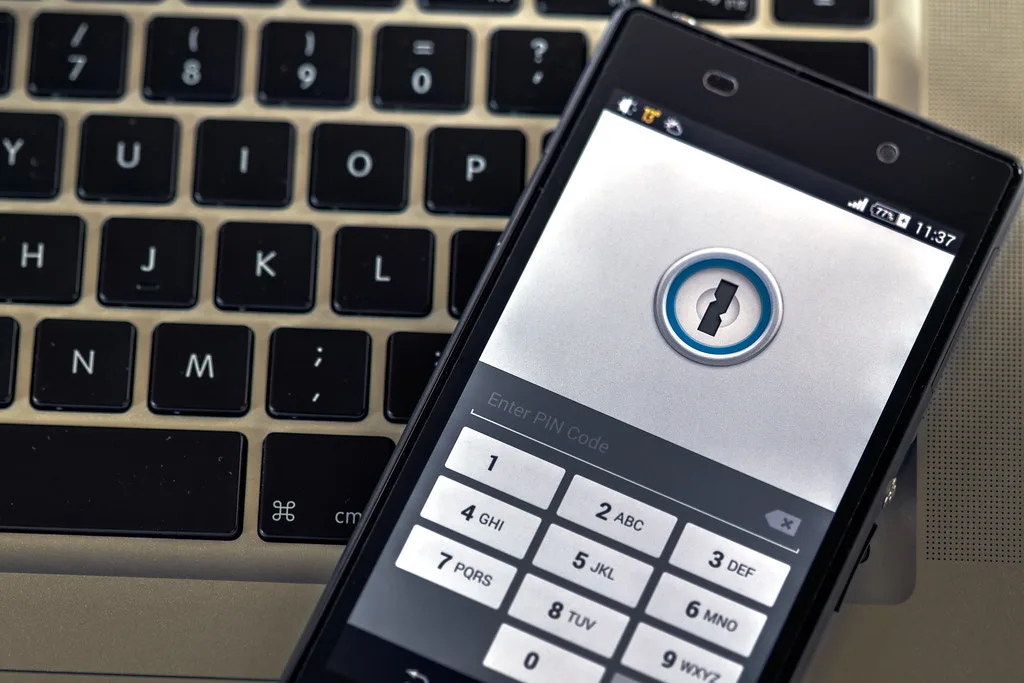
Cover image: Phone security by Ervins Strauhmanis, licensed under BY 2.0 via Openverse.