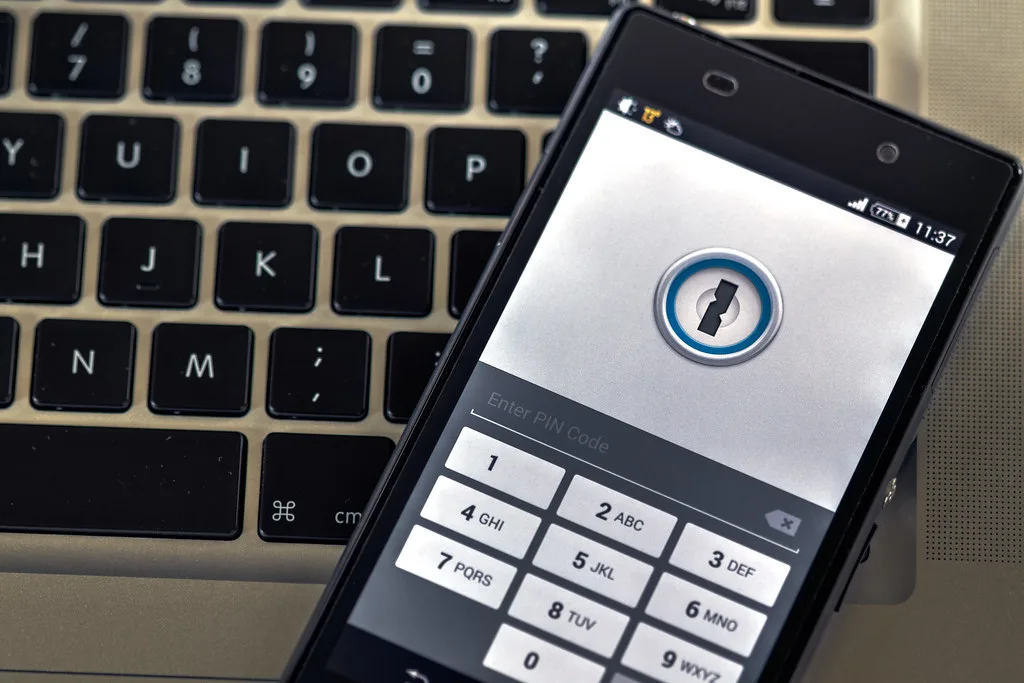
You did the responsible thing. You stopped reusing the same password across 40 accounts, signed up for a password manager, and let it generate a wall of random 20-character strings you'll never memorize. That single move puts you ahead of most internet users. But here's the uncomfortable follow-up question almost nobody asks: do you actually know how your password manager encrypts your data?
Most people don't. A 2022 breach at a major password manager exposed the fact that some vault fields were not encrypted at all, including website URLs stored in plaintext. Attackers walked away with copies of encrypted vaults and, thanks to those unencrypted metadata fields, a roadmap of exactly which high-value sites each victim used. Encryption is only as good as its weakest configured link, and marketing pages love to say "military-grade AES-256" while staying quiet about everything that surrounds it.
This guide walks you through a real password manager encryption audit you can run yourself, even if you're not a cryptographer. You'll learn what to look for, which specific claims to verify, how to test locally, and how to compare popular tools on the criteria that actually matter. By the end, you'll trust your vault because you checked it, not because a landing page told you to.
Key Takeaways
- AES-256 alone means nothing. The key derivation function (KDF) and its iteration count decide how hard your master password is to crack.
- Zero-knowledge is a testable claim, not a slogan. Verify that the server never receives your master password or plaintext.
- Encrypted-by-default should cover metadata, not just password fields. URLs, notes, and file attachments matter.
- Open source or a published audit beats "trust us" every time. Look for a named auditor and a dated report.
- Run a local test: capture traffic, inspect the exported vault file, and confirm it's genuinely unreadable ciphertext.
- Your master password is the real ceiling. No KDF saves a 9-character password from a determined attacker.
What "encryption" actually means in a password manager
When a vendor says your data is "encrypted with AES-256," they're describing the symmetric cipher that scrambles your vault. That part is genuinely strong. AES-256 has no practical brute-force attack. The problem is that the cipher is the least interesting part of the story.
The chain that protects your secrets has several links, and any one of them can be the weak spot:
- The master password you type in.
- The key derivation function (KDF) that stretches that password into an encryption key.
- The cipher and mode (AES-256-GCM, XChaCha20-Poly1305) that encrypt the vault.
- What data gets encrypted versus stored as plaintext metadata.
- Where decryption happens (your device, ideally, not the server).
A password manager can advertise AES-256 and still be weak if it uses a fast, outdated KDF like a single round of SHA-256. That's like buying a bank vault door and mounting it on a cardboard wall.
Zero-knowledge, defined plainly
A zero-knowledge architecture means the vendor's servers never see your master password or your decrypted data. Encryption and decryption happen on your device. The server only ever stores and syncs an opaque blob it cannot read.
The test for this claim is simple: if you forget your master password and the company can reset it and restore your data, it is not truly zero-knowledge. Real zero-knowledge means a forgotten master password equals permanently lost data (barring a local recovery key you control).
The 8-point password manager encryption audit
Here's the checklist I run before trusting any vault with my life's logins. You can do most of it in under an hour, no special tools required.
- Confirm the KDF and iteration count. Look in the security whitepaper or app settings. You want PBKDF2 with at least 600,000 iterations (OWASP's 2023 baseline), or ideally Argon2id, which resists GPU cracking far better.
- Verify the cipher and mode. AES-256-GCM or XChaCha20-Poly1305 are both excellent. Authenticated encryption (the GCM or Poly1305 part) matters because it detects tampering.
- Check what's encrypted. Read the docs for a data model. Are URLs, titles, notes, and attachments encrypted, or just passwords? Encrypted-everything is the standard you want.
- Test the zero-knowledge claim. Try the "forgot master password" flow. If they can fully recover your vault without a device-held recovery key, decryption keys touch their servers.
- Find a third-party audit. Search for a named security firm (Cure53, Trail of Bits, NCC Group) and a dated report. "Independently audited" with no link is a red flag.
- Inspect the exported vault. Export an encrypted backup if the tool allows it, then open the file in a text editor. It should be indistinguishable from random bytes.
- Capture network traffic. Use a tool like Wireshark or your browser's dev tools to confirm the app sends ciphertext, not plaintext credentials, during sync.
- Review the breach and disclosure history. How did the vendor handle past incidents? Transparency and prompt disclosure count more than a spotless record that might just mean poor detection.
This mirrors the same skeptical process we recommend in our guide on how to audit WordPress security plugins before you trust them. The instinct is identical: verify the mechanism, don't accept the badge.
A worked example: how your master password holds up
Let's make this concrete. Say you have 47 passwords across 12 services, all sitting inside a vault protected by a single master password. An attacker steals the encrypted vault file (maybe from a server breach). Now it's a race between their hardware and your KDF.
Cracking speed depends on two things: how weak your master password is, and how expensive the KDF makes each guess. Consider three scenarios with the same stolen vault:
| Scenario | Master password | KDF setting | Approx. crack time* |
|---|---|---|---|
| Weak setup | Summer2024! (11 chars, common pattern) |
PBKDF2, 10,000 iterations | Hours to days |
| Better password, weak KDF | 4 random words | PBKDF2, 10,000 iterations | Months to years |
| Strong setup | 4 random words | Argon2id, high memory cost | Centuries+ |
*Rough estimates for illustration, assuming a well-funded attacker with GPU clusters. Real numbers vary with hardware.
The lesson: a strong master password plus a modern KDF turns "weekend project" into "not worth attempting." The same password with a lazy 10,000-iteration KDF is a much softer target. This is exactly why step one of your audit is checking iteration counts, and why raising them (many tools let you) is a five-minute upgrade.
The before/after
Before: master password Summer2024!, default 10,000 PBKDF2 iterations. A leaked vault is realistically crackable.
After: master password correct-battery-marble-hinge-quilt (five random words), KDF bumped to Argon2id or 600,000+ PBKDF2 iterations. The same leaked vault becomes economically pointless to attack. Two settings changes moved you across the line.
How popular password manager encryption models compare
Not every reputable tool makes the same tradeoffs. Here's a simplified comparison across the criteria that come up most in a real audit. Verify current specifics against each vendor's whitepaper, since defaults change over time.
| Criteria | Bitwarden | 1Password | KeePassXC | Proton Pass |
|---|---|---|---|---|
| Default cipher | AES-256-CBC | AES-256-GCM | AES-256 / ChaCha20 | AES-256-GCM |
| KDF options | PBKDF2 / Argon2id | PBKDF2 + Secret Key | Argon2id | Argon2 |
| Open source | Yes | Client partially | Yes | Yes |
| Zero-knowledge | Yes | Yes | Local file (you sync it) | Yes |
| Public audits | Yes (multiple) | Yes | Community + audits | Yes |
| Metadata encrypted | Most fields | Most fields | Full DB encrypted | Most fields |
KeePassXC is the outlier worth noting: it's a fully local, offline vault where you control the encrypted database file and how it's synced. That removes the vendor-server risk entirely, at the cost of convenience. If you're the kind of person who already manages your own desktop utilities and doesn't mind handling sync yourself, it's an excellent, auditable choice.
How to actually test your vault locally
Reading whitepapers is good. Verifying with your own eyes is better. Here's a hands-on procedure that takes about 20 minutes.
Step 1: Export and inspect the encrypted vault
- In your password manager, find the option to export an encrypted backup (not the CSV export, which is plaintext and dangerous to leave lying around).
- Open the exported file in a plain text editor like Notepad++ or VS Code.
- You should see gibberish: no readable URLs, no email addresses, no recognizable words. If you can read even part of it, that's a serious problem.
- Delete the file securely afterward if it was a plaintext export you created for testing.
Step 2: Watch
Cover image: Phone security by Ervins Strauhmanis, licensed under BY 2.0 via Openverse.