
If you use the same password on more than one site, you already know the feeling: a quiet dread every time a breach hits the news. You are not paranoid. In the last few years, credential-stuffing attacks have become the single most common way accounts get compromised, and the raw material for those attacks is billions of leaked username and password pairs traded openly online. The uncomfortable truth is that human memory was never built to secure 100+ accounts, and reusing one clever password across all of them is exactly what attackers count on.
Here is the surprising part. A 2025 analysis of leaked credential dumps found that a majority of reused passwords were not weak in the traditional sense. They contained numbers, symbols, and mixed case. They failed because they were shared across services, not because they were short. That single insight reframes the whole conversation. The problem in 2026 is not password strength. It is password uniqueness and where those passwords live.
This article breaks down what current research reveals about password manager security: how the major architectures actually protect your data, where the real risks are, how the leading tools compare, and a step-by-step plan to migrate without losing anything. I have used most of these tools daily for years, so I will be honest about the tradeoffs too.
Key Takeaways
- Zero-knowledge encryption is the baseline, not a premium feature. If a vendor can read your vault, walk away.
- Reuse, not weakness, is the top failure mode. A password manager's real job is generating unique credentials for every account.
- Your master password and 2FA are the only two things that matter for account safety. Everything else is secondary.
- Cloud vs. local storage is a genuine tradeoff, not a settled debate. Choose based on your threat model.
- Passkeys are complementary, not a replacement for password managers in 2026. Most people need both.
- Audit your browser extensions, because a malicious add-on can read what your manager autofills.
What Password Manager Security Actually Means
At its core, a password manager stores your login credentials in an encrypted database called a vault. When you need a password, you unlock the vault with a single master password (or biometric shortcut), and the tool autofills the right credential. That is the surface. The security lives underneath.
The term you want to understand is zero-knowledge architecture. It means your vault is encrypted and decrypted on your own device, using a key derived from your master password. The vendor never sees your master password and cannot decrypt your vault. Even if their servers are breached, attackers get scrambled ciphertext.
The encryption standard doing the heavy lifting is AES-256, paired with a key-derivation function such as PBKDF2 or the more modern Argon2id. Key derivation matters more than most people realize. It deliberately slows down each guess of your master password, so brute-forcing becomes economically pointless.
The three questions that reveal a vendor's real security
- Is decryption done client-side? If the answer is no, the vendor can read your data.
- What key-derivation function and iteration count do they use? Argon2id or PBKDF2 with 600,000+ iterations is what you want in 2026.
- Have they published independent security audits? Vague claims of "bank-grade security" mean nothing without a third-party report.
Cloud vs. Local vs. Browser: How the Architectures Compare
There are three broad models, and the "best" one depends entirely on what you are defending against. A freelancer worried about phishing has a different threat model than a company handling regulated data under ISO 27001 compliance requirements.
| Criteria | Cloud manager (e.g. Bitwarden, 1Password) | Local vault (e.g. KeePassXC) | Browser built-in (Chrome, Safari) |
|---|---|---|---|
| Sync across devices | Automatic, encrypted | Manual or self-hosted | Automatic within one ecosystem |
| Zero-knowledge encryption | Yes, by design | Yes, file stays local | Partial, tied to your account |
| Attack surface | Vendor servers + your device | Your device only | Browser + linked account |
| Ease of use | High | Moderate to technical | Very high |
| Best for | Most individuals and teams | Privacy purists, air-gapped setups | Casual users, low-value accounts |
My honest take after years of testing: cloud managers with proven zero-knowledge encryption are the right choice for most people. The convenience of sync is what keeps you actually using unique passwords everywhere. A local vault is more private in theory, but if the friction pushes you back to reusing passwords, you have lost the security game entirely.
Browser-built-in managers have improved dramatically, but they lock you into one ecosystem and expand the browser's already-large attack surface. If you go that route, at minimum you should be auditing your browser extension permissions regularly.
A Worked Example: The Real Cost of Password Reuse
Let me make this concrete. Say you have 47 online accounts across banking, email, shopping, social, and work tools. You reuse 3 core passwords across them, rotating slightly (adding a "1" or a "!" at the end). This is extremely common, and it feels safe. It is not.
Here is the failure chain:
- A minor site you signed up for in 2021 gets breached. It stored passwords with weak hashing, so attackers recover your plaintext password:
Summer2021! - Automated tools take that email and password and try it against 500 popular services. This is credential stuffing, and it runs in minutes.
- Your reused password matches your email account. Now the attacker owns your inbox.
- They trigger "forgot password" flows on your bank, PayPal, and Amazon. Reset links land in the inbox they now control.
- Within an hour, your rotated variants (
Summer2021!1,Summer2022!) fall too, because the pattern is predictable.
Now the after scenario. You run a password manager. Each of those 47 accounts has a unique 20-character random password like k9#mZ2vQ!8rLpX4nT6wY. The 2021 breach exposes exactly one credential, for one dead site. Credential stuffing finds no matches anywhere else. The blast radius drops from 47 accounts to 1. That is the entire value proposition in one number.
The Real Risks in 2026 (And What Research Shows)
Password managers are dramatically safer than the alternative, but they are not magic. Recent security research and public incidents point to a few specific risk areas worth understanding.
1. Master password compromise
Your master password is the single key to everything. If it is weak, reused elsewhere, or phished, your whole vault is exposed. Research consistently shows this is the number one practical risk. The fix is a long passphrase you use nowhere else, combined with two-factor authentication.
2. Autofill and phishing
Some autofill implementations can be tricked by hidden form fields on malicious pages. Good managers only autofill when the domain matches exactly, which is actually a security advantage over humans, who happily type passwords into look-alike sites. Trust the manager's domain matching, and be suspicious when it refuses to autofill.
3. Clipboard exposure
Copying a password to the clipboard can leak it to other apps or to clipboard-history features. Reputable managers auto-clear the clipboard after 10 to 30 seconds. If you paste secrets often, tools designed for secure sharing like LionPaste handle sensitive text more carefully than a raw copy-paste.
4. Supply-chain and extension risk
A password manager is only as trustworthy as its code and its dependencies. This is why vetting matters, both for the manager itself and for the software around it. Before installing any security tool, it is worth vetting the open-source supply chain to understand what you are actually running.
How to Choose and Set Up a Password Manager: A Step-by-Step Walkthrough
This is the practical part. Follow these steps and you will go from vulnerable to genuinely well-protected in under an hour.
Step 1: Pick a manager with published audits
Shortlist tools that use AES-256, offer zero-knowledge encryption, and have published a third-party security audit within the last two years. Bitwarden, 1Password, and KeePassXC all qualify as of 2026. Read the audit summary, not just the marketing page.
Step 2: Create an uncrackable master password
Use a passphrase of at least four random words plus a number and symbol, for example copper-anchor-drizzle-lantern-7!. That is far stronger than P@ssw0rd and far easier to remember. Never reuse it anywhere, and never store it inside the vault it protects.
Step 3: Turn on two-factor authentication immediately
Enable 2FA using an authenticator app or a hardware key. Avoid SMS 2FA where possible, since SIM-swapping attacks defeat it. This one step blocks the vast majority of remote takeover attempts even if your master password leaks.
Step 4: Import and then clean up
Import passwords from your browser or old manager. Then run the built-in security audit, which flags reused, weak, and breached passwords. Do not try to fix all 47 at once. Prioritize in this order:
- Email accounts (they control every other reset)
- Financial and payment accounts
- Accounts flagged as appearing in known breaches
- Everything else, a few per week
Step 5: Replace weak passwords with generated ones
For each priority account, log in, change the password, and let the manager generate a 16-to-20-character random string. Save it, log out, and log back in to confirm autofill works. It feels tedious for the first five accounts and effortless after that.
Step 6: Set up emergency access
Decide what happens if you are unavailable. Most managers offer an emergency-access or legacy contact feature. For a more deliberate approach to passing on digital accounts, a dedicated tool like Lion
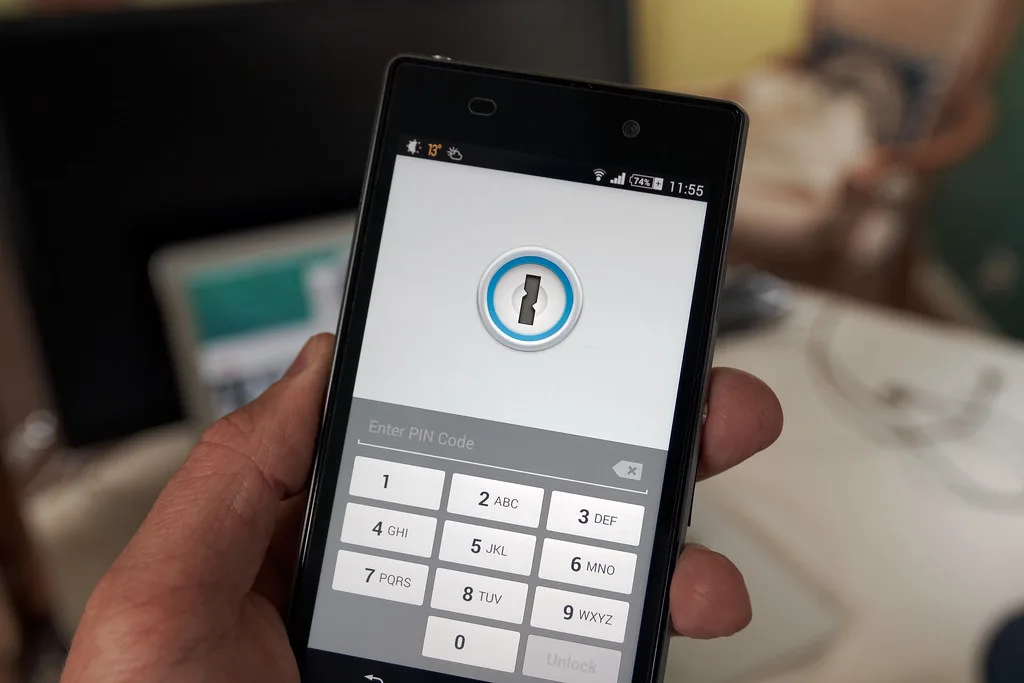
Cover image: Phone security by Ervins Strauhmanis, licensed under BY 2.0 via Openverse.







