Every year, thousands of Windows users hit the same wall. Their PC slows to a crawl, a forced update breaks something, or Microsoft ends support for a version they liked — and they start eyeing Linux. Then reality sets in: "What about my apps?" That single question has kept more people on Windows than any technical limitation ever has.
Here is the part nobody tells you. The vast majority of what you actually do on a Windows PC — browsing, email, documents, spreadsheets, photo editing, media, even a surprising amount of gaming — either runs natively on Linux or has a near-identical replacement. According to Steam's own hardware survey, Linux gaming compatibility jumped past 80% of the top titles once Proton matured. And tools like Wine and Bottles now run everything from Adobe-era software to niche accounting programs that shipped a decade ago.
This guide walks you through how to migrate Windows to Linux without abandoning the software you rely on. We'll cover which apps run natively, which need a compatibility layer, which need a virtual machine, and how to keep your files, workflows, and sanity intact along the way. No hand-waving — real steps, real numbers, real tradeoffs.
Key Takeaways
- Audit first, migrate second. List every app you actually open in a month before touching a single ISO.
- Roughly 70–80% of common apps have native Linux versions or drop-in equivalents (browsers, LibreOffice, GIMP, VLC).
- Use Wine or Bottles for stubborn Windows-only desktop software, and a virtual machine for anything that refuses to cooperate.
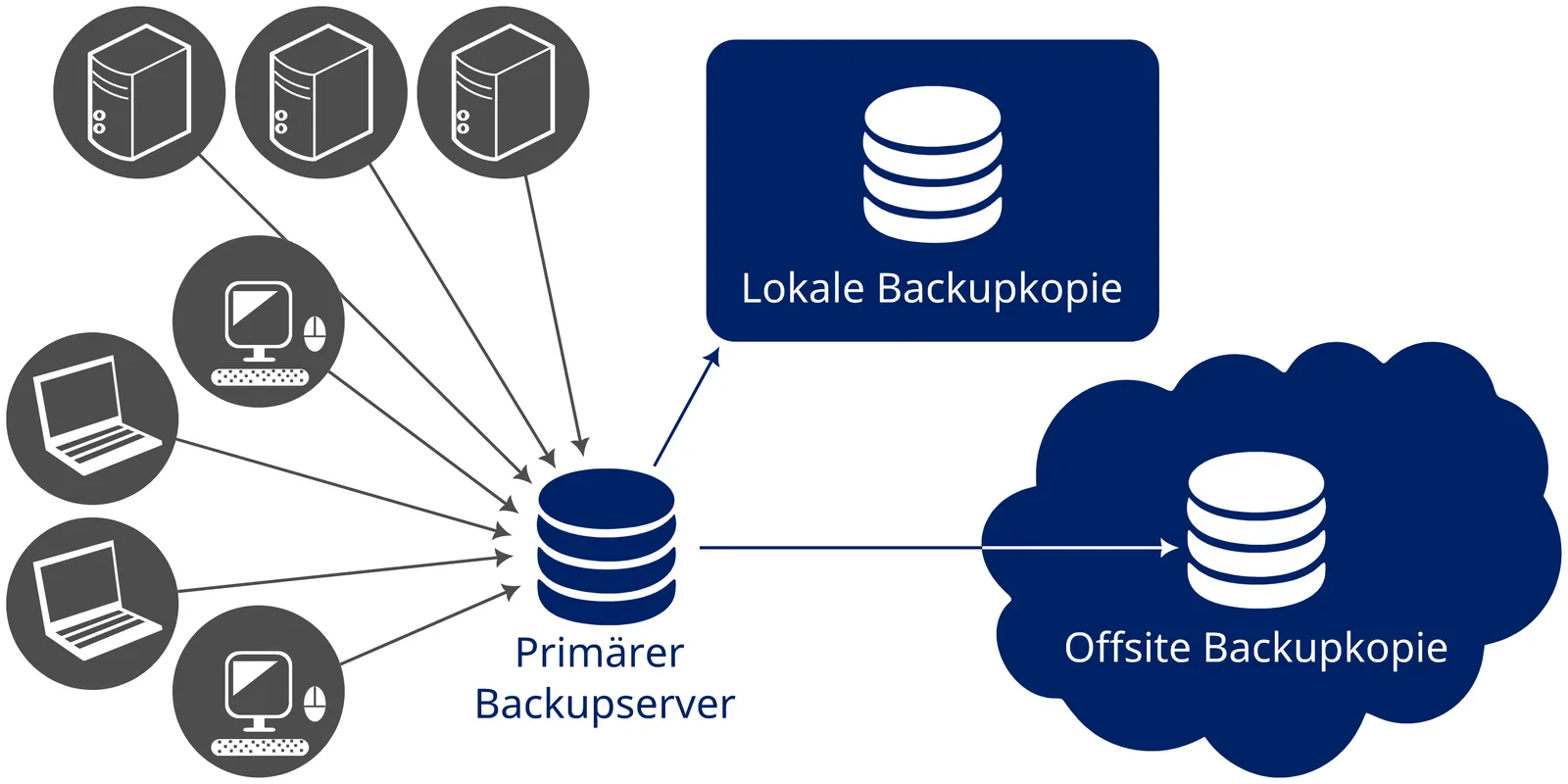
- Back up everything twice before you start — one local, one offsite — and verify the backups actually restore.
- Dual-boot for the first month so you always have a fallback while you build muscle memory.
- Gaming works better than its reputation suggests thanks to Steam Proton and Lutris.
Step 1: Audit Your Apps Before You Migrate Windows to Linux
The single biggest mistake people make is installing Linux first and figuring out apps later. Do it the other way around. Spend a week noticing what you actually launch.
Here's a concrete method. Open your Start menu and look at "Most used." Then open Task Manager → Startup apps and App history. Write down everything with real usage. Most people are stunned to find they open the same 12–15 programs repeatedly and never touch the other 40 installed on the machine.
Sort each app into one of four buckets
- Native Linux version exists — Chrome, Firefox, Spotify, VS Code, Discord, Slack, Zoom, OBS, Steam. Just download and go.
- A strong equivalent exists — Microsoft Office → LibreOffice or OnlyOffice; Photoshop → GIMP or Krita; Notepad++ → Kate; Adobe Premiere → DaVinci Resolve or Kdenlive.
- Runs through Wine/Bottles — many older Windows-only utilities, some games, legacy business software.
- Needs a Windows VM — apps with heavy hardware DRM, certain proprietary CAD tools, and a handful of banking or tax programs.
A worked example
Say you audit your machine and find 14 regularly used apps: Chrome, Outlook, Word, Excel, Photoshop, Spotify, VLC, Zoom, Steam (with 6 games), QuickBooks Desktop, a label-printer utility, WinRAR, Notepad++, and a password manager.
- Native on Linux (7): Chrome, Spotify, VLC, Zoom, Steam, most password managers, Notepad++ replaced by Kate.
- Direct equivalent (3): Word/Excel → LibreOffice or OnlyOffice, Photoshop → Krita, WinRAR → the built-in Archive Manager.
- Wine/Bottles (2): the label-printer utility and 5 of your 6 Steam games via Proton.
- Windows VM (2): QuickBooks Desktop and Outlook if you insist on the exact desktop client.
Out of 14 apps, only two truly need Windows. That is the typical result, and it is why migration is far less painful than the horror stories suggest.
Step 2: Choose the Right Linux Distribution
Not all Linux distributions are equally friendly to a Windows refugee. The "distro" is essentially the flavor of Linux — same kernel underneath, different defaults, desktop look, and software store. For someone leaving Windows, familiarity matters more than ideology.
| Distribution | Best for | Learning curve | Windows-like feel | App availability |
|---|---|---|---|---|
| Linux Mint (Cinnamon) | First-time switchers | Very low | Excellent | Huge |
| Ubuntu | General use, support | Low | Good | Largest |
| Zorin OS | People who want it to look like Windows | Very low | Excellent | Large (Ubuntu base) |
| Fedora | Developers, newer hardware | Medium | Moderate | Large |
| Pop!_OS | Gaming, NVIDIA users | Low | Moderate | Large |
My honest recommendation for most people leaving Windows: Linux Mint Cinnamon or Zorin OS. Both give you a taskbar, a start-menu equivalent, and a system tray that feel instantly familiar. Ubuntu is the safest bet if you want the biggest community and the most tutorials when something goes wrong.
If you're browsing options and comparing full desktop platforms, our operating systems category is a useful place to see what's available before you commit.
Step 3: Back Up Everything (Twice) Before You Touch Anything
This is the step people skip and later regret. Installing Linux can wipe your drive if you click the wrong button. Treat your data as if the migration will fail, and you'll be fine when it doesn't.
What to back up
- Your entire
C:\Users\YourNamefolder — Documents, Pictures, Desktop, Downloads. - Browser bookmarks and passwords (export or sync to your account).
- App-specific data: email archives (
.pstfiles), QuickBooks company files, save games, license keys. - A list of software license keys and activation emails.
The two-backup rule
Keep one copy on an external drive and one offsite in the cloud. If you want this to run automatically and encrypted, we walk through the full workflow in our guide on how to automate encrypted PC backups to local and cloud. Do a test restore of at least a few files before you wipe anything. A backup you haven't verified is a rumor, not a backup.
Step 4: Run Windows Apps on Linux With Wine, Bottles, and VMs
This is the heart of a painless migration. When a Windows-only program has no Linux version and no good equivalent, you have three tools, in order of preference.
Option A: Wine and Bottles (lightest weight)
Wine is a compatibility layer that translates Windows instructions into something Linux understands. It is not an emulator, so there's little performance penalty. Bottles is a friendly front-end that manages Wine environments for you.
- Install Bottles from your software store or Flatpak.
- Create a new "bottle" and choose the Application preset.
- Click Run Executable and point it at your Windows installer (
.exe). - Follow the normal installer, then launch the app from inside Bottles.
Before running any downloaded .exe, confirm it's the genuine installer and not a tampered copy. The same verification habits we describe in verifying packages against supply chain attacks apply here — check hashes and download only from the vendor.
Option B: Virtual machine (maximum compatibility)
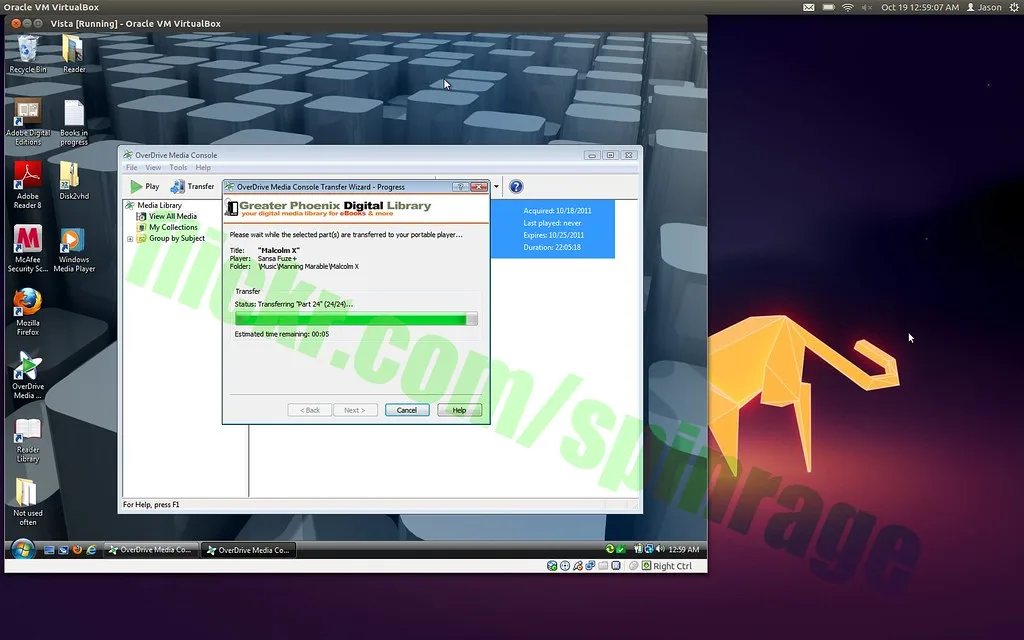
For software that genuinely requires Windows — think QuickBooks Desktop, certain tax filers, or hardware-locked tools — run a full copy of Windows inside a window on your Linux desktop using VirtualBox or GNOME Boxes. It's the same principle as running Windows apps on other platforms; the approach mirrors what we cover in safely running Windows apps on a Mac with virtual machines.
- Download a Windows ISO and install VirtualBox.
- Create a VM with at least 4GB RAM and 60GB disk.
- Install Windows inside it, then install your Windows-only apps normally.
- Enable shared folders so files move easily between Linux and the VM.
Option C: Web version
Don't overlook the obvious. Outlook, Office, and countless business tools now have full-featured web apps. If a browser tab does the job, that's zero migration effort. Explore what modern browser-based software can replace by browsing the web apps category.
Step 5: Handle Gaming, Symlinks, and Power-User Workflows
Two areas trip up experienced Windows users specifically: gaming and the little productivity hacks they've built over years.
Gaming on Linux is no longer a joke
Install Steam, open Settings → Compatibility, and enable Steam Play (Proton) for all titles. Many games "just work." For non-Steam games, Lutris and Heroic (for Epic and GOG) handle installation and patching. Check protondb.com before buying to see real-world compatibility ratings for a specific title. If you'd rather avoid compatibility headaches ent
Cover image: USB support in Vista in Virtualbox on Ubuntu!!! by spinrage, licensed under BY 2.0 via Openverse.