Most people believe they have backups. They have a cloud drive that syncs their Documents folder, maybe an external hard drive they plug in once a year, and a vague sense that their photos are "somewhere safe." Then a ransomware payload encrypts a laptop, or a user deletes a folder by accident, or an account gets locked after a billing dispute, and the sync service dutifully replicates the damage to every device in minutes. The file is gone everywhere at once. That gap between feeling protected and being protected is the core problem this article addresses. Cloud sync, cloud backup, and a local copy are three different tools that solve three different failure modes. Confusing them is the single most common reason people lose data they thought was safe. A widely cited industry survey pattern, repeated across several vendor reports over the last few years, has found that a large share of small businesses and individuals who suffered serious data loss had some form of backup in place, but it either failed silently or was not designed to survive the event that actually happened. This article explains what each approach really does, where each one fails, and how to combine them into the well-established 3-2-1 backup strategy, adjusted for the realities of 2026: ransomware that targets backup repositories, sync services that propagate deletions instantly, and AI-assisted tools that now touch more of your files than ever. You will get a worked example with real numbers, a comparison table, and a step-by-step setup you can follow today. Along the way I will point out where dedicated software earns its keep and where a free tool is enough.
Key Takeaways
- Sync is not backup. Sync copies your mistakes, deletions, and ransomware encryption to every connected device within seconds.
- The 3-2-1 rule means three copies of your data, on two different media types, with one copy stored offsite or offline.
- A true backup keeps version history and point-in-time snapshots, so you can roll back to last Tuesday, not just to five minutes ago.
- Cloud backup protects against fire, theft, and local disasters; a local copy protects against slow restores and account lockouts.
- Test restores quarterly. An untested backup is a hope, not a recovery plan.
- Protect the backup itself with separate credentials and, where possible, an immutable or append-only copy that ransomware cannot overwrite.
What Is the Difference Between Backup, Sync, and a Local Copy?
Before choosing tools, you need precise definitions, because marketing pages use these words interchangeably and that is where people get hurt.
Cloud sync
Cloud sync keeps a folder identical across devices and a cloud server. When you edit a file on your laptop, the change uploads and appears on your phone and desktop. Services like Dropbox, Google Drive, OneDrive, and iCloud Drive work this way. Sync is excellent for collaboration and for working on the same document from multiple places. It is not designed to keep history of what you deleted or changed last month.
The critical property of sync is that it is mirror-like. Whatever state the source is in, the destination becomes that state. A deletion is a valid change. An encrypted file is a valid change. Sync has no opinion about whether the change is good.
Cloud backup
Cloud backup copies data to a remote location and keeps it as a versioned archive, usually with retention policies such as "keep 30 daily versions and 12 monthly versions." Tools like Backblaze, Acronis Cloud, and Carbonite fall into this category, as do backup targets like Amazon S3 or Wasabi when paired with backup software. The defining feature is that deleted and overwritten files remain recoverable for a defined window.
Local copy
A local copy is a second copy stored on hardware you physically control: an external SSD, a NAS, or a second internal drive. It is fast to restore from and costs little after the initial purchase. It is vulnerable to the same physical disasters as the original, and if it stays permanently connected to your computer, ransomware can reach it.
The short version
- Sync answers: "Is my file the same everywhere right now?"
- Backup answers: "Can I get back the file as it was at a specific past time?"
- Local copy answers: "Can I restore quickly without depending on the internet?"
A setup that only covers one of those questions has a hole in it. Most people have sync and nothing else.
Why Does the 3-2-1 Backup Strategy Still Work in 2026?
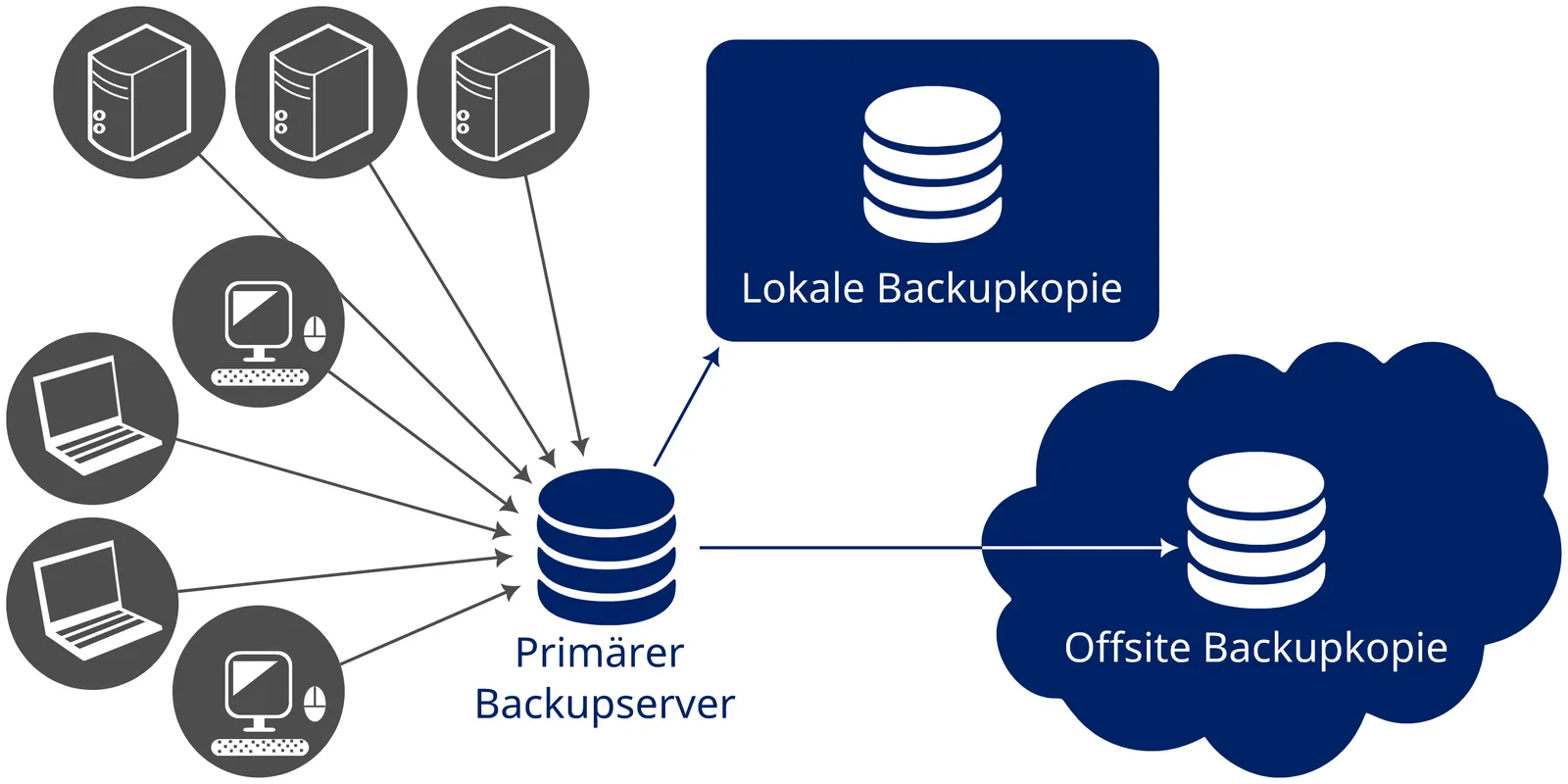
The 3-2-1 rule has been around for well over a decade, popularized by photographers and later adopted by IT administrators. It says: keep three copies of your data, on two different types of storage media, with one copy offsite. The rule survives because each number addresses a specific failure.
- Three copies protect against the chance that one copy is corrupted or lost while you still have another. Two copies is enough for a single failure but not for a failure during a restore, when the surviving copy might also be damaged.
- Two media types protect against a failure mode specific to one technology, such as a firmware bug that bricks a particular drive model, or a cloud provider's global account lockout.
- One offsite copy protects against location-level disasters: fire, flood, burglary, a power surge that takes out everything on the same circuit, or a ransomware infection that spreads across your home network.
Some practitioners now push this to 3-2-1-1-0, adding one immutable or air-gapped copy and requiring zero errors on verification. Think of that as the 2026 upgrade. The immutable copy is the one ransomware cannot overwrite, and zero errors means your verification tooling has confirmed the backup is restorable, not just present.
Worked Example: Protecting a Freelancer's Working Files
Abstract rules are easier to evaluate against a real case. Consider a freelance designer, Maya, with the following setup:
- Working folder: 380 GB across project files, raw photos, and exported deliverables
- Devices: one laptop (internal SSD 1 TB), one desktop used for rendering
- Current protection: Dropbox with 2 TB plan, syncing the working folder
- Passwords and services: 47 logins across 12 services, some with shared 2FA devices
Maya believes her files are safe because Dropbox "backs them up." Here is what happens in three scenarios:
- She accidentally deletes a client folder of 14 GB. Dropbox keeps deleted files for 30 days on her plan, so she can recover. This is a partial win, but only because the window is long enough. If she notices after 35 days, the files are gone.
- A phishing email leads to ransomware encrypting her laptop. The encrypted files sync to Dropbox within minutes. Dropbox's version history may let her roll back individual files, but restoring 380 GB file by file, across thousands of items, is a multi-day ordeal, and any file that was encrypted and re-saved multiple times becomes harder to recover.
- Her Dropbox account is suspended after a payment method expires. She has 30 days to fix it. Her only copy of the data is now the laptop and desktop, and she has no independent backup.
Now apply 3-2-1 to the same 380 GB:
- Copy 1 (primary): the laptop SSD and desktop, the live working copy.
- Copy 2 (local, different media): a 2 TB external SSD connected nightly by a backup tool, keeping 30 days of versions.
- Copy 3 (offsite, different provider): a cloud backup to a service separate from Dropbox, encrypted client-side, with 90 days of version retention.
Run through the same three scenarios. The accidental deletion is recoverable from the local SSD in under a minute. The ransomware event is recoverable by restoring the last clean snapshot from the external SSD, but only if that drive was not permanently mounted during the infection, which is why Maya disconnects it after each backup run. The account suspension does not matter, because the cloud backup is a separate provider and the local copy is in her hands.
The cost is real. A 2 TB external SSD runs roughly 90 to 130 US dollars. Cloud backup for 380 GB at typical consumer-tier pricing comes to somewhere between 7 and 15 dollars per month depending on provider and whether you pay per device or per terabyte. Over three years, the total is comfortably under 500 dollars, which is less than one day of billable work for many freelancers.
Cloud Backup vs Sync vs Local Copy: Side-by-Side Comparison
The following table compares the most common options you will encounter, plus a combined 3-2-1 setup. Figures reflect typical consumer and small-business offerings as of 2026 and will vary by plan and region.
| Criterion | Cloud sync (e.g., Dropbox, Google Drive) | Cloud backup (e.g., Backblaze, Acronis) | Local copy (external SSD or NAS) | Combined 3-2-1 |
|---|---|---|---|---|
| Protects against accidental deletion | Short window only (typically 30 days) | Yes, with long retention | Yes, if versioning is enabled | Yes, multiple layers |
| Protects against ransomware | Poor; encrypted changes sync everywhere | Good if backup is append-only or immutable | Good only if disconnected or immutable | Strong |
| Survives fire, theft, or flood | Yes (cloud) | Yes (cloud) | No, unless stored offsite | Yes |
| Restore speed | Fast for single files; slow for bulk | Slow for bulk, depends on bandwidth | Very fast | Fast locally, fallback to cloud |
| Ongoing cost | Low to moderate | Low to moderate | One-time hardware cost | Moderate, lowest per GB protected |
| Versioning depth | Usually 30 days or less | Months to years, configurable | Depends on software | Configurable per layer |
The table makes one thing obvious: no single column scores well on every row. Cloud sync is convenient and fails badly on ransomware. Local copies are fast and fail on physical disasters. The combined approach is the only one that covers every failure mode, which is precisely why the 3-2-1 rule exists.
How Do I Set Up a 3-2-1 Backup Step by Step?
Here is a walkthrough
Cover image: 3-2-1 backup 01 by Olaf Pichler, licensed under BY-SA 4.0 via Openverse.