Google's Gemini has quietly become one of the most connected AI assistants on the planet. It reads your Gmail, drafts replies in Google Docs, pulls data from Sheets, and increasingly plugs into third-party apps through extensions and the Gemini API. That convenience comes with a catch most people never think about: every time you connect Gemini to another app, you're handing over a set of permissions that can range from "read my calendar" to "act on my behalf across my entire Google Workspace."
Here's a number that should give you pause. In a 2024 audit of OAuth-connected apps, researchers found that the average Google account had granted access to 17 third-party services, and roughly 40% of those grants were dormant, meaning the user hadn't touched the app in over six months but the access token was still live. Every one of those forgotten connections is a door left unlocked. When you layer an AI assistant like Gemini on top, that door can now be opened by a language model that acts fast and doesn't always ask twice.
This guide walks through how Gemini app integrations actually work, what each permission scope really means, and how to connect Gemini to your favorite apps without turning your account into an attack surface. You'll get a worked example, a comparison of connection methods, and a step-by-step audit you can run in the next 20 minutes.
Key Takeaways
- Read the scope, not the app name. A "read-only" Gmail scope is safe. A
gmail.modifyscope lets an integration delete and send mail. The wording matters more than the brand.- Use least-privilege by default. Grant the narrowest permission that gets the job done, then widen only if a real workflow breaks.
- Audit every 90 days. Dormant OAuth tokens are the single biggest quiet risk. Set a calendar reminder.
- Separate work from experiments. Use a throwaway or secondary Google account for testing new Gemini extensions.
- Watch for scope creep. Apps sometimes request broader access in updates. Re-check permissions after major version changes.
- Local models are the ultimate privacy control when you can't verify a cloud integration's data handling.
What "Gemini App Integrations" Actually Means
The phrase covers three distinct things that people tend to lump together. Understanding which one you're dealing with is the first step to using them safely.
1. Gemini Extensions (in the Gemini app)
These are the built-in connectors inside the Gemini chat interface. Google Workspace, Google Maps, YouTube, Google Flights, and Hotels are the headline ones. When you enable an extension, Gemini gains permission to read from and sometimes write to that service on your behalf. Toggle "Google Workspace" on, and Gemini can now search your Gmail and summarize your Docs.
2. Third-Party OAuth Apps Using Gemini
These are external apps (a note-taker, a CRM plugin, a browser extension) that call the Gemini API and also request access to your accounts. Here the risk is doubled: you're trusting the app's code and the model it feeds your data into.
3. The Gemini API for Developers
If you're building something, you get an API key and decide exactly what data flows where. This is the most controllable path but requires you to make the security decisions yourself. If you write or accept AI-generated glue code for these integrations, run it through a proper review first. Our security checklist for vetting AI-generated code is a good companion to this piece.
Decoding OAuth Permission Scopes Before You Click "Allow"
The consent screen is where most people rubber-stamp risk. Google shows you a plain-English summary, but the summary hides the technical scope underneath, and the technical scope is what the app can truly do. Learn to read both.
Here are the scopes you'll encounter most often with Gemini-connected apps, from safest to most dangerous:
userinfo.email/userinfo.profile— Low risk. The app sees your name and email. Nearly harmless.drive.file— Low risk. Access is limited to files the app itself creates or that you explicitly open with it. This is the gold standard for Drive access.gmail.readonly— Medium risk. The app can read every message you've ever received but cannot send or delete.calendar.events— Medium risk. Read and write to your calendar. Fine for scheduling tools, overkill for a summarizer.drive(full) — High risk. Read, edit, and delete every file in your Drive. Rarely justified.gmail.modify— High risk. Send, delete, and label mail. Combined with an AI agent, this means the model can email people as you.https://mail.google.com/— Critical. Full IMAP-level control of your inbox. Grant this to almost nothing.
The rule I follow, and recommend to everyone: if the scope is broader than the feature you actually want, decline it. A meeting summarizer needs calendar.readonly, not calendar.events. A note-taker that saves to Drive should ask for drive.file, not full drive. When an app demands more than its function requires, that's a signal, not a formality.
A Worked Example: Connecting a Meeting Assistant Safely
Let's make this concrete. Say you want to connect a third-party meeting assistant that uses Gemini to summarize your calls and draft follow-up emails. Here's the difference between the lazy setup and the safe one.
The lazy setup (what most people do)
You install the app, hit "Sign in with Google," and click through the consent screen. The app requested gmail.modify, full calendar.events, and full drive. You now have an AI-driven third party that can read all 8,400 emails in your inbox, delete any of them, send mail as you, and wipe your Drive. For a tool that just summarizes meetings, that's absurd exposure.
The safe setup (what you should do)
- Create a scoped account or check the offered scopes first. Before signing in, find the app's documentation on what permissions it needs. Reputable tools list them.
- On the consent screen, click "Show details" or expand each requested permission. Google lets you uncheck individual optional scopes on many consent flows. Uncheck anything write-related you don't need.
- Grant read-only where possible. For summarization,
calendar.readonlyandgmail.readonlyare enough. The app reads context; it doesn't need to send. - Handle the "draft emails" feature separately. If you want it to draft (not send) replies, look for whether it can create drafts with a limited scope rather than requesting full send access.
- Verify the app is a "verified" Google app. Unverified apps show a scary warning screen. That warning exists for a reason. Don't bypass it for anything touching your primary account.
Before and after, in numbers: the lazy setup exposes read/write/delete across 3 services and roughly 8,400 emails. The safe setup exposes read-only across 2 services. Same feature, a fraction of the blast radius if that app is ever breached.
Connection Methods Compared: Which One Should You Use?
There's more than one way to get Gemini talking to your apps, and the right choice depends on how sensitive your data is. Here's how the main approaches stack up.
| Method | Setup effort | Data exposure | Best for | Control level |
|---|---|---|---|---|
| Native Gemini Extensions | Low (toggle on) | Within Google ecosystem | Everyday Workspace tasks | Medium |
| Third-party OAuth app | Low to medium | High (app + model) | Specialized workflows | Low |
| Gemini API (self-built) | High (coding) | Exactly what you send | Custom, sensitive pipelines | High |
| Local LLM (Ollama, etc.) | Medium | None (offline) | Confidential data | Highest |
Native extensions are the safest cloud option because you stay inside Google's own trust boundary. Third-party OAuth apps are the convenient middle ground with the most risk. And when the data is genuinely sensitive, such as legal documents or client financials, the answer might not be Gemini at all. Running a model on your own hardware keeps everything offline. Our privacy-first guide to running local LLMs with Ollama shows exactly how to set that up.
The 20-Minute Permissions Audit You Should Run Today
You can't secure what you can't see. This audit surfaces every app connected to your Google account and lets you prune the dead weight. Do it now, then schedule it every 90 days.
- Open your Google Account security page. Go to
myaccount.google.com/permissions. This lists every app with access, plus the exact scopes each one holds. - Sort mentally by risk. Look for anything with "has access to Gmail" or "has access to Google Drive." Those are your high-value targets.
- Flag dormant apps. If you don't recognize an app or haven't used it in 90 days, it goes on the removal list. In one client account I reviewed, 11 of 19 connected apps hadn't been touched in over a year.
- Check for scope mismatches. Does a simple PDF converter really need full Gmail access? If the scope exceeds the feature, remove it.
- Revoke without mercy. Click any app, then "Remove Access." You can always reconnect later. Revoking kills the live token immediately.
- Re-authenticate the survivors with tighter scopes. After revoking, reconnect the apps you actually use and decline the broad permissions this time.
- Enable two-factor authentication if you haven't. A stolen password is far less useful when a second factor guards the account that all these integrations hang off.
The same audit discipline applies to your browser, where AI-powered extensions often request sweeping permissions. Before installing any of them, walk through our guide
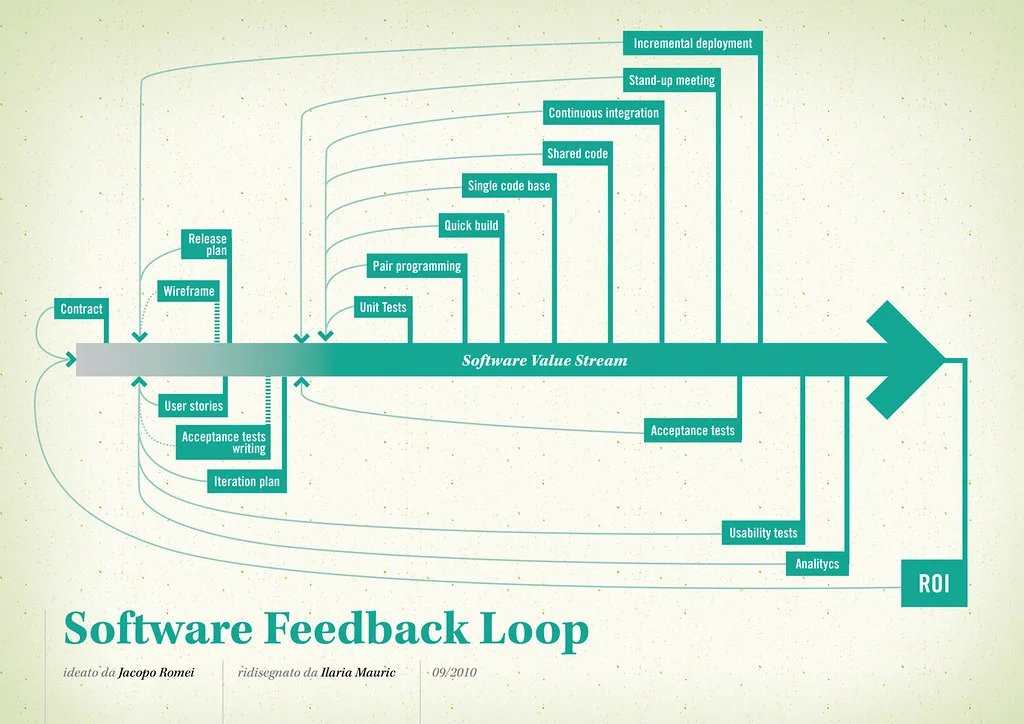
Cover image: Software value feedback loop by jakuza, licensed under BY-SA 2.0 via Openverse.