Every time you paste a client contract, a proprietary function, or a half-finished business plan into a cloud chatbot, you are handing that text to a third party. Most people know this in the abstract and do it anyway, because the convenience is real and the alternative feels like a weekend of terminal wrangling. Here is the surprising part: as of 2024, a capable 7-billion-parameter model runs comfortably on a five-year-old laptop with 16GB of RAM, entirely offline, with zero data leaving your machine.
That shift happened faster than most of us expected. The tool that made it approachable for normal humans is Ollama, a small, well-designed runtime that turns "download a 4GB model file and configure a C++ inference engine" into a single command. If you have ever run brew install or apt install, you already have the skills.
In this guide I will walk you through exactly how to run local LLMs with Ollama on Windows, macOS, and Linux, which models to pick for which hardware, how the privacy math actually works, and where local models still lose to the cloud. I have been running Ollama daily for months on a MacBook and a Linux workstation, so this is written from real use, not a spec sheet.
Key Takeaways
- Ollama installs in one command and downloads models automatically. You can be chatting with a local model in under ten minutes.
- A 7B model needs roughly 8GB of RAM; a 13B model wants 16GB; running 70B models comfortably requires 48GB+ or a strong GPU.
- Nothing you type ever leaves your computer, which makes local LLMs genuinely appropriate for confidential code, legal text, and health notes.
- Quantized models (like
Q4_K_M) trade a small quality drop for a huge memory saving, and they are usually the right default.- Ollama exposes an OpenAI-compatible API on
localhost:11434, so existing tools and scripts can point at it with a one-line change.- Local models excel at privacy, offline work, and cost, but still lag frontier cloud models on complex reasoning.
What Ollama Actually Is (and What It Isn't)
Ollama is an open-source runtime that downloads, manages, and serves large language models locally. Think of it as the Docker of LLMs: you pull a model by name, it handles the storage and the inference engine underneath (it wraps llama.cpp), and it gives you both a chat prompt and an HTTP API.
What Ollama is not: it is not a model, and it is not a chat app with a slick UI out of the box. It is the plumbing. You bring the interface, whether that is the terminal, a desktop front-end, or your own code. That separation is a feature. It means you can swap models freely and connect Ollama to whatever workflow you already use.
If you are weighing local inference against cloud-based coding assistants, our breakdown of AI coding agents versus autocomplete is a useful companion read, because the same privacy-versus-power tradeoffs apply.
Why Run Local LLMs at All?
The honest answer is that most people should use both local and cloud models, depending on the task. But there are four concrete reasons local wins.
- Privacy. A cloud provider logs your prompts. A local model does not. If your prompt contains a client's financials or unpublished source code, that difference matters legally, not just philosophically.
- Offline capability. On a plane, in a coffee shop with bad Wi-Fi, or in a secure facility with no external network, a local model just works.
- Cost. After the initial download there is no per-token bill. If you run thousands of prompts a month, that adds up fast.
- Control. No surprise deprecations, no rate limits, no "we've updated our model and it behaves differently now."
The privacy angle is the strongest one for me. If you care about keeping AI conversations out of search indexes and third-party logs, you should also read our guide on stopping AI chats from leaking into Google search results. Local inference sidesteps that entire class of problem.
Hardware Requirements: What You Actually Need
The single biggest question people ask is "will it run on my machine?" The answer depends almost entirely on RAM (or VRAM if you have a discrete GPU). Here is a realistic worked example.
Say you have a laptop with 16GB of RAM and an integrated GPU. A quantized 7B model like llama3.1:8b uses roughly 5 to 6GB while running, leaving plenty of headroom for your browser and editor. It responds at a comfortable reading pace, maybe 15 to 30 tokens per second. Now try a 13B model: memory use jumps to around 9 to 10GB, and if you have Chrome open with 40 tabs, you will start swapping to disk and everything crawls. A 70B model on that same laptop is simply not happening at usable speed.
Here is the rough sizing guide I use:
| Model Size | RAM Needed | Typical Use | Speed on Consumer Hardware |
|---|---|---|---|
| 3B (e.g. phi3) | 4GB | Quick tasks, summaries, chat | Very fast |
| 7B–8B (llama3.1, mistral) | 8GB | Everyday assistant, coding help | Fast |
| 13B–14B | 16GB | Better reasoning, longer context | Moderate |
| 70B (llama3.1:70b) | 48GB+ or strong GPU | Complex tasks, near-cloud quality | Slow without GPU |
Apple Silicon Macs (M1 through M4) are unusually good at this because they use unified memory, so the CPU and GPU share the same fast RAM pool. An M2 with 24GB can run 13B models smoothly. On Windows and Linux, an NVIDIA GPU with 8GB+ VRAM dramatically speeds things up because Ollama offloads layers to the GPU automatically.
How to Install and Run Ollama: A Step-by-Step Walkthrough
This is the part where people expect pain and get pleasantly surprised. Follow these steps in order and you will have a working local LLM in about ten minutes, most of which is waiting for a download.
Step 1: Install Ollama
- macOS or Windows: Download the installer from
ollama.com/download, run it, and it sets up a background service. On Windows this includes automatic NVIDIA GPU detection. - Linux: Open a terminal and run
curl -fsSL https://ollama.com/install.sh | sh. The script installs the binary and registers a systemd service. - Verify the install by running
ollama --versionin your terminal.
Step 2: Pull and run your first model
- Run
ollama run llama3.1:8b. Ollama downloads the model (about 4.7GB) the first time, then drops you into an interactive chat prompt. - Type a question and press Enter. That's it, you're talking to a model running entirely on your own machine.
- Type
/byeto exit the chat.
Step 3: Manage your models
ollama listshows every model you have downloaded and how much disk it uses.ollama pull mistraldownloads a model without running it.ollama rm llama3.1:8bdeletes a model to reclaim disk space.ollama psshows which models are currently loaded into memory.
Step 4: Use the API
Ollama serves an HTTP endpoint at http://localhost:11434 the moment it's installed. To test it, run this in a terminal:
curl http://localhost:11434/api/generate -d '{"model": "llama3.1:8b", "prompt": "Explain quantization in one sentence."}'
Because Ollama also exposes an OpenAI-compatible endpoint at /v1, most tools built for the OpenAI API work by simply changing the base URL to your local address. That is how you wire it into editors, note apps, and custom scripts without rewriting anything.
Choosing the Right Model: A Practical Comparison
Once Ollama is running, the fun problem becomes model selection. There are hundreds available. Here are the ones I actually reach for and why.
| Model | Size | Best For | Weakness |
|---|---|---|---|
| llama3.1:8b | 4.7GB | General all-rounder, good balance | Not a specialist |
| mistral | 4.1GB | Fast, concise answers | Shorter context memory |
| codellama | 3.8GB+ | Code generation and explanation | Weaker at prose |
| phi3 | 2.3GB | Low-RAM machines, quick tasks | Limited depth |
| gemma2:9b | 5.4GB | Strong reasoning at small size | Slightly slower |
Understanding quantization tags
When you browse models you will see tags like Q4_K_M or Q8_0. Quantization compresses the model's numerical weights to use less memory. Q4_K_M is the sweet spot most people should use: it roughly halves memory use versus the full model while losing very little quality. Q8 is closer to the original but heavier. If you don't specify, Ollama picks a sensible default for you.
Building a Private Workflow Around Local Models
Running a model in the terminal is nice, but the payoff comes when you integr
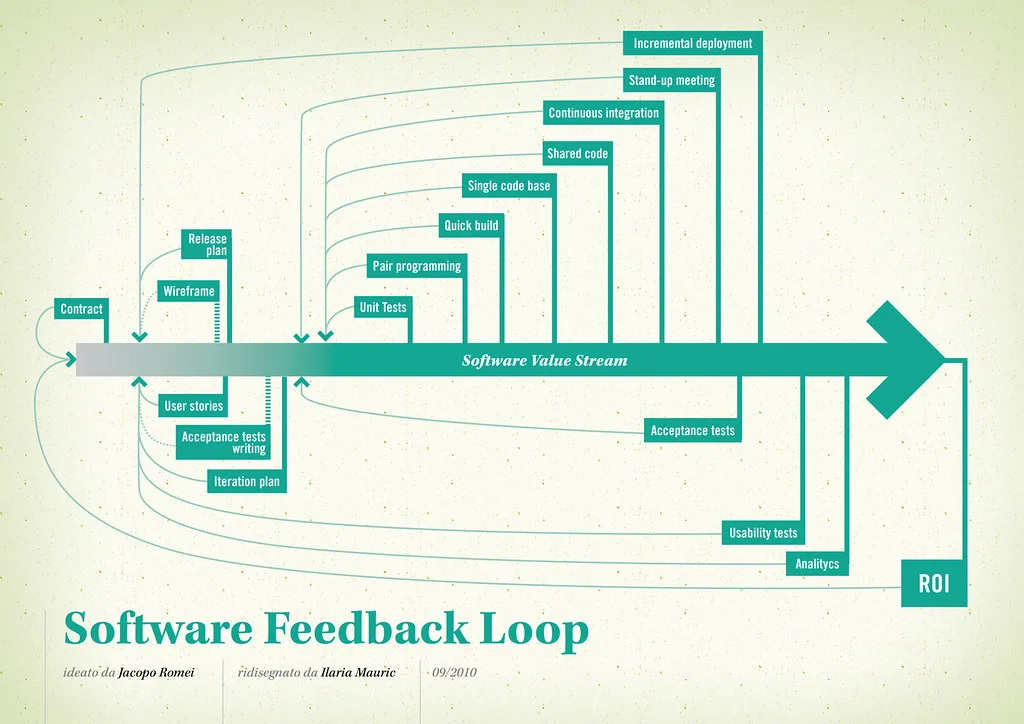
Cover image: Software value feedback loop by jakuza, licensed under BY-SA 2.0 via Openverse.