You install a browser extension because it promises to make your day easier. A grammar checker, a coupon finder, a screenshot tool, a tab manager. Two clicks and it's live. What most people never do is pause on the one screen that actually matters: the permissions prompt. That gray box you dismiss in half a second is often the difference between a helpful tool and a piece of software quietly reading every page you visit.
Here's a fact that should make you sit up. In 2023, Stanford and CISPA researchers analyzed roughly 125,000 Chrome Web Store extensions and found that around 280 million users had installed extensions that contained malware, violated policies, or leaked data at some point over a three-year window. Google removes thousands of extensions a year, but they get removed after the damage, not before. The gatekeeper, in practice, is you.
This guide walks you through how to audit browser extension permissions before you click install, how to read the vague language extensions use, and how to build a repeatable ten-minute vetting routine. You'll get a real worked example, a comparison of the permission models across major browsers, and a checklist you can reuse for every extension you consider.
Key Takeaways
- An extension that requests "read and change all your data on all websites" can see everything you type, including passwords and banking sessions. Treat that permission as a red flag unless the function clearly requires it.
- Match every requested permission to a concrete feature. If a calculator wants to read your browsing history, walk away.
- Check the developer identity, user count, review patterns, and last update date before permissions even enter the picture.
- Extensions can be sold or hijacked after they earn your trust, so audit renewals and updates, not just installs.
- Prefer narrowly scoped, single-purpose tools from vendors who publish a real privacy policy and contact channel.
- Manifest V3 reduced some abuse vectors but did not eliminate data theft, so old habits still apply.
What Browser Extension Permissions Actually Mean
A browser extension is a small program that runs inside your browser with access to browser APIs. Permissions are the specific capabilities the extension asks for. When you click "Add to Chrome" or "Add to Firefox," you're agreeing to grant those capabilities, often for as long as the extension stays installed.
The problem is that permission labels are written for developers, not humans. "Read and change all your data on the websites you visit" sounds boilerplate. In practice it means the extension can inject code into every page, read form fields, capture what you type, and send that data anywhere it wants.
The permissions that deserve real scrutiny
- Access to all websites (
<all_urls>or "on all sites"): the broadest and most abused permission. Justified for password managers and ad blockers, rarely for anything else. - Read your browsing history: fine for a history search tool, suspicious for a PDF converter.
- Read and modify data you copy and paste (clipboard access): can silently swap crypto wallet addresses or exfiltrate copied secrets.
- Manage your downloads: can place files on your machine.
- Access your tabs and browsing activity: reveals every URL you open, which is a full profile of you.
- Read and change data on specific sites you name: this is the good kind, scoped and predictable.
The last one is the model you want to reward. An extension that only asks for access to docs.google.com is telling you exactly where it operates. An extension that asks for everything is asking you to trust it forever.
How to Read a Permission Prompt in Under Ten Minutes
You don't need to be a security engineer. You need a routine. Here is the exact sequence I run before installing anything, and it takes about ten minutes.
- Name the single job. Write down, in one sentence, what the extension is supposed to do. "Blocks ads." "Saves highlighted text to a note." If you can't state the job clearly, you can't judge the permissions.
- Read every requested permission and match it to the job. For each permission, ask: does the stated job require this? A tab manager needs tab access. It does not need to read your history or your clipboard.
- Check the developer. Click through to the developer's name and site. Is there a real company or a named person? A working website? A privacy policy that actually addresses data collection?
- Look at scale and age. How many users? When was it last updated? An extension with 8 users updated two years ago is a different risk than one with 2 million users updated last month.
- Read the one-star and three-star reviews. Five-star reviews are noise. The middle and low reviews tell you about injected ads, sudden permission changes, or a new owner.
- Search "<extension name> malware" and "<extension name> sold." Extensions get acquired and turned malicious. A five-minute search often surfaces a Reddit thread or news report.
- Decide with a bias toward "no." If anything doesn't line up, skip it. There is almost always a narrower alternative.
This same "match the capability to the stated job" discipline applies far beyond browsers. It's the exact logic I use when I vet a screen recorder for privacy before installing it and when deciding how to safely give AI agents access without sharing passwords. Least privilege is the whole game.
A Worked Example: Auditing a "Free" Coupon Finder
Let's make this concrete. Say you found a coupon extension with 1.4 million users and a 4.6-star rating. Sounds safe. Here's the audit.
Step 1, the job: "Automatically find and apply discount codes at checkout."
Step 2, the permissions it requests:
- Read and change all your data on all websites
- Read your browsing history
- Manage your downloads
- Read and change your bookmarks
Step 3, the match test:
- All websites — arguably needed to detect checkout pages, but that's a huge grant for the payoff.
- Browsing history — not needed to apply a coupon. This is behavioral tracking.
- Manage downloads — no coupon function requires this. Red flag.
- Bookmarks — completely unrelated. Red flag.
The verdict: two of four permissions have no plausible link to the stated job. Now do the math on what you're trading. To save maybe $40 a year in coupons, you'd give a third party a live feed of every site you visit, plus your history and download control. That's a terrible trade. Independent studies have shown several popular coupon extensions inject affiliate tags and log purchase data. The "free" tool is monetizing you.
The better move: use a scoped alternative that only runs on the retailer's domain, or manually search for codes. The ten-minute audit just saved you from a permanent surveillance install.
Browser Permission Models Compared
Not all browsers handle extension permissions the same way. If privacy matters to you, the browser you choose changes how much control you retain after install. Here's how the major options compare on the criteria that affect real risk.
| Browser | Per-site permission control | Runtime permission prompts | Manifest V3 enforced | Store review rigor |
|---|---|---|---|---|
| Chrome | Yes (site access dropdown) | Partial | Yes | Automated + limited manual |
| Firefox | Limited | Yes for optional permissions | Partial / hybrid | Manual review for recommended |
| Edge | Yes (inherits Chromium) | Partial | Yes | Automated + Microsoft review |
| Brave | Yes (Chromium base) | Partial | Yes | Uses Chrome store |
| Safari | Yes (strong per-site) | Yes, granular | N/A (App Store model) | App Store review |
The practical takeaways: Chromium browsers let you restrict an extension to "on click" or specific sites after install, which is one of the most underused privacy controls available. Safari has the tightest model but the smallest catalog. Firefox's manual review of "Recommended" extensions is a genuine trust signal worth using.
Use the "on click" setting aggressively
In any Chromium browser, right-click an extension icon and set "This can read and change site data" to "When you click the extension." Now the extension does nothing until you deliberately activate it. This single setting neutralizes most "all sites" grants without removing the tool.
Auditing Extensions You Already Installed
Vetting new installs is only half the job. The extensions already sitting in your toolbar were often approved months or years ago under a job description you've forgotten. Extensions also change hands: a developer sells a popular tool, the new owner pushes an update that adds tracking, and your existing install silently inherits the new behavior.
Run this cleanup quarterly:
- Open your extensions manager (
chrome://extensions,about:addons, or the equivalent). - For each extension, ask the same question: do I still use this, and does it still deserve its permissions?
- Remove anything you haven't used in 30 days. Unused extensions are pure risk with zero benefit.
- For the keepers, click "Details" and review current permissions. Downgrade site access to "on click" wherever possible.
- Check the last update date. An extension abandoned for over a year won't get security patches.
The mindset here is identical to how you'd approach any dependency in your stack. Before I add anything, I run the same discipline described in how to verify open-source software before adding it to your stack, and for site-level tools I lean on the process in how to verify a WordPress plugin update before installing it. Extensions are software you invited past your defenses. Treat them that way.
When to Skip the Extension Entirely
Sometimes the safest audit outcome is choosing a
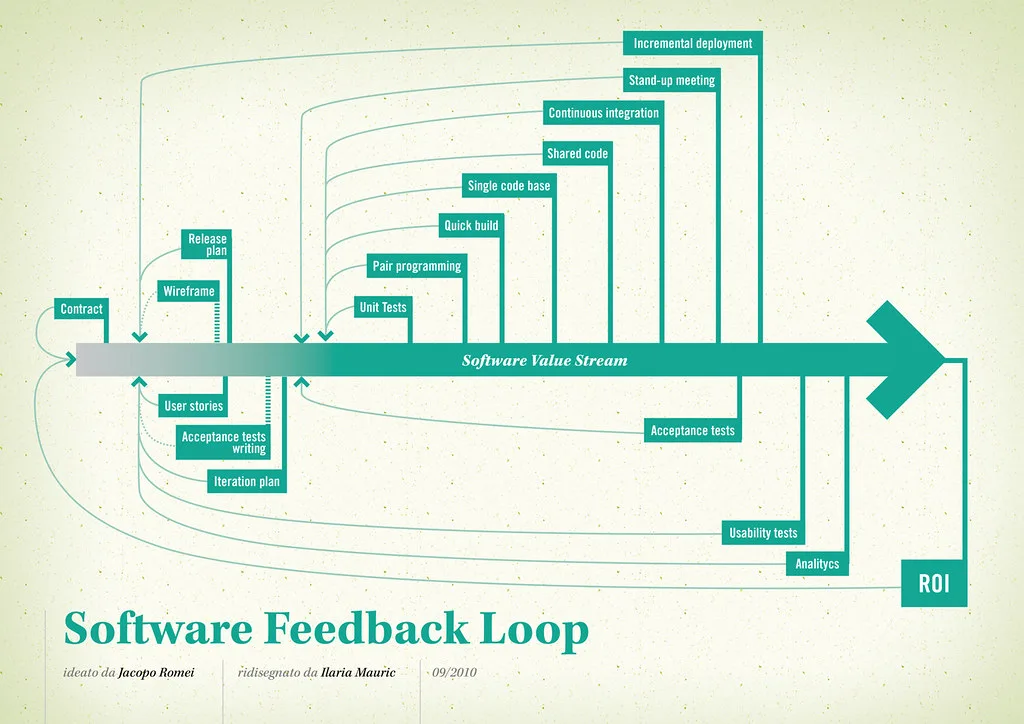
Cover image: Software value feedback loop by jakuza, licensed under BY-SA 2.0 via Openverse.