Every WordPress admin knows the little red badge on the Plugins screen. A number pops up, you feel a small itch to make it go away, and you click "Update Now" almost on reflex. That reflex has caused more compromised sites than most people realize. In late 2024, a supply-chain attack pushed malicious code through several popular plugins after developer accounts were hijacked, and thousands of sites installed the poisoned versions within hours because their owners auto-updated without a second thought.
Here's the uncomfortable truth: a plugin update is executable code you are voluntarily installing on a server that touches your database, your customer data, and often your payment flow. It deserves at least a fraction of the scrutiny you'd give a stranger asking for your admin password. Yet most guides treat updating as a one-click chore rather than a security decision.
This article walks through exactly how to verify a WordPress plugin update before you install it. You'll get a repeatable checklist, a worked example with real version numbers, a comparison of update strategies, and the specific red flags that separate a safe patch from a hostile one. By the end you'll have a workflow you can run in under ten minutes.
Key Takeaways
- Never auto-update plugins that touch payments, user data, or authentication. Stage those manually.
- Read the changelog and check the version jump. A tiny "1.4.2 to 1.4.3" security patch behaves very differently from a "1.4 to 2.0" rewrite.
- Confirm the developer account and last-updated date on WordPress.org before trusting any update.
- Test updates on a staging clone, not production, and take a verified backup first.
- Watch for ownership changes, sudden permission requests, and new outbound connections after updating.
- Layer a security plugin and file-integrity monitoring so a bad update gets caught even if it slips past you.
Why Verifying Plugin Updates Actually Matters
WordPress powers roughly 43% of all websites, and plugins are its beating heart. The official directory alone holds nearly 60,000 free plugins, plus tens of thousands of premium ones sold elsewhere. That scale is a gift for site owners and a hunting ground for attackers.
There are three main ways a plugin update goes wrong:
- Compromised developer account. An attacker steals a maintainer's credentials and pushes a version containing a backdoor. The update looks legitimate because it comes through the normal channel.
- Ownership transfer to a bad actor. A tired developer sells a popular plugin. The buyer quietly injects ad-injection scripts, SEO spam, or data harvesting into the next release.
- Honest but broken code. No malice, just a bug that breaks your checkout, deletes options, or conflicts with your theme. This is the most common failure by far.
Verifying updates protects you from all three. The same discipline that catches malware also catches the buggy release that would have taken your store offline on a Friday night. If you want a broader framework for vetting any code before it enters your environment, our guide on how to verify open-source software before adding it to your stack pairs well with this one.
The Pre-Update Checklist: What to Verify Before You Click
Run through this before touching the "Update Now" button. It takes about five to ten minutes and it is the single highest-leverage habit in WordPress maintenance.
1. Read the changelog line by line
Open the plugin's changelog. On WordPress.org plugins, it's under the "Development" tab or the plugin page's changelog section. For premium plugins, it's usually on the vendor's release notes page.
You are looking for specifics. A trustworthy changelog says things like "Fixed SQL injection in the search shortcode (CVE-2024-XXXX)" or "Bumped minimum PHP to 8.1." A vague entry like "Various improvements and bug fixes" on a plugin that hasn't been touched in a year is a yellow flag, not automatically bad but worth a closer look.
2. Check the version jump
Semantic versioning tells you how risky an update is likely to be:
- Patch (1.4.2 → 1.4.3): Small fixes, usually safe, often security-related. Apply promptly.
- Minor (1.4 → 1.5): New features, backward compatible in theory. Test on staging.
- Major (1.x → 2.0): Breaking changes, database migrations, possible rewrites. Always test, always back up.
3. Confirm the developer and last-update date
On the plugin's WordPress.org page, scroll to the sidebar. Note the "Last updated" date, the number of active installs, and the listed authors. If the plugin suddenly has a new author name you don't recognize, stop and research the ownership change before updating.
4. Scan recent support threads and reviews
The WordPress.org support forum for a plugin is a real-time smoke detector. If an update broke things, you'll see threads titled "Site down after 3.2" within hours. Sort reviews by newest and look for a sudden cluster of one-star ratings dated to the current release.
5. Verify you have a working backup
Not a backup you assume exists. A backup you have confirmed is restorable. This is worth its own discipline, and our walkthrough on how to verify your cloud backup is actually restorable explains why "we have backups" and "we can restore" are two different sentences.
A Worked Example: Verifying a Real Update
Let's make this concrete. Say you run a small e-commerce site on WooCommerce with 14 active plugins. This morning you see updates available for four of them:
- A caching plugin:
3.9.1 → 3.9.2 - A contact form plugin:
5.8 → 5.9 - An SMTP plugin:
2.1.4 → 3.0.0 - A "SEO booster" plugin you barely remember installing:
1.2 → 1.8
Here is how you triage them.
The caching plugin (patch). Changelog reads: "Fixed cache invalidation bug on product pages." That's a targeted fix, the author is unchanged, the date is today, and the support forum is quiet. Verdict: low risk, apply after backup.
The contact form plugin (minor). Changelog lists a new field type and a security hardening note. Active installs over a million, author unchanged. Verdict: safe to stage and test. Because forms sometimes handle credentials, this is exactly the scenario covered in our piece on hardening WordPress SMTP plugins against API key leaks.
The SMTP plugin (major, 2.1.4 → 3.0.0). A jump to 3.0 signals breaking changes. The changelog confirms a database schema change and a new settings interface. This touches email deliverability and possibly stored API keys. Verdict: test on staging, budget 30 minutes, back up first.
The "SEO booster" (1.2 → 1.8, six versions at once). You barely remember it. The author name on WordPress.org is different from what you recall, the plugin now requests permission to inject scripts site-wide, and three new one-star reviews mention "unexpected redirects." Verdict: do not update. Investigate ownership, and strongly consider removing it entirely.
Four updates, four different decisions, all made in under fifteen minutes. That is what a verification habit buys you: judgment instead of reflex.
Update Strategy Comparison: Manual vs Staging vs Auto
There is no single right way to handle updates. The right approach depends on what the plugin touches. Here's how the common strategies stack up.
| Strategy | Best for | Risk level | Time cost | Rollback ease |
|---|---|---|---|---|
| Full auto-update | Low-impact plugins (galleries, small widgets) | Medium | Zero | Hard (already live) |
| Manual on production | Simple sites, patch updates | Medium-high | Low | Medium (need backup) |
| Staging test then push | E-commerce, membership, payment plugins | Low | Medium-high | Easy (production untouched) |
| Delayed update (wait 7 days) | Non-urgent minor/major releases | Low | Low | N/A (you skip early bugs) |
| Security patch fast-track | Actively exploited CVEs | Necessary risk | Low | Medium |
A practical policy for most business sites: auto-update trivial plugins, delay minor releases by about a week so early bugs surface, always stage anything touching money or accounts, and fast-track only genuine security patches with a confirmed CVE.
Step-by-Step: Safely Verifying and Applying an Update
Here's the full workflow you can follow without any other resource.
- Take a fresh backup. Back up both files and database. Note the exact time and where the backup lives.
- Confirm the backup restores. If you have a spare environment, do a quick test restore. At minimum, verify the backup file downloaded fully and isn't zero bytes.
- Read the changelog for every plugin you're about to touch. Flag any major version bumps or vague notes.
- Check the WordPress.org page for author name, last-updated date, and active installs. Note anything that changed since you last looked.
- Scan the newest support threads and reviews for reports of breakage tied to this release.
- Clone to staging. Use your host's staging feature or a plugin that creates a staging copy. Apply the update there first.
- Test the critical paths. On the staging site, run through your most important flows: add to cart and checkout, submit a contact form, log in as a member, load key pages. Watch for errors in the browser console and PHP error log.
- Check for new outbound connections. After updating, monitor whether the plugin starts phoning home to unfamiliar domains. A file-integrity or security monitor helps here.
- Push to production only once staging is clean. Do it during low-traffic hours
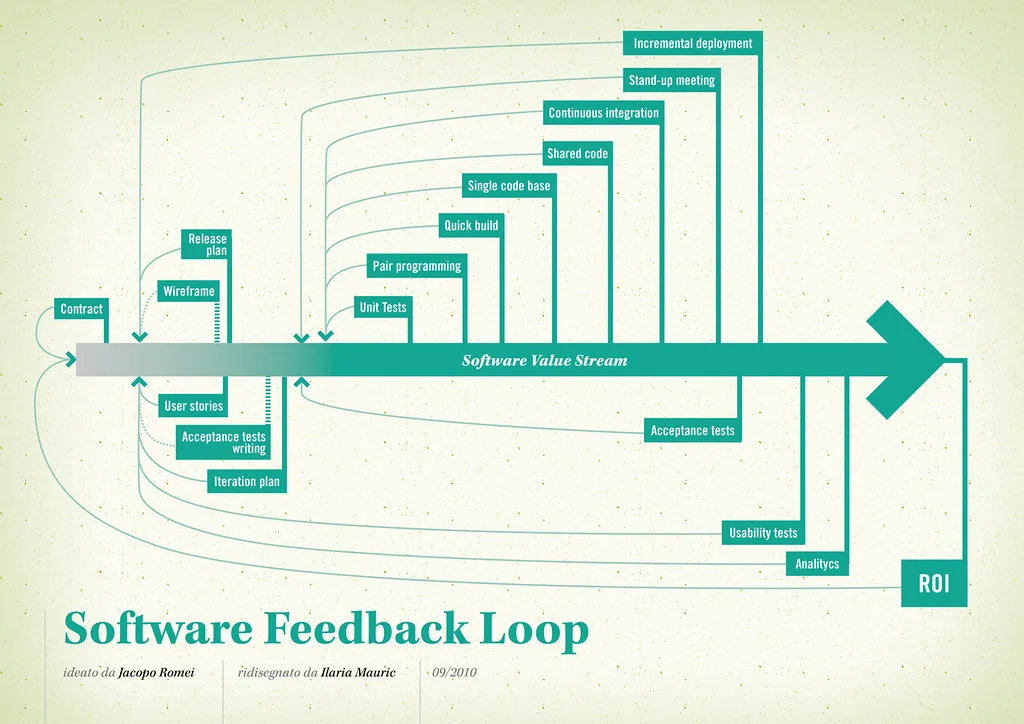
Cover image: Software value feedback loop by jakuza, licensed under BY-SA 2.0 via Openverse.