
You update a plugin at 11 p.m. because the dashboard nagged you about a security patch. By morning, your homepage is redirecting to a pharmacy spam site, your wp_options table has a new admin user you never created, and Google Search Console is flashing a "Deceptive site" warning. The plugin you trusted just became the attack vector.
Here is the uncomfortable statistic: Wordfence and Patchstack data consistently show that plugins account for over 90% of known WordPress vulnerabilities, far ahead of core and themes combined. And the worst part is that "just roll it back" is rarely as simple as it sounds. Plugins write to the database, register cron jobs, drop files outside their own folder, and sometimes leave backdoors that survive a reinstall. A naive rollback can wipe legitimate content or leave the compromise intact.
This guide walks through how to roll back a compromised WordPress plugin without losing data, using a repeatable process I have run on real client sites. You will learn how to isolate the plugin, preserve the data it created, revert to a clean version, and verify the attacker is actually gone. We will also compare rollback methods so you can pick the right one under pressure.
Key Takeaways
- Isolate before you touch anything. Take the site into maintenance mode or clone it to staging so you are working on a copy, not a live crime scene.
- A plugin rollback is not a database rollback. Reverting plugin files does not undo the rows, options, and users the compromise inserted. Handle both.
- Version rollback fixes the file exploit; a full restore fixes everything. Choose based on how deep the compromise went.
- Preserve plugin-created data selectively. Export the legitimate rows before you delete tables, or you will lose orders, form entries, or membership records.
- Verify with a fresh malware scan and integrity check after rollback. A "working" site can still be infected.
- Test your backups before you need them. A backup you have never restored is a hope, not a plan.
First, Confirm the Plugin Is Actually the Problem
Before you roll anything back, prove the plugin is the source. Blaming the wrong component wastes hours and can destroy evidence you need. Compromise symptoms are often shared across many causes.
Signs a specific plugin was compromised
- The symptoms started within hours of updating or installing that plugin.
- File modification dates inside the plugin folder are newer than your last legitimate update.
- Your firewall or scanner flags files inside
/wp-content/plugins/<plugin-name>/. - The plugin appears in a public CVE or on Patchstack with a matching version.
Quick triage checklist
- Log the exact timestamp symptoms appeared. Cross-reference it with your update history under
Dashboard → Updatesand your host's access logs. - Run a full malware scan. If you do not already have one running, an all-in-one hardening tool like eDarpan WordPress Protection or SiteGuard Pro will surface modified core and plugin files fast.
- Check for unknown admin users under
Users → All Users, and unexpected scheduled tasks with a cron viewer. - Search the database for injected scripts: look in
wp_options,wp_posts, and any option row containing<script>,base64_decode, oreval(.
If you are not sure whether the plugin was malicious by design or simply exploited, our walkthrough on how to audit WordPress plugins for data-harvesting vulnerabilities covers the forensic side in depth.
Isolate the Site Before You Change Anything
Rolling back on a live, actively-exploited site is like defusing a bomb in a moving car. Slow down and contain first.
Step 1: Freeze the attack surface
- Put the site into maintenance mode so no new orders, comments, or form submissions land mid-cleanup.
- Block the attacker's IP ranges. If your logs show repeated hits from a handful of addresses, a tool such as WordPress IP Blocker Pro can lock them out while you work.
- Rotate all admin passwords and force a logout of every session. If your team uses shared credentials, tighten that up afterward with the guidance in how to protect your password manager from brute force attacks.
Step 2: Snapshot the current (infected) state
This feels counterintuitive, but take a full backup of the compromised site before you change a byte. You need it for two reasons: forensic evidence, and a safety net in case your rollback goes sideways. Label it clearly, for example infected-2024-06-14-preclean, so you never restore it by accident.
Step 3: Work on a clone when you can
If the site earns money or serves customers, clone it to a staging subdomain and perform the rollback there first. When staging is clean and verified, you promote it. This turns a high-stakes live operation into a low-stakes rehearsal.
Roll Back the Plugin Files to a Clean Version
Now the actual rollback. The goal is to replace the exploited or malicious plugin code with a known-good version, without deleting the data the plugin legitimately manages.
Method A: Roll back to a previous plugin version
Use this when a specific version introduced a vulnerability and an older, patched version exists.
- Identify the last version you trust. Check the plugin's changelog on the WordPress.org page or the vendor's release notes.
- Download that exact version. On WordPress.org, use the "Advanced View" at the bottom of the plugin page, then the "Previous Versions" dropdown.
- Deactivate the current plugin. Do not delete it yet if deletion would drop its tables.
- Via SFTP or your file manager, rename the existing folder from
plugin-nametoplugin-name-INFECTED. - Upload and unzip the clean version into
/wp-content/plugins/. - Reactivate. Because the folder name matches, WordPress keeps the plugin's settings and database tables intact.
Method B: Reinstall the current clean release
If the vulnerability was patched in a newer release, or the files were tampered with post-install, a clean reinstall of the latest legitimate version is the fix. The steps are identical to Method A, except you grab the current version and confirm its file hashes match the official release.
A worked example with real numbers
Say you run a membership site on WooCommerce with a compromised add-on. You have 1,240 members, 318 active subscriptions, and the plugin stores membership levels in a custom table, wp_memberships. If you delete the plugin to "clean install," some plugins drop that table on deactivation, and you lose all 1,240 records.
Instead: deactivate without deleting, rename the folder, drop in the clean v3.4.2 files, and reactivate. The wp_memberships table is never touched. Zero of 1,240 records lost, and the exploited v3.5.0 code is gone. That difference, done wrong, is a support inbox on fire for a week.
Clean the Database the Attacker Touched
This is the step most tutorials skip, and it is why sites get reinfected within days. Reverting files does nothing to the malicious rows an exploit wrote into your database.
What to look for and remove
- Rogue admin users in
wp_usersand their entries inwp_usermetawithwp_capabilitiesset toadministrator. - Injected options in
wp_options, especially auto-loaded rows with obfuscated values or unfamiliar names. - Malicious cron jobs stored in the
cronoption that re-download payloads. - Script injections in post content, widget text, and theme options.
Preserve legitimate plugin data before deleting anything
Before you remove a plugin's tables in an extreme cleanup, export the rows you want to keep. Run a targeted SQL export of, for example, only the completed orders or verified form entries, so you can reimport them onto the clean install. When you need to move data between environments in bulk or paste large queries and configs safely, a self-hosted tool like LionPaste keeps sensitive snippets off third-party pastebins.
One rule I never break: always back up the database again immediately before you run any deletion query. A single mistyped WHERE clause can turn a cleanup into a catastrophe.
Rollback Methods Compared: Which One Do You Actually Need?
Not every compromise deserves the same response. Here is how the common approaches stack up.
| Method | Speed | Data Loss Risk | Removes DB Backdoors | Best For |
|---|---|---|---|---|
| Version rollback (files only) | Fast (10–20 min) | Very low | No | Known vulnerable version, no DB injection yet |
| Clean reinstall (latest) | Fast (10–20 min) | Low | No | Tampered files, patch available |
| Full site restore from backup | Medium (30–90 min) | Depends on backup age | Yes (if backup predates breach) | Deep compromise, unknown entry point |
| Manual file + DB surgery | Slow (hours) | High if rushed | Yes | No clean backup, need to preserve recent data |
| Rebuild + selective import | Slowest (a day+) | Very low | Yes | Total loss of trust in current install |
The honest tradeoff: full rest
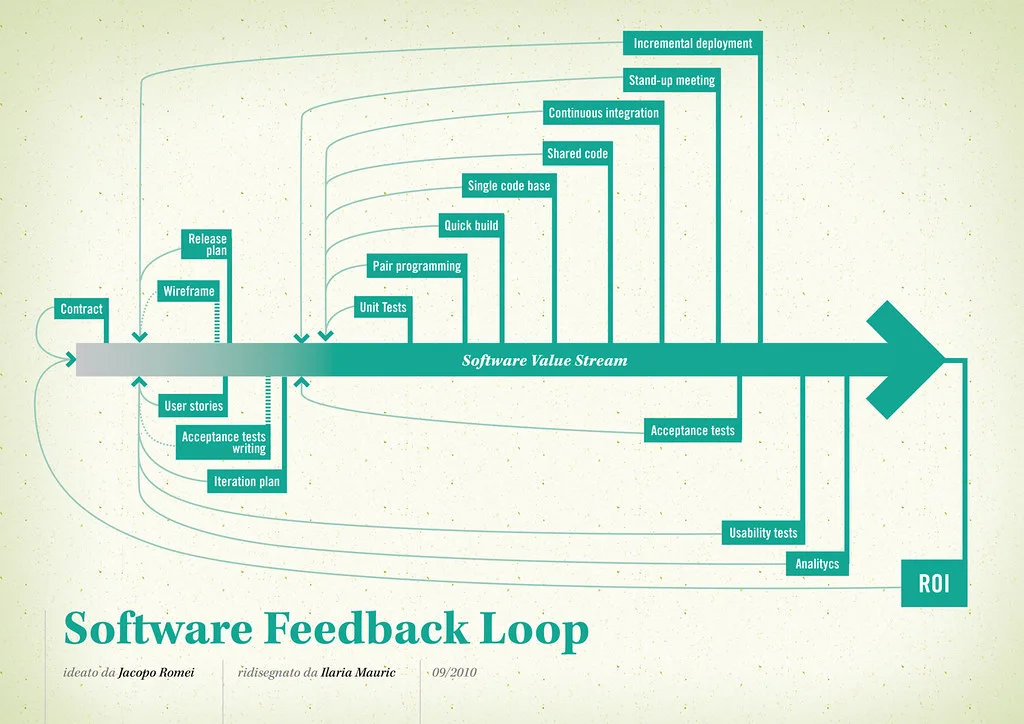
Cover image: Software value feedback loop by jakuza, licensed under BY-SA 2.0 via Openverse.







