
Your password manager is probably the single most valuable file on any device you own. It holds the keys to your bank, your email, your business infrastructure, and the recovery flows for everything else. And yet most people treat its backup like a leftover: a plain export dumped into a Downloads folder, synced to a cloud drive, and forgotten.
Here is the uncomfortable stat that should change how you think about this. In breach after breach, the attackers who cause the most damage are not the ones who crack a master password. They are the ones who find an unencrypted export sitting in a Google Drive, an old email attachment, or a departed employee's laptop. A 2022 vault breach at a major password manager taught the whole industry the same lesson: if your backup copy is weak, your live vault's encryption barely matters.
This guide walks through exactly how to encrypt your password vault backup before a breach ever happens, with real commands, a worked example, and honest tradeoffs between the tools you can actually use today. By the end you will have a repeatable process that turns a leaked backup file into useless noise.
Key Takeaways
- A password vault backup is only as safe as its weakest copy. One plaintext export undoes everything.
- Use authenticated encryption (AES-256-GCM or age) so tampering is detectable, not just confidentiality.
- Derive your backup key from a long passphrase using a strong KDF like Argon2id, not a bare password.
- Keep at least 3 copies, on 2 media types, with 1 offline — the classic 3-2-1 rule, applied to encrypted vault exports.
- Test your restore before you need it. An encrypted backup you cannot open is just a fancy way to lose data.
- Rotate your backup passphrase and re-encrypt whenever you offboard a device or a person.
Why Your Password Vault Backup Is the Real Attack Surface
Modern password managers encrypt your live vault well. The problem is everything that happens around it: exports, syncs, and backups. When you click "Export," most managers hand you a plaintext CSV or JSON file. That file has zero encryption. Anyone who reads it reads all your passwords.
Consider the typical lifecycle of a vault export:
- You export to CSV to migrate between managers.
- The file lands in
~/Downloads. - Your cloud sync client silently uploads Downloads to the cloud.
- You forget the file exists. It stays there for two years.
Now imagine any one of those points is breached: a phished cloud account, a stolen laptop, a misconfigured backup share. The attacker does not need to defeat AES. They just open a text file. This is the same class of oversight we cover in how to protect your password manager from brute force attacks, except here the attacker skips the brute force entirely.
The fix is not "never export." Exports are essential for migrations, for provider independence, and for surviving the day your vendor goes dark. The fix is to make sure every backup copy is encrypted at rest with a key only you control.
What "Properly Encrypted" Actually Means
Encryption is not one thing. A backup that is technically encrypted can still be trivial to break if the details are wrong. Three properties matter.
1. Confidentiality with a strong cipher
Use AES-256 or ChaCha20. Both are battle-tested. Avoid anything that lets you pick a weak mode or a short key. If a tool offers "AES-128 in ECB mode," walk away — ECB leaks patterns in your data.
2. Integrity through authenticated encryption
You want AES-256-GCM or an AEAD construction like the one age uses. Authenticated encryption fails loudly if a single byte is altered. Without it, an attacker could tamper with your backup and you would never know until a corrupted restore.
3. A slow key derivation function (KDF)
This is the part people get wrong. Your passphrase is not the key. A KDF turns it into one. A weak KDF (like a single SHA-256 pass) lets attackers guess billions of passphrases per second. A strong KDF like Argon2id or scrypt deliberately burns memory and CPU, cutting guess rates to a crawl.
Rule of thumb: A random 5-word Diceware passphrase (about 64 bits of entropy) behind Argon2id is realistically uncrackable. The same passphrase behind a single SHA-256 pass could fall in days on rented GPUs.
A Worked Example: Encrypting a Real Vault Export
Let's make this concrete. Say you have 147 logins across 23 services, plus 8 secure notes and 4 TOTP seeds, all living in your password manager. You want a portable, encrypted backup you can store on a USB key and in cloud storage without losing sleep.
Step 1: Export cleanly
- Open your password manager and export to JSON (richer than CSV — it keeps notes and folders).
- Save it to a temporary folder, not Downloads. Use something like
/tmp/vault-export.jsonon macOS/Linux. - Disconnect from the network during this step if you can. The plaintext file should exist for as little time as possible.
Step 2: Generate a strong passphrase
Roll a 6-word Diceware passphrase, e.g. ledger-basalt-frowning-quartz-mimic-oaken. That is roughly 77 bits of entropy. Write it on paper and store it separately from the backup. Do not store this passphrase inside the vault you are backing up. That is a circular dependency you will regret.
Step 3: Encrypt with age (recommended for most people)
age is a modern, small, hard-to-misuse encryption tool. With passphrase mode:
age -p -o vault-export.json.age /tmp/vault-export.json
It prompts for your passphrase, applies scrypt for key derivation, and produces an authenticated ciphertext. The .age file is your safe backup.
Step 4: Or encrypt with OpenSSL / GnuPG if that is what you have
GnuPG with symmetric mode and Argon2:
gpg --symmetric --cipher-algo AES256 --s2k-mode 3 vault-export.json
This produces vault-export.json.gpg. GnuPG handles KDF iterations and authentication for you.
Step 5: Securely wipe the plaintext
- On Linux:
shred -u /tmp/vault-export.json - On macOS:
rm -P /tmp/vault-export.json(or usesrm) - On Windows: use a tool that overwrites, then empty the Recycle Bin. A convenience layer like LionPaste can help you avoid ever pasting secrets into files that linger in the first place.
Step 6: Verify before you trust
Decrypt the file to a scratch location and confirm all 147 entries are present:
age -d -o /tmp/verify.json vault-export.json.age
Open it, count entries, then shred it. If the decrypt fails or the count is short, fix it now, not during an actual disaster. Testing restores is so important we wrote a whole piece on it: how to test your backup actually restores before disaster hits.
Choosing Your Encryption Tool: age vs GnuPG vs VeraCrypt vs 7-Zip
There is no single right tool. The best one is the one you will actually use correctly and repeatedly. Here is how the common options compare for encrypting a vault backup.
| Tool | Cipher / KDF | Authenticated? | Ease of use | Best for |
|---|---|---|---|---|
| age | ChaCha20-Poly1305 / scrypt | Yes | Very high | Individuals wanting a clean, hard-to-misuse CLI |
| GnuPG | AES-256 / Argon2 or S2K | Yes | Medium (verbose flags) | Users already in the GPG ecosystem |
| VeraCrypt | AES/Serpent/Twofish / PBKDF2 | Volume-level integrity | Medium | Encrypting a whole container of multiple backups |
| 7-Zip (AES) | AES-256 / SHA-256 (weak KDF) | Header not fully authenticated | High | Quick jobs only, with a very strong passphrase |
My honest take after years of using all four: age wins for single-file vault backups because it is nearly impossible to configure into an insecure state. VeraCrypt wins when you want a single encrypted container holding vault exports, license keys, and recovery codes together. 7-Zip is fine in a pinch but its key derivation is the weakest of the group, so lean on a longer passphrase to compensate.
Where to Store the Encrypted Backup (The 3-2-1 Rule)
Encryption solves confidentiality. It does nothing for availability. If your only encrypted backup lives on a USB stick that dies, you have lost your vault just as surely as if it were stolen. Apply the classic 3-2-1 rule:
- 3 copies of the encrypted backup.
- 2 different media types (e.g. an SSD and a USB flash drive, or local disk plus cloud).
- 1 copy offline and off-site (a USB key in a drawer at a relative's house, or a bank safe deposit box).
Cloud storage is fine — because the file is already encrypted
This is the beauty of client-side encryption. Once your export is a .age or .gpg blob, uploading it to Google Drive, Dropbox, or S3
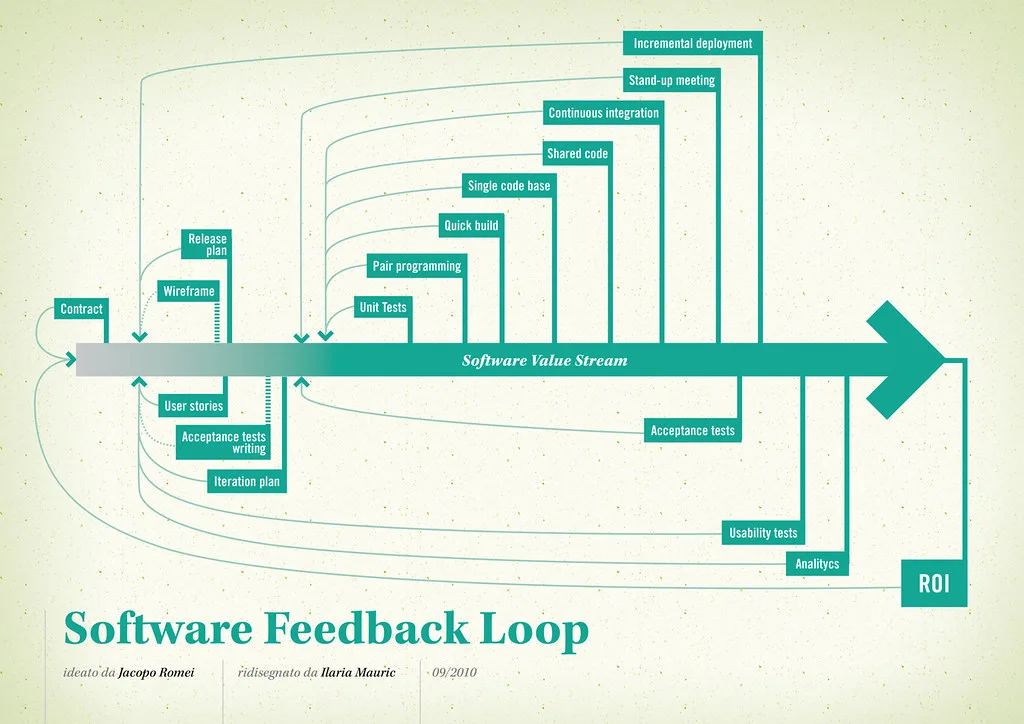
Cover image: Software value feedback loop by jakuza, licensed under BY-SA 2.0 via Openverse.







