Here is an uncomfortable truth about the WordPress ecosystem: the update button you trust to fix vulnerabilities is one of the most reliable ways attackers get into your site. Not through a zero-day you never heard of, but through a plugin you installed on purpose, from a developer who did nothing wrong, that got sold, abandoned, or compromised somewhere between version 3.4.1 and 3.4.2.
In 2024 alone, security researchers documented multiple cases where popular plugins pushed malicious code through routine updates. The Sucuri and Wordfence teams have repeatedly caught supply-chain style attacks where a legitimate plugin's update channel started serving backdoors, SEO spam injectors, or credential stealers to hundreds of thousands of sites overnight. The average affected site owner had no idea until traffic tanked or Google flagged them.
This article is a working field guide to spotting a hijacked plugin update before it runs on your production server. You will learn how these attacks actually happen, the exact signals to watch for, a repeatable pre-update audit you can run in under ten minutes, and how to build a defensive layer so that even a compromised update does limited damage.
Key Takeaways
- Never auto-update blindly. Stage every plugin update and diff the code before it touches production.
- Watch for ownership changes. A plugin that changes hands is the single biggest predictor of a future hijack.
- Read the changelog for silence. A vague or empty changelog on a "security" release is a red flag, not reassurance.
- Compare file hashes. A three-line diff between versions can reveal an injected
eval()or a new remote endpoint.- Assume breach containment. Firewall rules, file monitoring, and IP controls limit the blast radius when detection fails.
- Vet the vendor, not just the plugin. Who ships the code matters as much as the code itself.
What a Hijacked Plugin Update Actually Is
A hijacked plugin update is a version of a legitimate plugin that has been modified to include malicious code, then distributed through the plugin's normal, trusted update channel. Because it arrives from the same source as every previous update, WordPress installs it without complaint and your site owner never questions it.
There are three common ways this happens, and they matter because each has different warning signs:
- Ownership transfer. A developer sells or hands off a plugin to a new party. The new owner monetizes the userbase with injected ads, affiliate hijacking, or outright malware. This is legal ambiguity meeting bad intent.
- Compromised developer account. An attacker steals the plugin author's WordPress.org SVN credentials or their build pipeline and pushes a poisoned release. The original author is a victim too.
- Abandoned plugin revival. An orphaned plugin gets "adopted" by someone whose only goal is to weaponize an existing install base.
The through-line is trust. Your update process is designed to be frictionless, and attackers exploit exactly that frictionlessness. Before we get into detection, understand that this is a supply-chain problem, and the same discipline applies to verifying open source packages before adding them to a project. The plugin is a dependency, and dependencies get compromised.
The Warning Signs That Precede a Hijack
Hijacks rarely happen without any signal. If you know where to look, you can catch most of them in the days before or immediately after a malicious release. Here are the concrete indicators, roughly in order of importance.
1. A sudden ownership or maintainer change
This is the loudest alarm. When a plugin's "Contributors" list on WordPress.org changes, or the support forum tone shifts, or the developer's website suddenly redirects, treat every subsequent update as suspect until proven safe. Ownership changes are so predictive that they deserve their own audit process, which I cover in more depth in this guide on auditing software vendor ownership before you buy.
2. A vague changelog on a "security" release
Legitimate security fixes are usually specific: "Fixed stored XSS in the settings page reported by X." A release note that just says "Security improvements and bug fixes" with no detail, especially right after an ownership change, is worth pausing on. Real developers want credit and clarity. Attackers want silence.
3. New network requests or permissions
A caching plugin that suddenly wants to phone home to an unfamiliar domain, or a contact form plugin that starts loading remote JavaScript, is behaving out of character. Function drift is a hijack tell.
4. A version bump that changes far more files than the changelog implies
If the changelog describes one small fix but the update touches 40 files including core loaders, something is off.
5. Sudden spikes in outbound traffic or new admin users
These are post-infection signs. If you see them, the update already ran, and you are now in incident response. Better to catch it earlier.
A 10-Minute Pre-Update Audit You Can Actually Run
Here is the repeatable process I run before applying any plugin update on a site I care about. It takes under ten minutes per plugin once you have the habit.
- Disable auto-updates for anything meaningful. In
wp-admin > Plugins, turn off "Enable auto-updates" for plugins that touch user data, payments, forms, or SEO. Auto-update is fine for a static gallery plugin; it is reckless for a checkout plugin. - Read the changelog before clicking update. Open the plugin's WordPress.org page or the vendor changelog. Match the described changes against the version jump. A jump from 5.2.0 to 6.0.0 with a two-line changelog deserves scrutiny.
- Check the "Contributors" and last-updated metadata. Note who maintains it and whether the support forum shows unanswered complaints about the new version.
- Download the new version manually. Grab the ZIP rather than updating in place. You want the raw files to inspect.
- Diff the new version against the current one. This is the highest-value step. Use a local diff tool or a command like
diff -r old-plugin/ new-plugin/to see every changed line. Look for neweval(),base64_decode(),gzinflate(),file_get_contents()against remote URLs, or obfuscated blobs. - Search for suspicious patterns. Run
grep -r "base64_decode\|eval\|gzinflate\|str_rot13" new-plugin/. A form plugin has no legitimate reason to decode obfuscated payloads at runtime. - Stage before production. Apply the update on a staging clone first, then watch outbound requests and new database rows for 24 hours.
A worked example with real numbers
Say you run an ecommerce site with 23 active plugins. Auto-update is on for all of them. One Tuesday, a lightweight "SEO redirect manager" you installed two years ago (roughly 90,000 active installs) pushes version 2.8.0. The changelog reads: "Performance improvements."
You download the ZIP and diff it against 2.7.4. The diff shows 3 changed files, but 2 of them are unrelated to redirects: a modified init.php now contains a base64_decode block that, when decoded, points to hxxps://cdn-analytics-sync[.]com/collect. That domain was registered 11 days ago. The redirect functionality itself is unchanged.
Total time to catch it: about 8 minutes. Had auto-update been left on, that payload would have run on your live checkout within hours, likely harvesting order data and injecting affiliate cookies. This is not hypothetical; it maps almost exactly to real cases documented across the WordPress security community. The WordPress plugins you rely on are only as safe as your last inspection.
Update Handling Strategies Compared
Not every site needs the same rigor. Here is how the common approaches stack up so you can pick the right level of paranoia for your situation.
| Strategy | Effort | Hijack detection | Downtime risk | Best for |
|---|---|---|---|---|
| Full auto-update, no review | None | None | High | Nobody serious |
| Auto-update + file monitoring | Low | After the fact | Medium | Personal blogs |
| Manual update + changelog check | Medium | Partial | Low | Small business sites |
| Staged update + code diff | High | Strong | Very low | Ecommerce, membership |
| Staged + diff + WAF + IP controls | Highest | Strongest | Very low | High-traffic, regulated |
The sweet spot for most business sites is the "staged update + code diff" row: the effort is manageable and the detection quality jumps dramatically. If you handle payments or personal data, add the containment layer described below.
Building a Containment Layer So Detection Failures Don't Ruin You
No detection process catches everything. The mature security posture assumes that a bad update will eventually slip through, and limits what it can do once it runs. Defense in depth is the whole game.
Restrict what plugins can reach
Many malicious payloads need to phone home to exfiltrate data or pull a second-stage payload. Blocking unknown outbound destinations and locking down admin access by IP cuts most of that off at the knees. A tool like WordPress IP Blocker Pro lets you restrict wp-admin and login to known addresses, so even if an update creates a rogue admin, an attacker cannot reach the panel from a random IP.
Monitor file integrity and behavior
A file integrity monitor tells you the moment a plugin writes to a directory it never touched before. Comprehensive suites like eDarpan WordPress Protection and SiteGuard Pro combine malware scanning, firewall rules,
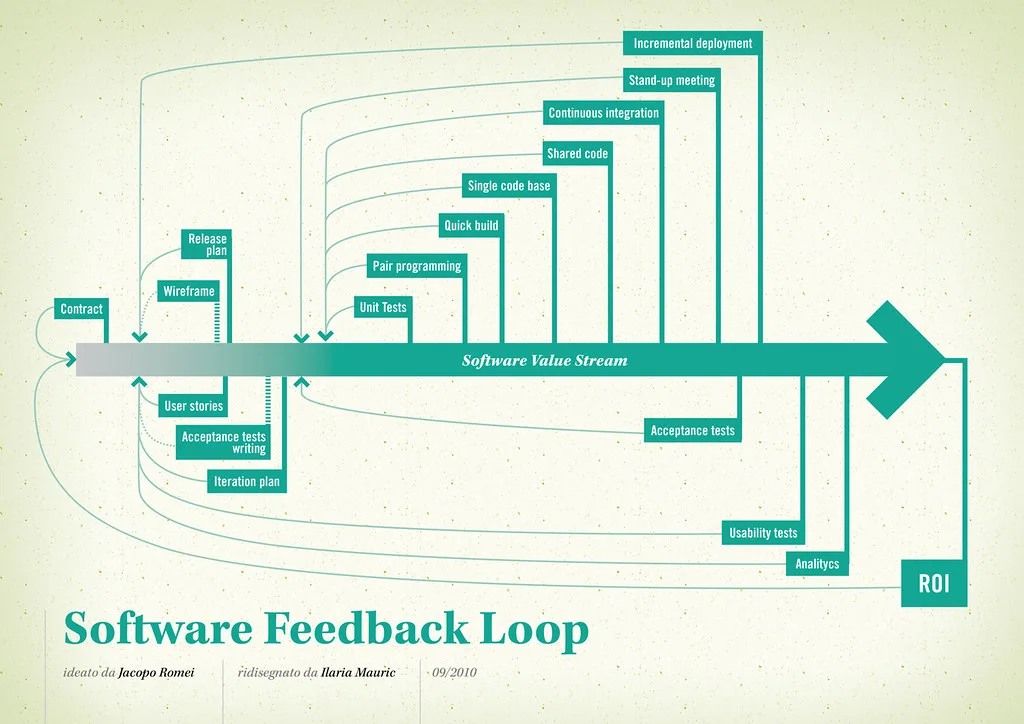
Cover image: Software value feedback loop by jakuza, licensed under BY-SA 2.0 via Openverse.