Somewhere around the third time Windows asked you to restart for an update you didn't ask for, you probably wondered whether there was a better option. If you have searched for "switch from windows to linux" recently, you are in good company. Desktop Linux market share has been climbing for several years, and Steam's hardware survey has repeatedly shown Linux crossing the 2 to 3 percent mark on gaming PCs, a figure that would have sounded fanciful a decade ago. Yet most advice on this topic is either evangelical ("just install Ubuntu and never look back") or dismissive ("Linux is for servers and nerds").
The reality for everyday work in 2026 sits between those extremes. Linux has become genuinely pleasant for browsing, email, documents, video calls, and most web-based tools. It still asks more of you in specific areas: certain professional applications, some hardware drivers, and the occasional Windows-only utility that refuses to die. The useful question is not "is Linux better?" but "what actually changes in my day, and does that change cost me anything I care about?"
This article walks through that question honestly. You will get a clear picture of what stays the same, what shifts, and what breaks, along with a worked migration example using real numbers, a comparison of distributions and fallback strategies, and a step-by-step plan you can follow without hunting for other resources. By the end you should be able to decide whether a switch makes sense for your work, and if it does, how to make the move without losing a week of productivity.
Key Takeaways
- For browser-centric work (email, docs, web apps, video calls), a modern Linux distribution is now a practical daily driver for most people.
- The biggest friction points are not the desktop itself but Windows-only applications, specific hardware (certain Wi-Fi chips, some printers, fingerprint readers), and enterprise software with licensing tied to Windows.
- Run a 30-day audit of every application you open before you switch. Most people discover they use 5 to 10 apps regularly and can replace or virtualize the rest.
- Keep a Windows partition or virtual machine for the one or two tools you cannot replace during the transition. Dual-booting is less scary than it used to be.
- Back up before you touch the partition table. A tested backup strategy matters more than the distribution you pick.
- Pick a distribution with a long support window and a large user base. For most people, that means Linux Mint, Ubuntu LTS, Fedora Workstation, or Pop!_OS.
What Is Linux, and Why Does the Distribution Matter?
Linux is an operating system kernel. What most people call "Linux" on a desktop is actually a distribution: a complete package that combines the kernel with a desktop environment, system tools, a package manager, and default applications. Ubuntu, Fedora, Linux Mint, and Pop!_OS are all distributions, and they can feel quite different from one another.
This matters because the distribution determines your update cadence, your software availability, how much configuration you will do by hand, and how easily you can get help. Choosing a distribution is closer to choosing a car model than choosing "an engine." The underlying principles are shared, but the daily experience varies.
Desktop environments versus distributions
A desktop environment such as GNOME, KDE Plasma, or Cinnamon handles windows, panels, menus, and settings. Many distributions let you choose among these at install time, and you can often switch later. If you have used macOS or Windows, GNOME and Cinnamon will feel the most familiar, while KDE Plasma offers the deepest customization.
What Actually Stays the Same for Everyday Work
Before talking about friction, it is worth stating plainly how much of a typical workday does not depend on the operating system at all. If you spend most of your time in a browser, the switch is far smaller than you might fear.
- Web browsing: Chrome, Firefox, Edge, and Brave all run natively on Linux with near-identical behavior. Your bookmarks and extensions sync as they would on Windows.
- Web applications: Gmail, Google Docs, Notion, Slack, Figma, Trello, and most SaaS tools are used through the browser and behave the same way.
- Office documents: LibreOffice handles .docx, .xlsx, and .pptx files well for typical use. It is not a perfect clone of Microsoft Office, and complex macros or heavily formatted templates can break, but everyday editing is fine.
- Video calls: Zoom, Google Meet, Microsoft Teams (web version), and Discord all work in the browser or through native Linux clients.
- Password managers: Bitwarden, 1Password (through the browser), and KeePassXC all have solid Linux support.
- Development tools: VS Code, Git, Docker, Python, Node.js, and most command-line tooling are arguably better on Linux than on Windows.
If your work lives mostly in these categories, the daily experience changes less than you expect. The shift shows up at the edges.
What Actually Changes: The Real Friction Points
The changes that matter fall into four buckets. Each one is manageable, but each one can cost you an afternoon if you are not prepared.
1. Windows-only applications
This is the big one. Adobe Creative Cloud, Microsoft Access, many accounting packages (QuickBooks Desktop, for example), certain CAD tools, and a long tail of line-of-business software do not run natively on Linux. Some options exist:
- Native alternatives: GIMP, Krita, Inkscape, and DaVinci Resolve (which does have a Linux version) cover many creative workflows. They are capable, but the learning curve and file compatibility can be real obstacles.
- Wine and Proton: Compatibility layers that run many Windows programs on Linux. Wine is the general-purpose tool; Proton is tuned mainly for games through Steam. Compatibility varies widely, and you should always check a program's rating in the community database before relying on it.
- Virtual machines: Running Windows inside VirtualBox or GNOME Boxes. This is reliable for software that must be Windows, at the cost of resources and some performance overhead.
2. Hardware and drivers
Driver support has improved dramatically, but it is not universal. Recent Intel and AMD chipsets, most NVIDIA GPUs (through the proprietary driver), common Wi-Fi cards, and Bluetooth adapters generally work out of the box. Trouble tends to appear with:
- Very new or very niche Wi-Fi chipsets
- Some laptops with hybrid graphics and hardware-specific power management
- Fingerprint readers and certain webcams
- Printers and scanners that rely on proprietary drivers (though many now work via driverless printing)
Before you commit, check your model's hardware on the distribution's compatibility pages or in a community forum. A five-minute search can save a weekend of frustration.
3. Software installation and updates
Windows users are accustomed to downloading a .exe from any website and running it. Linux installation works differently. Most software comes from your distribution's repositories, installed through a package manager (APT on Ubuntu and Mint, DNF on Fedora). Additional formats include Flatpak and Snap, which package applications with their dependencies and run in sandboxes.
The upside is that updates for the whole system, including most applications, come through one place. The downside is that you lose the instinct to hunt for an installer, and some proprietary software is simply not packaged at all.
4. Workflow habits
Keyboard shortcuts differ slightly, the file manager behaves differently, default settings are not what you expect, and system configuration often happens in a terminal rather than a registry editor. None of this is hard, but it takes a week or two of muscle-memory retraining. Expect to feel slower for the first ten days.
A Worked Example: Auditing Your Migration Before You Switch
Abstract advice is less useful than a concrete case, so consider a realistic scenario. Imagine a freelance bookkeeper, Maria, who runs a small practice from a Windows 11 laptop. She has 47 passwords across 12 services that she manages through a password manager, and her daily software list looks like this:
- Chrome (daily, heavy use)
- Outlook desktop (daily, for two client mailboxes)
- Excel with several macro-enabled workbooks (daily)
- QuickBooks Desktop (3 to 4 times per week)
- Zoom (daily, about 90 minutes of calls)
- Slack, Notion, and Trello in the browser (daily)
- A PDF editor (weekly)
- Adobe Acrobat Reader (daily, for client documents)
- Spotify (daily)
- A dictation tool and a screenshot utility (occasional)
Maria's first instinct is to ask whether she can switch at all. Instead, she runs a 30-day audit. For thirty days, she keeps a simple log in a spreadsheet: application name, number of days used, total minutes, and whether a Linux replacement exists. At the end of the month, the picture is clear.
- Chrome, Slack, Notion, Trello, Zoom, Spotify: Native or web-based on Linux. No change needed.
- Adobe Acrobat Reader and the PDF editor: Replaceable with Okular, Xournal++, or the browser's built-in PDF viewer for reading, and PDF Arranger or LibreOffice Draw for light editing.
- Outlook: Replaceable with Thunderbird for email, or the web version of Outlook in the browser. Thunderbird needs setup for her two mailboxes, roughly 20 minutes each.
- Excel with macros: This is the hard one. LibreOffice Calc handles most formulas, but her macros use VBA features that do not transfer cleanly. She estimates 6 to 8 hours to rewrite them.
- QuickBooks Desktop: No native Linux version. Options are a Windows virtual machine (she would need roughly 8 GB of RAM allocated to it and a licensed copy of Windows) or moving to QuickBooks Online through the browser.
Her conclusion is practical. Roughly 80 percent of her daily work moves to Linux with no meaningful change. The remaining 20 percent requires either a virtual machine for QuickBooks or a rewrite of her Excel macros. She decides to keep a Windows 11 virtual machine for QuickBooks and spend a weekend porting her macros, giving herself a month of parallel use before fully committing.
This is the pattern that works. You do not need to answer "can I switch?" in the abstract. You need to answer it for your own list of applications, with your own minutes of use.
Linux Distributions Compared for Everyday Work
Choosing a distribution is the decision most beginners agon
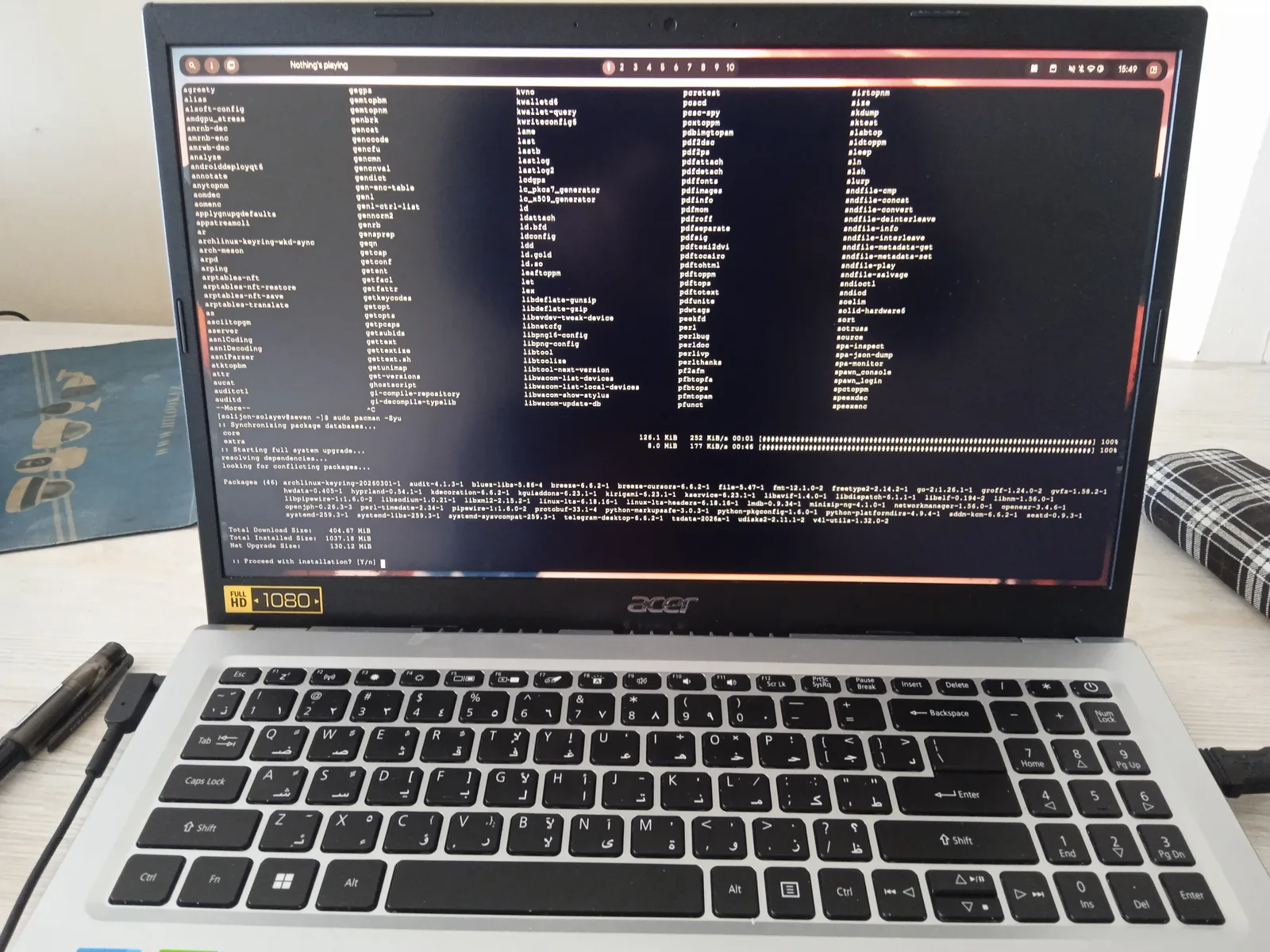
Cover image: Arch Linux system update via pacman on an Acer laptop by Solijon Solayev, licensed under BY-SA 4.0 via Openverse.