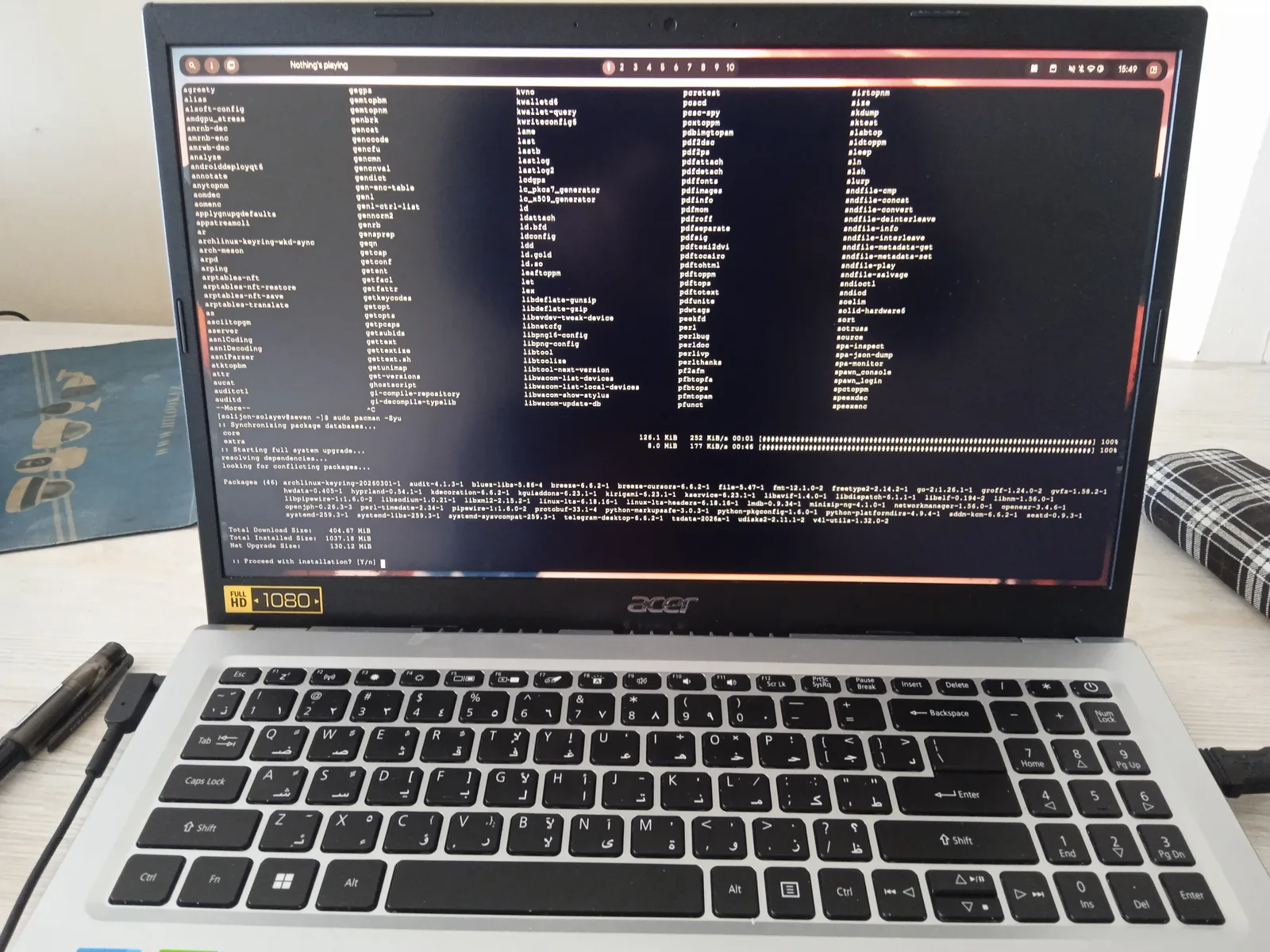
Every week, someone runs a one-line installer they found in a forum thread, grants it admin rights, and moves on with their day. Most of the time nothing bad happens. Occasionally, a package with a familiar name turns out to be a typosquat, a dependency gets hijacked, or a project quietly abandons its security patches two years after the last release. The problem is not that open-source software is risky. It is that "open source" has become a marketing label, and the label tells you almost nothing about whether a specific tool deserves a place on your machine.
The numbers are worth sitting with. Software supply chain attacks have grown sharply over the past several years, and public package registries routinely see malicious uploads that imitate popular libraries. At the same time, the open-source ecosystem is enormous and genuinely good. Many of the tools that power modern backups, editors, password managers, and servers are free, auditable, and better maintained than their paid counterparts. The skill that matters is not avoiding open source. It is knowing how to tell the well-run projects from the abandoned ones before the installer runs.
This article gives you a practical vetting checklist, the same kind of process a working reviewer runs before recommending anything to a client. We will cover where to check a project's health, how to read licenses without a law degree, how to assess the permissions a tool asks for, and how to decide when a community project is safer than a commercial one. You will also see a worked example with real numbers so you can apply the method to your own shortlist. If you want a broader view of which categories are worth switching to, our overview of free open-source alternatives to paid software in 2026 covers that ground in more depth.
Key Takeaways
- "Open source" describes a license, not a security guarantee. Vet every project on activity, maintenance, and permissions.
- A healthy project usually shows a commit or release within the last 6 months, multiple active maintainers, and a responsive issue tracker.
- Check the license before you install. Permissive licenses (MIT, Apache 2.0) and copyleft licenses (GPL) carry very different obligations.
- Verify download integrity with published checksums or signatures, and install from the project's official source, not a mirror you found in search.
- Apply least privilege: run new tools in a restricted account or sandbox first, and only grant the permissions the job requires.
- Commercial software can still be the right call. Vetting tells you which open-source option is safe, and sometimes the answer is to pay for a supported product.
What Does "Open Source Software Vetting" Actually Mean?
Open-source software vetting is the process of evaluating a freely available tool for security, maintenance, licensing, and fit before you install it or depend on it. It answers four questions: Is the code still maintained? Who controls it? What am I allowed to do with it? What access will it have once it runs?
Vetting is not a single test. It is a short sequence of checks, each of which catches a different kind of failure. A project can be actively maintained but carry a license that conflicts with how you plan to use it. A permissively licensed tool can be perfectly legal and still request permissions it has no reason to need. Treat the checklist as a funnel: each stage removes candidates that fail, so the final choice is one you can defend.
Why the Label Is Not Enough
The phrase "open source" means the source code is publicly available. It does not mean the code has been audited, that the maintainers are responsive, or that the binary you downloaded matches that source. A project on GitHub with 40,000 stars can still ship a release that nobody has reviewed in three years. Popularity and stars indicate interest, not safety.
How Do You Check If an Open-Source Project Is Actively Maintained?
Maintenance is the single most predictive signal of whether a tool will still be safe in a year. Abandoned software accumulates unpatched vulnerabilities, breaks against newer operating systems, and eventually stops responding to bug reports. Your first job is to confirm the project is alive.
The Maintenance Signals to Check
- Last commit or release date. Within the last 6 months is a good sign. Between 6 and 18 months warrants a closer look. Older than 18 months with no security advisories addressed is a red flag for anything that handles credentials or network traffic.
- Number of active maintainers. One person maintaining a critical tool is a single point of failure. Three or more regular contributors is healthier.
- Issue and pull request response time. Look at the last 20 closed issues. If most received a human response within a few weeks, the project is responsive.
- Security policy. A
SECURITY.mdfile or a documented vulnerability reporting address shows the maintainers have thought about disclosure. - Release cadence. Regular tagged releases beat sporadic dumps. Check whether the changelog mentions security fixes.
A Quick Walkthrough
- Open the project's repository page and note the date of the most recent commit on the default branch.
- Click the "Releases" or "Tags" section and check the last three release dates. Calculate the gap between them.
- Open the "Issues" tab, filter to closed issues, and read the first five. Note whether maintainers replied and how long it took.
- Search the repository for
SECURITY.md. If it is missing, check the project's website or documentation for a security contact. - Score the project: green if all four signals are healthy, yellow if one is weak, red if two or more fail.
How Do You Read an Open-Source License Before You Install?
Licenses determine what you may legally do with software: use it commercially, modify it, redistribute it, or bundle it inside your own product. You do not need to memorize license texts, but you should know the families and their obligations.
License Families at a Glance
| License | Type | Commercial Use | Must Share Modifications? | Patent Grant | Typical Use Case |
|---|---|---|---|---|---|
| MIT | Permissive | Yes | No | No explicit grant | Libraries, utilities, most web tools |
| Apache 2.0 | Permissive | Yes | No | Yes | Enterprise software, large frameworks |
| GPL v3 | Strong copyleft | Yes, with conditions | Yes, if distributed | Yes | Linux tools, GNU utilities |
| AGPL v3 | Network copyleft | Yes, with conditions | Yes, including for hosted use | Yes | Self-hosted web services |
| Source-available (e.g. BSL) | Not OSI open source | Often restricted | Varies | Varies | Commercial products with delayed open release |
The practical takeaway: if you plan to ship a product that embeds the tool, a copyleft license may require you to release your own code. If you plan to run an internal service, AGPL can apply even without distribution. And "source-available" is not the same as open source, so check whether the license is on the approved OSI list before assuming freedoms you may not have.
What Permissions Should a Tool Be Allowed to Have?
The permissions a tool requests are where most real-world damage happens. A note-taking app does not need access to your full filesystem, your keychain, or your camera. Yet tools routinely ask for more than they need, and users click through because the prompt looks routine.
The Least-Privilege Test
For every permission a tool requests, ask: does the stated purpose of this tool require this access? If a PDF converter wants network access, that is worth questioning. If a theme for your code editor wants to read your SSH keys, stop.
- Filesystem: Limit to the folders the tool actually works on, not your entire home directory.
- Network: Note whether the tool phones home, and to where. Telemetry is not automatically bad, but it should be documented and optional.
- Credentials: Be cautious with anything that asks for passwords, API keys, or browser cookies.
- Elevated privileges: Administrator or root access should be rare and justified.
Worked Example: Auditing a Dozen Tools
Say you are setting up a new workstation and have a shortlist of 12 open-source tools: a password manager, a file sync client, a PDF editor, a screenshot utility, a note app, a code formatter, a VPN client, a backup tool, a markdown editor, a torrent client, a media converter, and a system monitor. Here is how a realistic audit might break down.
- Maintenance pass. Of the 12, 9 show a commit or release in the last 6 months. The torrent client's last release was 22 months ago, and the media converter has one maintainer who has been silent on 14 open issues. Both move to yellow. You keep the torrent client on hold and look for a maintained alternative.
- License pass. You plan to use everything internally, so copyleft is fine. But the markdown editor is source-available under a restrictive license rather than OSI-approved, so you check whether its terms allow your use. They do for personal work but not for a paid client deliverable. You drop it for a permissively licensed editor.
- Permissions pass. The screenshot utility requests full disk access, which is more than its job needs. You restrict it to your Pictures folder where the OS allows. The system monitor asks for kernel-level access; you confirm that is required for its function and keep it.
- Integrity pass. For each installer, you compare the SHA-256 checksum against the value published on the project's official site. Two mismatches send you to investigate further. One turns out to be a mirror serving an outdated build; the other is a genuine problem, and you remove it.
- Trial pass. You install the remaining tools inside a separate user account for a week before moving your real data across.
After the audit, 8 of 12 tools survive with clean results, 2 are replaced, and 2 are kept with restricted permissions. Total time: roughly two hours. That is a small price against a compromised workstation.
How Do You Verify a Download Is Authentic?
Even a healthy project can be impersonated. Attackers publish trojanized installers under near-identical names, and search engines sometimes rank them highly. Verification is your defense.
A Verification Walkthrough
- Navigate to the project's official website by typing the address or using a bookmark, not by clicking a search ad.
- Locate the downloads page and find the published SHA-256 checksum or GPG signature for your