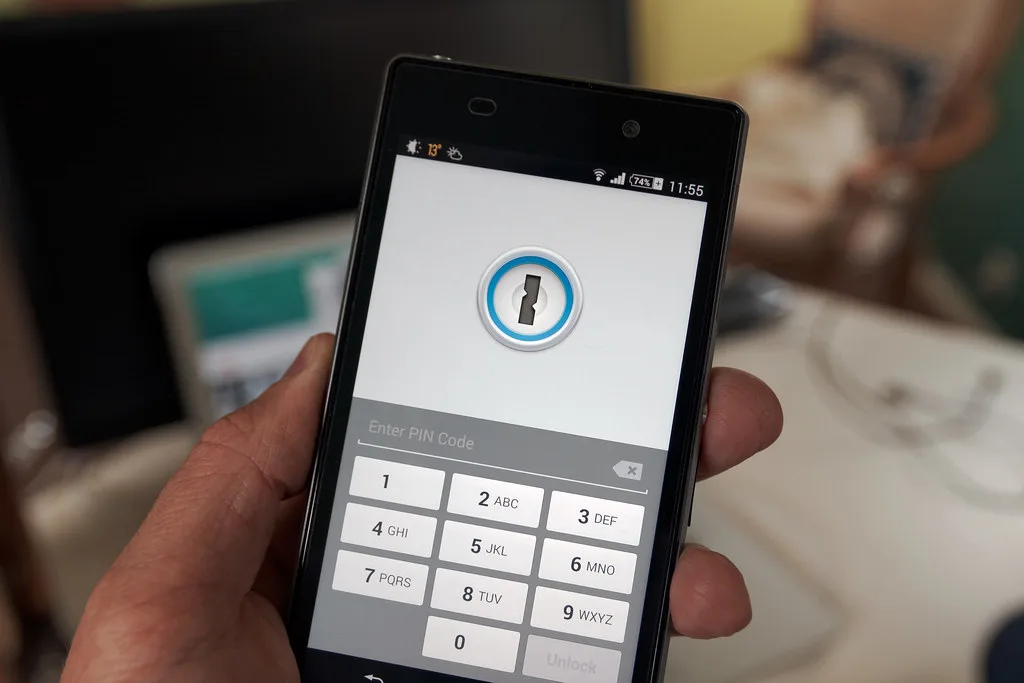
You open a new tab expecting Chrome's clean start page, and instead you get a search box you've never seen, a wall of "sponsored" links, and a logo that looks like it was designed in ten minutes. Congratulations: you've been hijacked. New tab hijacker extensions are one of the most common and most underestimated browser threats, and most people who have one installed have no idea it's there.
Here's a number that surprises most people. In audits of infected consumer machines, security teams routinely find that 20 to 30 percent of browser extensions installed on a typical user's Chrome profile were never intentionally added by the user. They arrived bundled with free software, snuck in during a "recommended" install step, or were installed by another extension that had permission to add more. New tab hijackers thrive in that gap between "I installed this" and "this got installed."
In this guide I'll walk you through exactly how to identify a new tab hijacker, how to remove it completely (not just the visible part), how to tell a hijacker from a legitimate customization tool, and how to keep your browser clean afterward. I've cleaned dozens of these off friends' and clients' machines, so this is the practical version, not the theory.
Key Takeaways
- A new tab hijacker is a browser extension that forcibly changes your new tab page, homepage, or default search to serve ads and harvest your queries.
- Check
chrome://extensionsandchrome://settings/searchfirst. If either is "managed by your organization" on a personal machine, you're almost certainly infected.- Removing the extension is only half the job. Hijackers often leave behind policies, scheduled tasks, and companion apps that reinstall it.
- Legitimate new tab tools let you remove them cleanly and never lock your settings. Hijackers fight back.
- Prevention beats cleanup: install from trusted sources, audit permissions quarterly, and keep a dedicated security layer running.
What Is a New Tab Hijacker Extension?
A new tab hijacker is a browser extension that overrides Chrome's default behavior when you open a new tab, click your homepage, or run a search. Instead of Google (or whatever you chose), you're routed through a third-party page that the extension controls.
The goal is almost always money. These extensions earn revenue three ways:
- Search arbitrage: your searches get funneled through a low-quality search partner that pays the hijacker a cut of ad clicks.
- Ad injection: the new tab page is stuffed with "sponsored" tiles and pop-unders.
- Data harvesting: every URL you visit and every term you search becomes a data point they can sell.
That last one is the real cost. A hijacker that reads "every site you visit" is essentially a keystroke-adjacent surveillance tool. The same category of over-permissioned software shows up in the WordPress world too, which is why we've written about why your WordPress security plugin might be leaking data. Different platform, identical trust problem.
Why "just a search page" is a bigger deal than it looks
People shrug off new tab hijackers because the visible symptom seems harmless. But to change your new tab page, the extension needs the chrome_url_overrides permission, and to redirect searches it usually reads and modifies data on the sites you visit. Those are heavy permissions. If you'd never install a random app that could read every page you open, you shouldn't tolerate an extension that quietly does the same thing.
How to Tell If You Have a New Tab Hijacker
Here's the checklist I run through in about two minutes on any machine I suspect is infected. If you hit three or more of these, assume you're hijacked.
- Your new tab page shows an unfamiliar search box, weather widget, or grid of "featured" sites you didn't choose.
- Your default search engine changed to something like "Search Manager," "MyWay," "Yahoo via a redirect," or a name you don't recognize.
- Chrome's settings pages show a small banner that says "Managed by your organization" even though it's your personal laptop.
- You can't change the new tab or search settings back. The option is greyed out or reverts instantly.
- Searches load through an intermediate domain before landing on results (watch the address bar flicker).
- You see an extension in
chrome://extensionsyou don't remember installing.
A worked example
Let's make this concrete. Say you search best noise cancelling headphones. On a clean Chrome, the address bar goes straight to google.com/search?q=.... On a hijacked machine, I watched a real case where the request first hit feed.thatsearchthing[.]com, then bounced to search.yahoo.com with an affiliate tag appended. Two redirects, roughly 400 milliseconds of extra latency, and the hijacker earned a referral fee on a search the user thought was plain Google.
Over a month, that user ran an estimated 1,800 searches. Every single one was logged by a company they'd never heard of. That's the actual price of a "free" new tab wallpaper extension.
Step-by-Step: How to Remove a New Tab Hijacker in Chrome
Follow these in order. Skipping the later steps is why hijackers "come back" for so many people.
- Open your extensions list. Type
chrome://extensionsin the address bar and press Enter. Toggle on Developer mode (top right) so you can see extension IDs and details. - Identify the culprit. Look for anything you didn't deliberately install, anything with a generic name ("New Tab HD," "Quick Search," "Tab Pro"), and anything requesting "Read and change all your data on all websites." Click Details to check its permissions and source.
- Note the extension ID. It's the long string of letters in the URL when you click Details, like
chrome-extension://abcdefghijklmnop.... Copy it. You'll need it to hunt down leftover files. - Remove it. Click Remove, then confirm. If the Remove button is greyed out, the extension was installed by policy. Jump to the "managed by your organization" fix below.
- Reset your search engine. Go to
chrome://settings/search, set your default search back to Google (or your choice), then open "Manage search engines" and delete any unfamiliar entries. - Reset the new tab and homepage. Under
chrome://settings/onStartup, remove any injected startup pages. If the new tab page won't reset, the override is still coming from a remaining extension. - Clear the leftovers. Run Chrome's built-in cleanup (Windows only):
chrome://settings/cleanupand click Find. It scans for known harmful software tied to the browser. - Restart Chrome fully. Not just the window. On Windows, close it, then confirm no
chrome.exeprocesses linger in Task Manager. - Re-check. Open a new tab. If it's clean and stays clean after a restart, you're done. If it reverts, a companion app or policy is reinstalling it. Continue below.
Fixing "Managed by your organization" on a personal PC
This is the sneakiest trick hijackers use. They write a Chrome policy that force-installs the extension and locks your settings, so the Remove button is disabled. To clear it:
- Go to
chrome://policyand note any suspiciousExtensionInstallForcelistorHomepageLocationentries. - On Windows: open Registry Editor and check
HKEY_LOCAL_MACHINE\SOFTWARE\Policies\Google\Chromeand the same path underHKEY_CURRENT_USER. Delete malicious force-install keys. Back up the registry first. - On macOS: check
/Library/Managed Preferences/and remove roguecom.google.Chromeplist entries. - Check for a companion program in Windows Settings > Apps or macOS Applications with a name matching the extension. Uninstall it.
- Look for scheduled tasks (Windows Task Scheduler) or launch agents (macOS
~/Library/LaunchAgents) that re-add the policy on reboot. Delete them. - Restart the machine, then repeat the extension removal. The button should now be active.
Hijacker vs Legitimate New Tab Extension: How to Tell Them Apart
Not every new tab customizer is malware. Momentum, Tabliss, and similar tools are genuinely popular and safe. The difference is in behavior and respect for your control. Here's how the categories compare.
| Trait | Legitimate customizer | Aggressive adware | Full hijacker |
|---|---|---|---|
| How it arrived | You searched for and installed it | Bundled with free software | Silently installed by another app/policy |
| Permissions requested | New tab override only | New tab + some browsing data | Read/change all data on all sites |
| Can you remove it? | Yes, one click | Yes, but nags you | No — button greyed out |
| Changes default search? | No, or asks first | Yes, without asking | Yes, and locks it |
| Redirects your searches? | Never | Sometimes | Always |
| "Managed by organization" banner | No | Rarely | Yes, on personal machines |
The single clearest signal: can you remove it cleanly and does it respect your settings? A legitimate tool never locks your search engine or reappears after removal. If it fights you, it's not a customizer, it's an infection.
What to Do After You Remove It
Removal fixes the symptom. Now you need to close the door and check what leaked. Run through this list the same day you clean up.
- Change passwords for anything you logged into while infected. A hijacker with full site access could have captured session data. Start with email and banking.
- Turn on stronger auth. If you're
Cover image: Innovate Maryland Emerging Technology Center by MDGovpics, licensed under BY 2.0 via Openverse.