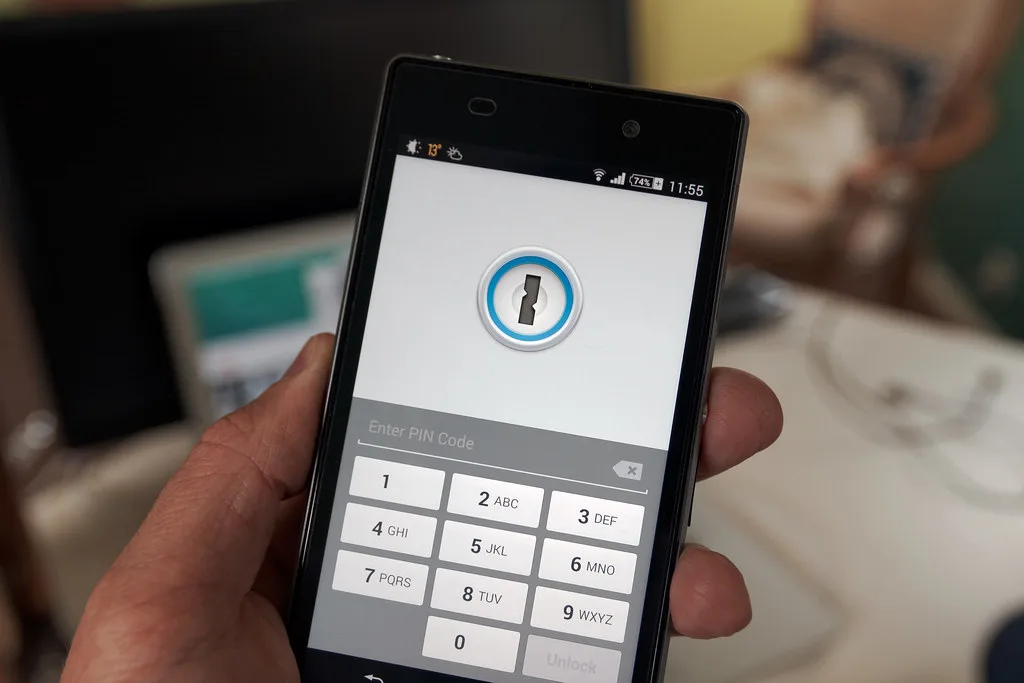
Most people who switch Android password managers hit the same wall: they export a file, import it somewhere else, and discover that a chunk of their logins never arrived. Passkeys make this worse. A passkey is not a password that can be copied into a spreadsheet and pasted back. It is a cryptographic credential bound to a specific device or sync provider, and moving it means handling key material that you do not want floating around in plaintext. Get it wrong and you can lock yourself out of an account you have had for a decade.
The stakes are real. Industry estimates from password reset and identity vendors consistently find that the average person reuses credentials across many services, and a large share of breaches trace back to credential reuse rather than cracked encryption. Moving to a new password manager is one of the best security upgrades you can make, but a careless migration can leave plaintext CSV files sitting in your Downloads folder, duplicated entries in two vaults, or passkeys orphaned on a phone you no longer use.
This guide walks through how to transfer passwords and passkeys between Android password managers safely. You will learn what actually moves during a migration and what does not, how to build a migration plan for a realistic vault size, how to use built-in import and export tools without leaving a security hole behind, and how to verify that everything arrived. We will compare common migration paths, cover the specific steps for passkeys, and finish with the cleanup checklist most people skip. If you only have time for the essentials, read the takeaways first.
Key Takeaways
- Passwords are portable as encrypted or plaintext exports, but passkeys usually are not. Plan for passkeys to be re-registered or synced through the provider that created them.
- Never leave an unencrypted CSV export on your device or in cloud storage. Delete it the moment the import is verified.
- Migrate in a fixed order: inventory, export, import, verify a sample, then re-register passkeys, then clean up.
- Expect duplicates and malformed entries. Count your logins before and after, and review any mismatch by hand.
- Turn off autofill in the old manager only after you have confirmed every critical account can sign in from the new one.
- Rotate passwords on high-value accounts (email, banking, cloud storage) after migration, since the export file existed in the open for a while.
What Actually Transfers Between Android Password Managers?
The honest answer is that it depends on the format and on who you are moving between. A saved password is a simple record: a site, a username, a secret, and maybe a note. Almost every manager can export and import that structure, usually as a CSV file. A passkey is different. It is a public/private key pair where the private key is generated and stored in a secure element or a sync fabric, and the service only ever holds the public key. That design is precisely why passkeys resist phishing, and it is also why they resist simple export.
In practice, you will see three categories of data during a migration:
- Plain passwords: portable through CSV or an encrypted export file. Usernames, URLs, and notes usually come along too.
- Passkeys: generally not exportable as raw keys. They are either synced by the platform (Google Password Manager, Samsung Pass with its own sync, or a manager that supports the FIDO Alliance credential exchange format) or bound to a single device.
- Secure notes, TOTP seeds, and attachments: inconsistent. Some managers export TOTP secrets, many do not, and attachments often need manual handling.
The practical takeaway: a password migration is a file transfer problem, while a passkey migration is an account recovery problem. Treat them as separate projects.
How Do You Plan a Safe Migration Before You Touch Anything?
Skipping the planning phase is how people lose accounts. Before exporting anything, take inventory. Open your current manager and count the entries by category. Then decide which accounts are critical, meaning email, banking, government, cloud storage, and anything that can reset other accounts.
Here is a worked example. Say you have 47 saved passwords across 12 services you actively use, plus 9 passkeys on Google accounts, GitHub, and a banking app. Your inventory might look like this:
- 47 passwords total, of which 14 are for infrequently used sites (archive candidates)
- 9 passkeys: 4 on Google, 2 on GitHub, 1 on your bank, 2 on shopping sites
- 6 entries with TOTP codes stored in the manager
- 3 secure notes containing recovery codes
That inventory tells you the migration is not finished when the CSV imports. You still have six TOTP seeds to re-verify, three recovery code notes to move to a safe location, and nine passkeys to reconcile. Writing this down first prevents the classic mistake of declaring victory too early.
Choose a Migration Order
- Create and secure the new vault, including a strong master password and two-factor authentication on the manager account itself.
- Inventory your existing entries and flag critical accounts.
- Export passwords from the old manager.
- Import into the new manager and compare counts.
- Test sign-in on five to ten accounts, prioritizing critical ones.
- Re-register passkeys and reconfigure TOTP.
- Securely delete the export file and clean up the old manager.
How Do You Export and Import Passwords Without Leaving a Security Hole?
The export file is the most dangerous artifact in the entire process. A standard CSV export contains every password in plaintext, readable by anyone or anything that opens the file. Treat it like a stack of paper cash.
Step-by-Step: Export From Your Current Manager
- Open the manager app and go to its settings. Look for "Export," "Export vault," or "Export passwords." Most managers will ask you to re-authenticate with your master password or biometrics. Complete this.
- Choose the encrypted export option if one exists. Several managers now offer an encrypted archive protected by a passphrase you set for that export. Prefer it over plain CSV whenever available.
- If you must use CSV, save the file directly to a location you control, ideally an external drive or a folder you will delete within the hour. Do not save it to a synced cloud folder.
- Note the number of entries the export reports. You will compare this number later.
Step-by-Step: Import Into the New Manager
- Open the new manager and find its import function, usually under settings or a "Import data" menu.
- Select the file type that matches your export. Choosing the wrong format is a common source of garbled entries.
- Wait for the import to finish, then open the import summary. Note how many entries were added, skipped, or flagged as duplicates.
- Spot-check ten entries across different categories: a bank, a social account, a shopping site, a work login, and a site with unusual characters in the password.
- Only after verification, delete the export file. On Android, delete it from the file manager and then empty the trash folder, since many devices keep recently deleted files briefly.
How Do You Transfer Passkeys Between Android Password Managers?
Passkeys deserve their own procedure because the mechanics differ so much. The core principle is that you should not expect a passkey to be copied. Instead, you either move the credential through a sync system built for that purpose or you register a fresh passkey on the target manager and remove the old one.
Understand Where Your Passkeys Live
Check each passkey's storage location. A passkey created while signed into a Google account is typically stored in Google Password Manager and syncs across devices signed into that account. A passkey created in a third-party manager that supports passkeys lives in that vault. Some are device-bound and will not sync anywhere, which is the most dangerous category if you are replacing a phone.
Step-by-Step: Re-Register a Passkey on a New Manager
- Sign in to the service with your existing password and a second factor, since you are about to change how you authenticate.
- Go to the account's security settings and find "Passkeys" or "Sign-in methods."
- Choose to add a new passkey. When prompted, select the new manager as the place to save it.
- Confirm the passkey appears in the new manager's list under the correct site name.
- Sign out, then sign back in using only the passkey. If the test succeeds, remove the old passkey from the service and from the old manager.
Never delete the old passkey before the new one has proven itself. If the new passkey fails and you have already removed the old one, your recovery path becomes the account's backup email or support process, which can take days.
Which Migration Path Should You Choose?
The right path depends on how much you trust your current manager, how many entries you have, and whether you want to keep an old vault as a backup. Here is a comparison of common approaches on the criteria that matter most.
| Migration path | Passkey handling | Security of transfer file | Effort for 50+ entries | Risk of data loss | Best for |
|---|---|---|---|---|---|
| Built-in encrypted export and import | Usually re-register | High (passphrase-protected) | Low | Low | Moving between major managers |
| Plain CSV export and import | Usually re-register | Low (plaintext until deleted) | Low | Medium (format mismatches) | Small vaults, fast cleanup |
| Google Password Manager as a bridge | Synced if on same account | Medium | Medium | Low | Android-first users |
| Manual re-entry for critical accounts | Full control | Not applicable | High | Very low | A handful of high-value accounts |
| Hybrid: export non-critical, manual for critical | Manual for critical | Medium | Medium | Very low | Security-conscious users with mixed vaults |
For most people, the hybrid approach is the best balance. Export the bulk of your low-stakes logins, and handle banking, email, and your primary cloud account by hand. The few extra minutes spent re-entering critical credentials are cheap insurance.
If you are weighing whether a particular commercial manager is worth the switch, the reasoning in our piece on password manager price cuts and whether Keeper is worth it after breach warnings covers the trust side of that decision. And if you want a sense of the passkey-specific risks in Google's ecosystem, our analysis of Google Password Manager passkey malware risk in 2026Cover image: Phone security by Ervins Strauhmanis, licensed under BY 2.0 via Openverse.