
If you pay for a password manager, you have probably noticed the industry quietly shifting under your feet. Apple, Google, and Microsoft now ship native passkey support. Websites you use every day (PayPal, GitHub, Amazon, eBay) let you sign in with nothing but your fingerprint or face. And your paid vault, which once felt like a permanent fixture in your workflow, suddenly looks like it might be optional.
Here is the surprising part. According to the FIDO Alliance, over 15 billion online accounts can now use passkeys, and passkey adoption doubled at several major providers within a single year. Passwords are not dying dramatically. They are being deprecated slowly, one login at a time, while most people keep paying for a tool built around a technology that is aging out.
This guide walks you through how to migrate to passkeys without locking yourself out of anything important. You will learn what actually transfers cleanly, what does not, how to run a real inventory of your accounts, and how to decide whether to keep a slimmed-down password manager or drop it entirely. I have done this migration on my own accounts, and I will be honest about where it gets messy.
Key Takeaways
- Passkeys replace passwords for login, but they do not replace everything a password manager does (secure notes, TOTP codes, shared credentials, legacy sites).
- Migrate in phases: audit first, convert your highest-risk accounts (email, bank, cloud) next, then the long tail.
- Never delete a password until you have successfully tested a passkey login on a fresh session.
- Decide early where your passkeys will live: platform (Apple/Google/Microsoft) or a cross-platform manager. This affects everything downstream.
- Keep at least one printed or offline recovery method for critical accounts. A single lost device should never lock you out.
- Expect to keep a password manager for the ~30-50% of sites that still have no passkey support.
What Passkeys Actually Replace (and What They Don't)
A passkey is a pair of cryptographic keys tied to your device and a specific website. The private key never leaves your secure hardware; the site only stores the public key. There is nothing to type, nothing to phish, and nothing in a breach dump to steal. That is the whole appeal.
But before you migrate, be clear about scope. A paid password manager does several jobs. Passkeys only cover one of them well.
- Login authentication — Passkeys fully replace this on supported sites. This is the win.
- TOTP two-factor codes — Many managers store your 6-digit authenticator codes. Passkeys do not carry these over. A passkey can replace the need for TOTP on a given site, but only if that site supports passkey-only login.
- Secure notes, license keys, Wi-Fi passwords, recovery codes — Passkeys do nothing here. If you store this data, you still need a vault.
- Shared credentials for teams or family — Passkey sharing is improving but remains clunky compared to shared vault folders.
- Legacy and enterprise sites — Plenty of banks, government portals, and internal tools have no passkey option and will not for years.
The takeaway: this is a reduction project, not a deletion project. You are shrinking your reliance on a password manager, not necessarily eliminating it. Thinking otherwise is how people get locked out.
Where Should Your Passkeys Live? Platform vs. Cross-Platform Manager
This is the first real decision, and it shapes the entire migration. Your passkeys need a "home" that syncs across your devices. You have three broad options, and they involve genuine tradeoffs.
The three homes for your passkeys
| Option | Best for | Cross-platform? | Cost | Main weakness |
|---|---|---|---|---|
| Apple iCloud Keychain | All-Apple households | Weak (Apple-first) | Free | Painful on Windows/Android |
| Google Password Manager | Android + Chrome users | Partial | Free | Chrome-centric; weaker on iOS |
| Cross-platform manager (Bitwarden, 1Password, Proton Pass) | Mixed-device users | Strong | Free to ~$36/yr | Still a subscription/vendor to trust |
| Hardware key (YubiKey) | High-risk accounts | Strong | $25-$70 one-time | Cost per device; carry it |
My honest recommendation for most people who are leaving a paid manager: if you live entirely in one ecosystem, use the native option and pocket the savings. If you mix Windows, Android, iPhone, and Linux, use a cross-platform manager that also handles passkeys. And for your two or three most sensitive accounts (primary email, financial, domain registrar), buy a hardware key as a backup regardless of what else you choose.
If you want to compare vetted, cross-platform utilities and privacy tools before committing, browse the desktop utilities category and web apps to see what fits your setup.
Step 1: Run a Full Credential Audit Before You Touch Anything
You cannot migrate what you have not counted. Almost everyone underestimates how many accounts they hold. When I audited mine, I expected around 60 and found 213.
Here is the worked walkthrough I use:
- Export your vault to CSV. Every reputable manager offers this under Settings → Export. Do this on a trusted machine and delete the file when done.
- Count and categorize. Open the CSV in a spreadsheet. Add a column for "tier." Tier 1 = catastrophic if breached (email, bank, cloud storage, domain, government). Tier 2 = painful (social media, shopping with saved cards). Tier 3 = low stakes (forums, newsletters).
- Add a "passkey supported?" column. Check the excellent community-maintained directory at
passkeys.directoryfor each Tier 1 and Tier 2 site. - Flag duplicates and reused passwords. Your manager's security report does this automatically. Note them; these are the accounts to fix first regardless.
Say your audit looks like mine: 213 accounts, of which 34 are Tier 1, 71 are Tier 2, and 108 are Tier 3 junk. Of the Tier 1 group, maybe 22 support passkeys today. That is your first migration batch: 22 high-value, passkey-ready accounts. The other 12 Tier 1 accounts stay on strong passwords plus hardware-key or TOTP two-factor until they catch up.
Spreadsheets are where this whole project lives. If you manage the audit in Google Sheets or Excel, the right add-on can save hours of manual sorting; the Google Sheets add-ons and Excel plugins collections are worth a look for bulk cleanup work.
Step 2: Migrate Your Highest-Risk Accounts First
Never start with your bank. Start with the account that controls your bank: your primary email. If someone owns your email, they can reset everything else. Protect it first.
The safe conversion routine (repeat for each account)
- Log in normally using your existing password and 2FA.
- Find the passkey setting. It is usually under Security → "Passkeys," "Sign in without a password," or "Set up a security key."
- Create the passkey and save it to your chosen home (platform keychain, cross-platform manager, or hardware key).
- Register a second passkey on a different device or a backup hardware key. Redundancy here is the difference between convenience and disaster.
- Test in a private/incognito window. Sign out completely, then sign back in using only the passkey. Do not skip this. A passkey that "was created" but never verified is not a working passkey.
- Do NOT delete the password yet. Keep it in your vault for at least two weeks. Many sites still require the password for sensitive actions like changing your email.
- Confirm recovery. Check that recovery codes still exist and are stored offline.
Work through your 22 passkey-ready Tier 1 accounts one at a time. This is deliberately slow. On my migration, careful testing caught two sites where the passkey login silently failed on desktop but worked on mobile. Better to find that on account #3 than on all 22.
Step 3: Handle the Long Tail and the Holdouts
After the high-value accounts, you face two remaining groups: Tier 2/3 sites with passkey support, and the holdouts with none.
For passkey-supported Tier 2 and 3 accounts
Batch these. Set aside an hour, work through the list, and use the same test-before-trust routine, though you can be a little faster since the stakes are lower. Honestly, for a Tier 3 newsletter forum, adding a passkey is optional. Focus energy where it counts.
For the holdouts with no passkey support
This is where people get it wrong. They read that passwords are obsolete and try to force it. Instead:
- Keep a strong, unique, randomly generated password for each holdout.
- Enable the strongest 2FA the site offers (hardware key > TOTP app > SMS, in that order).
- Store these in a slimmed-down password manager. You are not deleting your vault; you are shrinking its job to "the sites that aren't ready yet."
Because the holdouts are exactly the sites most likely to have weak security, it is worth adding defense at the network level too, especially if you run any of these services yourself. If you manage your own WordPress or e-commerce login pages, layering protection like eDarpan WordPress Protection or a broader SiteGuard Pro setup reduces the risk from the credential-based attacks passkeys are meant to eliminate.
Step 4: Build a Recovery Plan Before You Trust the New Setup
Passkeys shift your risk from "someone steals my password" to "I lose access to my devices." That is a better problem to have, but only if you plan for it.
Here is a resilient recovery baseline for Tier 1 accounts:
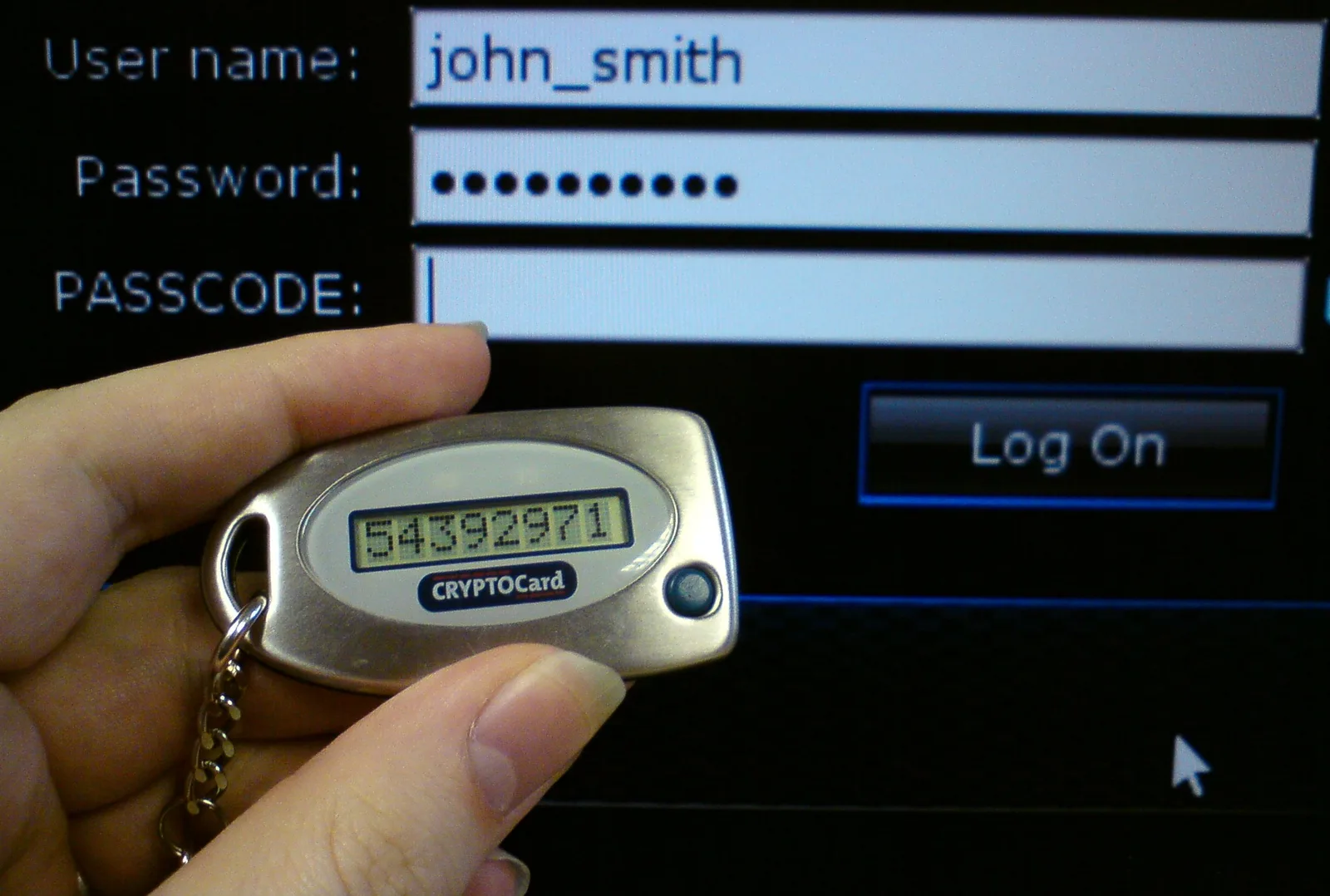
Cover image: CryptoCard two factor by Brian Ronald, licensed under BY-SA 4.0 via Openverse.







