You typed a password into Chrome once, clicked "Save," and never thought about it again. Multiply that by a few years of casual browsing and you probably have somewhere between 80 and 300 credentials living inside your browser right now. Most people have no idea how many. When I exported my own Chrome vault last year, the CSV had 214 rows in it. I recognized maybe half.
Here's the uncomfortable part: a browser password manager is convenient precisely because it is loosely guarded. On many systems, anyone who unlocks your desktop session can view every saved password in plain text with three or four clicks. There is no separate master password by default, no meaningful encryption boundary once you are logged into the OS, and limited support for secure sharing, breach monitoring, or offline access.
This guide walks you through exactly how to migrate from your browser password manager to a dedicated app without losing a single login, and without leaving a plaintext copy of your entire digital life sitting in your Downloads folder. You'll get a real export-and-import walkthrough, a comparison of the main dedicated-app options, and a cleanup routine that most tutorials skip.
Key Takeaways
- Browser password managers tie your vault to your OS login, not a separate master key. That's the core security gap.
- Export to CSV, import into a dedicated app, verify the count, then immediately delete the CSV and disable browser saving.
- Expect to spend 30 to 60 minutes for a typical vault of 100 to 250 credentials.
- Choose a dedicated manager based on encryption model, offline access, and whether you want self-hosted control.
- Migration is the perfect moment to purge dead accounts and rotate weak or reused passwords.
- Turn on two-factor authentication for the new vault before you trust it with anything.
Why Move Away From Your Browser's Password Manager?
Browser-based managers (Chrome, Edge, Firefox, Safari) are genuinely useful. They autofill fast, they sync across your devices, and they cost nothing. For a casual user with a handful of low-value logins, they're fine.
The problems show up as your digital footprint grows:
- Weak access control. In Chrome and Edge, "View password" usually just requires your Windows or macOS account PIN. If your laptop is unlocked, so is your vault.
- Plaintext export by design. Every browser lets anyone with account access dump the whole vault to an unencrypted CSV. That's a feature attackers love.
- No real breach monitoring. Browsers flag some compromised passwords, but coverage is shallow compared to dedicated tools.
- Poor sharing. Sending a Wi-Fi or streaming password to a family member means texting it. That's how credentials leak.
- Ecosystem lock-in. Your Safari vault doesn't play nicely on Windows. Your Chrome vault is awkward on iOS.
A dedicated app fixes these with a separate master password (or passkey), zero-knowledge encryption, cross-platform apps, secure sharing, and proper auditing. The tradeoff is a little setup time and one new password you actually have to memorize.
A quick reality check with real numbers
Say you have 147 saved passwords across 41 unique websites. When you audit them, you'll typically find that 20 to 40 percent are duplicates (the same login saved under site.com and www.site.com), another chunk belong to accounts you no longer use, and a scary number reuse the same base password with a tweaked digit on the end. Migration is the one time you'll actually look at all of them, which is exactly why it's worth doing carefully.
Dedicated Password Managers Compared
Before you export anything, decide where those credentials are going. The four options below cover most sensible choices, from cloud-hosted convenience to self-hosted control. Prices are approximate and change often, so treat them as a directional guide.
| App | Encryption model | Offline access | Self-host option | Best for |
|---|---|---|---|---|
| Bitwarden | Zero-knowledge, AES-256 | Yes | Yes (Vaultwarden) | Value and flexibility |
| 1Password | Zero-knowledge, secret key + master password | Yes | No | Families and teams |
| KeePassXC | Local encrypted file (AES/ChaCha20) | Yes (fully offline) | Yes (you own the file) | Privacy purists |
| Proton Pass | Zero-knowledge, end-to-end | Yes | No | Privacy-focused all-in-one |
My honest take after using several: if you want cross-device sync without thinking about servers, Bitwarden or 1Password win. If you never want your vault touching someone else's cloud, KeePassXC stores everything in a single encrypted .kdbx file you control completely. That file-based approach pairs nicely with a folder-syncing or symlink strategy, and tools like Windows Symlink Creator Pro make it easy to keep that vault file synced across drives and backup locations on Windows.
Before You Migrate: The 15-Minute Prep
Do not skip this. A little preparation prevents a plaintext CSV from sitting on your machine longer than necessary and gives you a clean baseline to verify against.
- Count your current entries. Open your browser's password settings and note the total. In Chrome, that's
chrome://settings/passwords. Write the number down. You'll check it after import. - Update your OS and browser. An old browser can export in a stale CSV format the new app won't parse cleanly.
- Pick a strong master password. Use a passphrase of four or five random words, something like
copper-otter-ladder-quiet-9. Long beats complex. This is the one password everything else depends on. - Have a temporary secure workspace. Decide where the export CSV will land and plan to shred it. On Windows, that means secure deletion, not just Recycle Bin.
- Enable a device passcode. If your laptop has no login password, fix that first. The whole exercise is pointless on an open machine.
If you're security-minded enough to be doing this, it's worth also reading up on how to find and delete forgotten online accounts hackers exploit. Migration surfaces those accounts naturally, so you may as well clean them out while you're looking.
How to Export Passwords From Your Browser
Every major browser supports CSV export. The steps differ slightly, so here they are individually.
Google Chrome and Microsoft Edge
- Open
chrome://settings/passwords(oredge://settings/passwords). - Click the three-dot menu near the top of the password list.
- Select Export passwords.
- Confirm with your OS PIN or password when prompted.
- Save the file somewhere you'll remember, like
Downloads\passwords.csv.
Mozilla Firefox
- Click the menu, then Passwords (or open
about:logins). - Click the three-dot menu at the top right.
- Choose Export Logins and confirm.
Safari (macOS)
- Open Safari, then go to File > Export > Passwords (Sonoma and later), or export via the Passwords app in newer macOS versions.
- Authenticate with Touch ID or your Mac password.
- Save the CSV.
Treat that CSV like a live grenade. It is your entire login list in readable text. Don't email it to yourself, don't drop it in a cloud folder, and don't leave it overnight. You'll delete it in a few minutes.
How to Import Into Your Dedicated App
The exact menu labels vary by app, but the flow is consistent. Here's the Bitwarden path as a representative example, since it's the most common landing spot.
- Create your account or log in, then complete setup with your strong master password.
- Open the web vault at your provider's site (or use the desktop app).
- Go to Tools > Import Data.
- In the format dropdown, choose your source, for example Chrome (CSV) or a generic Bitwarden CSV.
- Select the CSV file you exported.
- Click Import Data and wait for the confirmation.
- Check the total item count against the number you wrote down earlier.
For 1Password, the equivalent is the desktop app's File > Import. For KeePassXC, use Database > Import > CSV File and map the columns (URL, username, password, notes) to the right fields. KeePassXC's column mapping is the fussiest part of any migration, so go slowly there.
Verifying nothing got lost
If your export said 147 and your import says 147, you're likely fine. If the numbers differ, it's usually because:
- The importer merged duplicate URLs automatically (that's good).
- A few rows had malformed characters, commas inside notes, or empty username fields.
- Multi-line notes broke the CSV parsing.
Spot-check ten random logins by actually signing in. Then log into your three most important accounts, banking, primary email, and your domain registrar or hosting, to be certain autofill works before you rely on it.
The Cleanup Step Everyone Forgets
Importing is only half the job. Now you have credentials in two places plus a plaintext CSV on disk. Lock it down in this order.
- Securely delete the CSV. On Windows, emptying the Recycle Bin isn't enough; use a secure-delete utility or overwrite the file. On macOS, drag to Trash then empty, and consider a shredding tool if the file lived on an SSD with FileVault off.
- Delete passwords from the browser. In Chrome/Ed
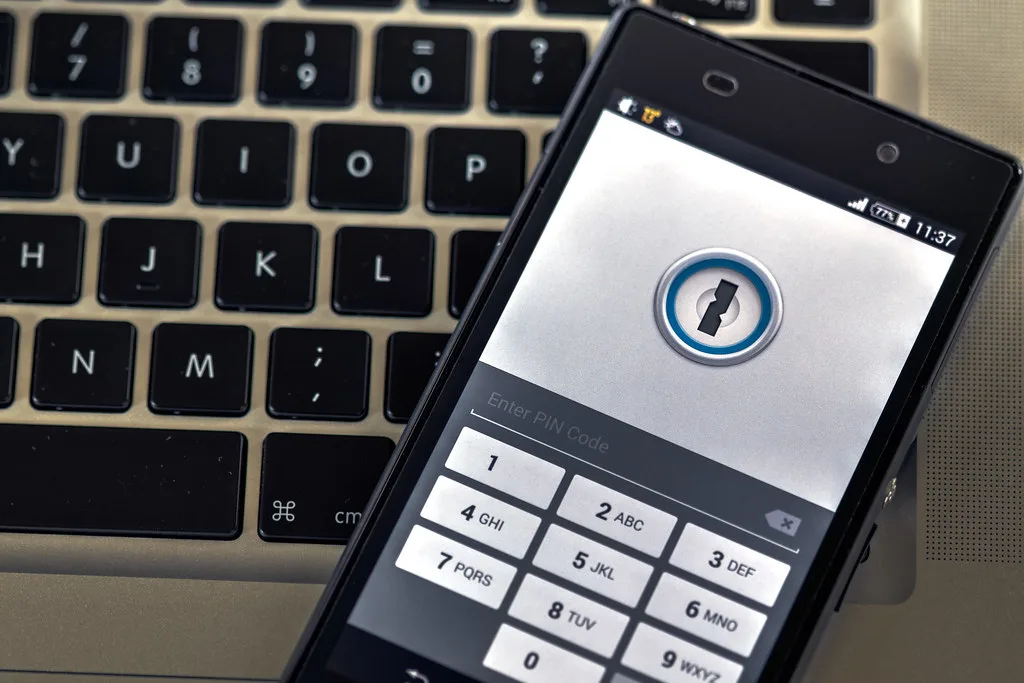
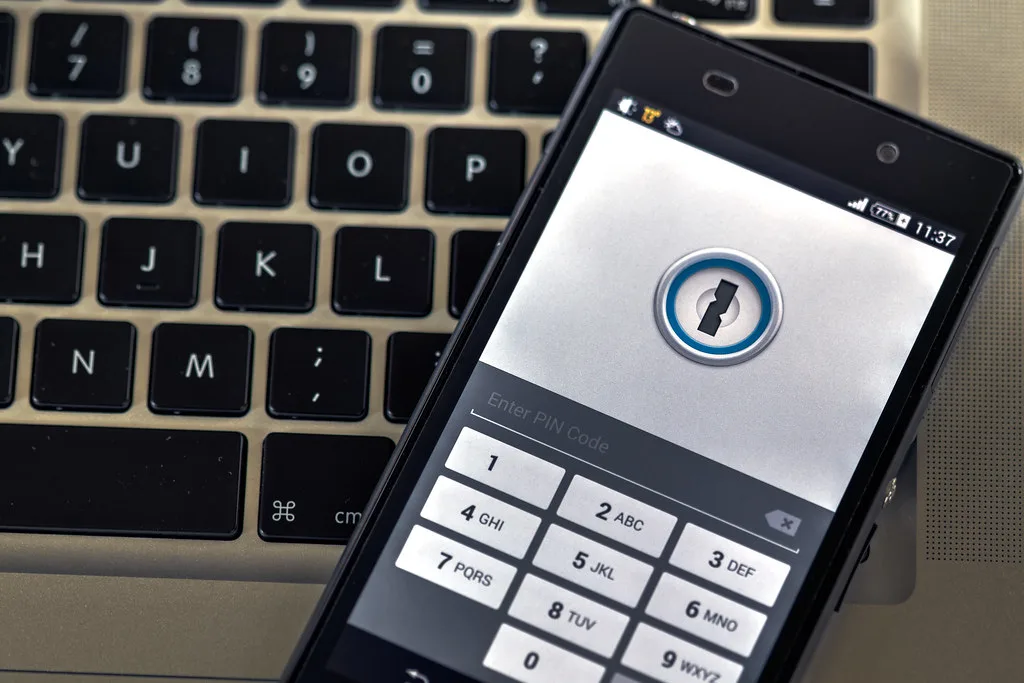
Cover image: Phone security by Ervins Strauhmanis, licensed under BY 2.0 via Openverse.