
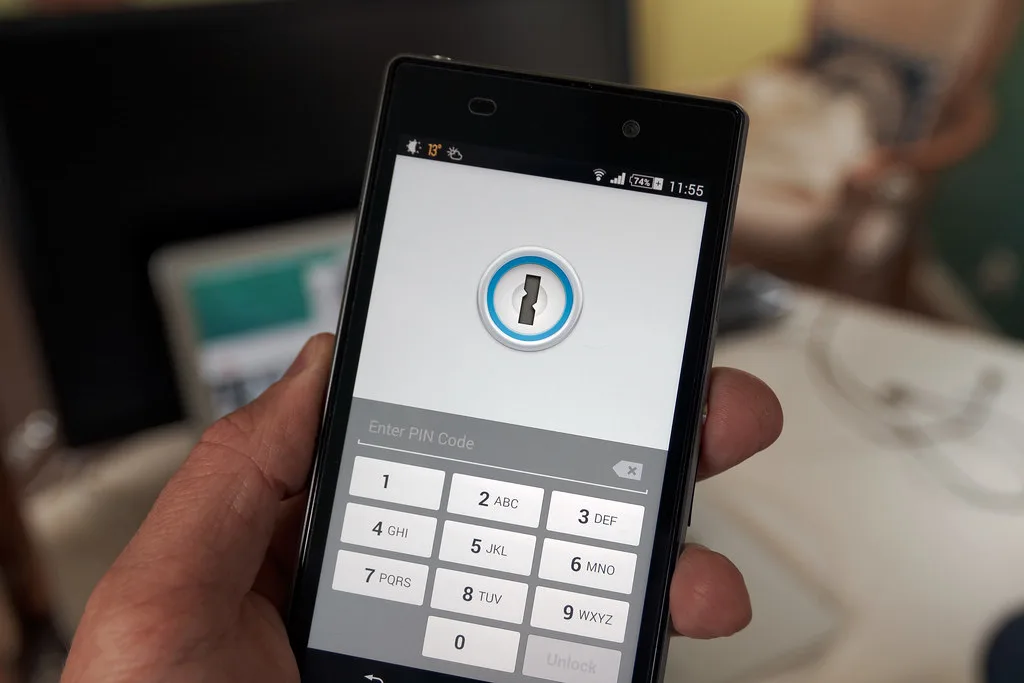
You set up passkeys on your iPhone, felt smug about ditching passwords, then bought an Android phone. Suddenly the seamless magic breaks. Your passkeys are stuck in Apple's iCloud Keychain, and Android wants to use Google Password Manager. Now you're staring at a login screen wondering whether you're locked out of your own accounts.
Here's a fact that surprised me when I dug into the numbers: as of 2024, more than 13 billion accounts globally support passkey sign-in, yet a FIDO Alliance survey found that the single biggest barrier to adoption is the fear of losing access when switching devices. Passkeys were designed to be phishing-resistant and convenient, but the industry launched them before the portability story was fully baked. That gap is real, and it trips up even experienced users.
In this article I'll explain what passkey portability actually means, why moving passkeys between devices has been so awkward, and the concrete methods that work today to sync or transfer them across Apple, Google, Windows, and third-party password managers. I've tested most of these paths on my own devices, so I'll be honest about which ones are smooth and which ones will make you sigh.
Key Takeaways
- Passkeys are portable within an ecosystem (iCloud Keychain, Google Password Manager) but historically not across ecosystems without workarounds.
- The cleanest cross-platform solution today is a third-party password manager like 1Password, Bitwarden, or Dashlane that syncs passkeys everywhere.
- Cross-Device Authentication (CDA) via QR codes and Bluetooth lets you log in on a device that doesn't hold the passkey, without transferring anything.
- The FIDO Credential Exchange Protocol (CXP), finalized in 2025, will finally allow secure passkey export/import between managers. Adoption is rolling out gradually.
- Always register at least two passkeys or a backup method per critical account to avoid lockout.
What Passkey Portability Actually Means
A passkey is a cryptographic key pair. The private key lives on your device (or in your synced cloud vault), and the public key sits with the service you're logging into. When you sign in, your device proves it holds the private key without ever sending it over the network. That's why passkeys resist phishing: there's no shared secret to steal.
"Portability" gets confused with two different things, so let's separate them:
- Syncing: The same passkey is available on multiple devices you own, kept in sync through a cloud vault. Apple, Google, and Microsoft all do this within their own walls.
- Transferring: Moving a passkey out of one credential store and into a different one, for example from iCloud Keychain to Bitwarden.
Syncing is solved. Transferring across vendors is the hard part, and it's exactly where most people get stuck. There's also a third category worth knowing: device-bound passkeys, which live on a hardware key like a YubiKey and physically cannot be copied or exported. Those are the most secure and the least portable by design.
Why Moving Passkeys Between Devices Has Been So Painful
The short answer: the platform vendors built their own silos first and worried about interoperability later. This is not new. It's the same pattern we've seen with messaging apps, calendar formats, and browser bookmarks.
When passkeys launched broadly in 2022 and 2023, each ecosystem stored them in its own encrypted keychain with no standardized export format. If you created a passkey for your bank on an iPhone, that private key was sealed inside iCloud Keychain. There was no button to say "give me this key so I can put it in Google Password Manager." The credential could not leave.
That's arguably good for security. A key that can't be exported can't be casually exfiltrated by malware. But it's terrible for the roughly 30 percent of users who switch between Apple and Android households, or who use a Windows work laptop and a personal Mac. The same tension between security and convenience shows up across software, which is why we've written before about honest tradeoffs when you verify software downloads and avoid fake installers.
The FIDO Alliance response: Credential Exchange Protocol
In late 2024 the FIDO Alliance published draft specifications for two new standards: the Credential Exchange Protocol (CXP) and the Credential Exchange Format (CXF). Together they define a secure, encrypted way to move passkeys (and passwords) between credential managers. These were finalized through 2025, and vendors began implementing them.
This is the real fix. Once CXP support is universal, "export passkeys from Manager A, import into Manager B" becomes a supported, encrypted operation rather than a hack. But rollout takes time, so for now you'll mix modern methods with practical workarounds.
Method 1: Sync Passkeys Within an Ecosystem
If all your devices share one ecosystem, portability is basically automatic. Here's how it works on each platform.
Apple (iCloud Keychain)
- Sign in to all devices with the same Apple ID.
- Go to
Settings > [Your Name] > iCloud > Passwords & Keychainand toggle it on. - Enable two-factor authentication for your Apple ID (required).
- Any passkey created on your iPhone now appears on your iPad and Mac within seconds.
Google (Google Password Manager)
- On Android, open
Settings > Google > Autofill > Passwords. - Confirm sync is enabled for your Google account.
- Passkeys created on one Android device propagate to your other Android devices and to Chrome on desktop when signed in.
Microsoft (Windows Hello + Microsoft Account)
Windows 11 (build 24H2 and later) syncs passkeys through your Microsoft account across Windows devices. Earlier builds treated passkeys as device-bound, so update first if portability matters.
The catch with all three: sync only works inside the ecosystem. Cross the boundary and you're back to square one. That's where the next two methods come in.
Method 2: Use a Cross-Platform Password Manager
This is the single most reliable way to get true passkey portability right now. A third-party manager stores your passkeys in its own encrypted vault and offers apps and browser extensions on every major platform. Create a passkey once, use it on your Mac, your Android phone, your Windows PC, and your Linux box.
I've run 1Password and Bitwarden side by side for months. Both handle passkeys well. Bitwarden's open-source model appeals to me for auditability, while 1Password's polish and browser integration are hard to beat.
Comparison: Cross-platform passkey managers
| Manager | Passkey sync across OS | Open source | CXP import/export | Free tier | Starting price |
|---|---|---|---|---|---|
| Bitwarden | Yes (all major OS) | Yes | Rolling out | Generous | $10/yr premium |
| 1Password | Yes (all major OS) | No | Announced | No (trial only) | $2.99/mo |
| Dashlane | Yes | No | Planned | Limited | $4.99/mo |
| iCloud Keychain | Apple only | No | Import support added | Included | Free |
| Google Password Mgr | Android/Chrome | No | Planned | Included | Free |
How to set it up
- Install your chosen manager's app on every device plus the browser extension on each browser you use.
- Set it as the default autofill and passkey provider. On iOS:
Settings > Passwords > Password Optionsand enable your manager. On Android:Settings > Passwords & accounts > select the manager. - When a site offers to create a passkey, choose to save it into your third-party manager rather than the platform keychain.
- Sign in to the same vault on your other devices. The passkey is now available everywhere.
Before you commit to any manager, treat it like installing any other security tool: check its track record, permissions, and update history. The same discipline we recommend when you vet WordPress plugins before installing them applies to a password manager that will hold the keys to your entire digital life.
Method 3: Cross-Device Authentication (No Transfer Needed)
Sometimes you don't need to move a passkey at all. You just need to log in once on a device that doesn't have it. That's what Cross-Device Authentication (CDA) is for, and it's built into the FIDO standard.
Say you're on a friend's Windows laptop and need to sign in to an account whose passkey lives on your iPhone. Here's the flow:
- Choose "Sign in with a passkey" on the website.
- Select "Use a passkey on another device" or scan a QR code.
- A QR code appears on the laptop. Point your phone's camera at it.
- Your phone and the laptop establish a short-range Bluetooth handshake to confirm physical proximity (this prevents remote phishing).
- Approve the sign-in on your phone with Face ID or a fingerprint.
- You're logged in on the laptop, and the passkey never left your phone.
CDA is elegant because nothing is copied or exported. The tradeoff is that you need both devices present, Bluetooth on, and a working camera. It's perfect for occasional cross-device logins, not for making a passkey permanently available on a new phone.
Method 4: Export and Import With CXP (The Emerging Standard)
This is the future, and parts of it have already arrived. With the Credential Exchange Protocol, moving from one manager to another looks like this:
- In your current manager, open the export or migration option and choose the destination.
- Authenticate with biometrics or your master password.
- The manager packages your passkeys in the
Cover image: Phone security by Ervins Strauhmanis, licensed under BY 2.0 via Openverse.







