Here is a number that should make you uncomfortable: according to multiple industry surveys, roughly 60% of small businesses that suffer a serious data loss event close within six months. Not because the data was priceless, but because the recovery was slow, incomplete, or never happened at all. The backup existed on paper. It just didn't work when it mattered.
I've spent the better part of two decades running backups for personal machines, small agency fleets, and a few genuinely terrifying production databases. In that time I've learned that choosing backup software is less about picking the flashiest product and more about honestly answering one question: what does "recovery" actually look like for me at 3 a.m. when something is on fire? That answer determines whether you want local, cloud, offsite, or (spoiler) some blend of all three.
This guide walks you through exactly how to choose backup software in 2026. We'll cover the three storage models, the real cost math, a side-by-side comparison, and a step-by-step evaluation you can run this week. No hand-waving, no "it depends" without telling you what it depends on.
Key Takeaways
- Follow the 3-2-1 rule: keep 3 copies of data, on 2 different media types, with 1 copy offsite. Everything else is a detail.
- Recovery speed matters more than backup speed. Test your restore before you trust the tool.
- Local backups win on speed; cloud wins on convenience; offsite wins on disaster survivability. Most people need at least two of the three.
- Watch the total cost of ownership, especially cloud egress fees and per-seat licensing that scale badly.
- Encryption and versioning are non-negotiable in the ransomware era. Immutable backups are worth paying for.
- Automate everything. A backup that depends on you remembering is a backup that will fail.
What backup software actually does (and the three storage models)
Backup software copies your data to a separate location on a schedule, tracks versions so you can roll back to a specific point in time, and lets you restore all or part of it after a loss. The differences between products come down to where the copy lands and how fast you can get it back.
There are three storage models, and understanding them is the foundation of every decision that follows.
Local backup
Your data is copied to hardware you physically control: an external SSD, a NAS (network-attached storage), or a second internal drive. Tools like Windows File History, Time Machine, Veeam Agent, and rsync live here.
- Strengths: blazing fast restores, no monthly fees, full control over your data.
- Weaknesses: useless against fire, theft, flood, or a ransomware strain that reaches the attached drive.
Cloud backup
Your data is encrypted and sent to a provider's servers over the internet. Backblaze, iDrive, Carbonite, and Acronis Cyber Protect are common names. This is the "set it and forget it" model.
- Strengths: automatic offsite storage, accessible from anywhere, minimal hardware to maintain.
- Weaknesses: restores are limited by your internet speed, and large restores can incur egress fees or take days.
Offsite backup
A copy kept in a physically different location that you still control: a NAS at a second office, a rotated drive stored at home, or a colocation server. Offsite overlaps with cloud, but the key distinction is ownership. You hold the hardware, so there is no third party who can lock you out or change terms.
- Strengths: survives site-level disasters, no recurring fees, faster local-network restores if the second site is close.
- Weaknesses: you manage the logistics, the hardware, and the security yourself.
How to choose backup software: the 6 criteria that actually matter
When people ask me how to choose backup software, they usually want a product name. But the right product falls out naturally once you rank these six criteria against your situation.
- Recovery Time Objective (RTO): how long can you tolerate being down? If the answer is "minutes," local or hybrid is mandatory. If it's "a day is fine," cloud-only can work.
- Recovery Point Objective (RPO): how much data can you afford to lose? Hourly backups mean you lose at most an hour of work. Nightly backups mean up to a full day.
- Data volume and change rate: a 200GB laptop is trivial. A 4TB media archive that changes daily needs careful bandwidth planning.
- Versioning and retention: can you restore last Tuesday's version, not just yesterday's? Ransomware often sits dormant, so 30+ days of versions is smart.
- Security: end-to-end encryption, zero-knowledge options, and immutable (write-once) backups that ransomware can't overwrite.
- Total cost of ownership: license plus hardware plus bandwidth plus egress plus your time. The sticker price is rarely the real price.
If you're building out a broader IT toolkit, it's worth applying this same disciplined evaluation to everything you install. Our guide on how to audit open-source software before adding it to your stack uses the same "prove it before you trust it" mindset.
Local vs Cloud vs Offsite: a direct comparison
Here is how the three models stack up on the criteria that decide most purchases. Scores are practical generalizations, not laboratory benchmarks.
| Criteria | Local (NAS/SSD) | Cloud (Backblaze, iDrive) | Offsite (owned) |
|---|---|---|---|
| Restore speed (1TB) | 15–60 min | 3–24 hrs (or shipped drive) | 30–90 min on local net |
| Disaster survivability | Low | High | High |
| Recurring cost | None after hardware | $7–$99+/mo | None after hardware |
| Setup effort | Low | Very low | Medium–High |
| Ransomware resistance | Weak (if always connected) | Strong (with immutability) | Strong (if air-gapped) |
| Ongoing maintenance | Medium | Very low | High |
Notice there's no clean winner. That's the point. The 3-2-1 rule exists precisely because no single model covers every failure mode. The right answer is almost always a combination.
A worked example: choosing backup for a 5-person design studio
Abstract advice is useless, so let's run real numbers. Say you run a design studio with 5 workstations. Each machine holds about 500GB of active project files, and collectively you generate around 40GB of new or changed data per day. Your work is your livelihood, so an RTO of "a few hours" and an RPO of "one hour" feels right.
Step 1: Size the problem
- Total data: 5 × 500GB = 2.5TB
- Daily change: 40GB
- Retention target: 90 days of versions
Step 2: Design the layers
- Local layer: a 8TB NAS on the office network. Hourly incremental backups from all 5 machines. This satisfies your one-hour RPO and gives near-instant restores.
- Cloud layer: the NAS replicates nightly to a cloud provider with immutable retention. This is your offsite disaster copy.
- Offsite owned (optional): a rotated external drive taken home weekly, fully air-gapped, as a ransomware insurance policy.
Step 3: Run the cost math
- NAS + 2×8TB drives: ~$650 one-time
- Cloud storage for 2.5TB with versions (~4TB effective): ~$24/mo at $6/TB
- Backup software licenses for 5 seats: ~$30–$60/mo depending on the product
- External rotation drive: ~$120 one-time
Total first-year cost lands around $1,400, or roughly $23 per person per month. Compare that to the studio's exposure: a single lost project could cost weeks of billable work. The backup is cheap insurance, and the layered design means no single event wipes you out.
Step 4: The most important step nobody does
Do a test restore. Pick a random 20GB folder and restore it from both the NAS and the cloud. Time it. Verify the files open. Do this monthly. A backup you have never restored from is a hope, not a plan.
Ransomware changed the rules: why immutability matters now
Backups used to be about hardware failure and human error. In 2026, the dominant threat is ransomware that specifically hunts and encrypts your backups before triggering. If your backup drive is always mounted and writable, the attacker gets it too.
Three defenses matter here:
- Immutable backups: write-once storage that cannot be altered or deleted for a set retention window, even by an admin account. Most serious cloud backup products now offer this.
- Air-gapping: a copy that is physically disconnected most of the time, like the rotated drive in our studio example.
- Zero-knowledge encryption: only you hold the key, so even a breach at the provider doesn't expose your data.
Backup is one leg of a broader security posture. If you run web properties, tools like SiteGuard Pro and eDarpan WordPress Protection reduce the odds you ever need to restore from a compromised site in the first place. And if you're weighing your authentication approach alongside backups, our comparison of a password manager vs an authen
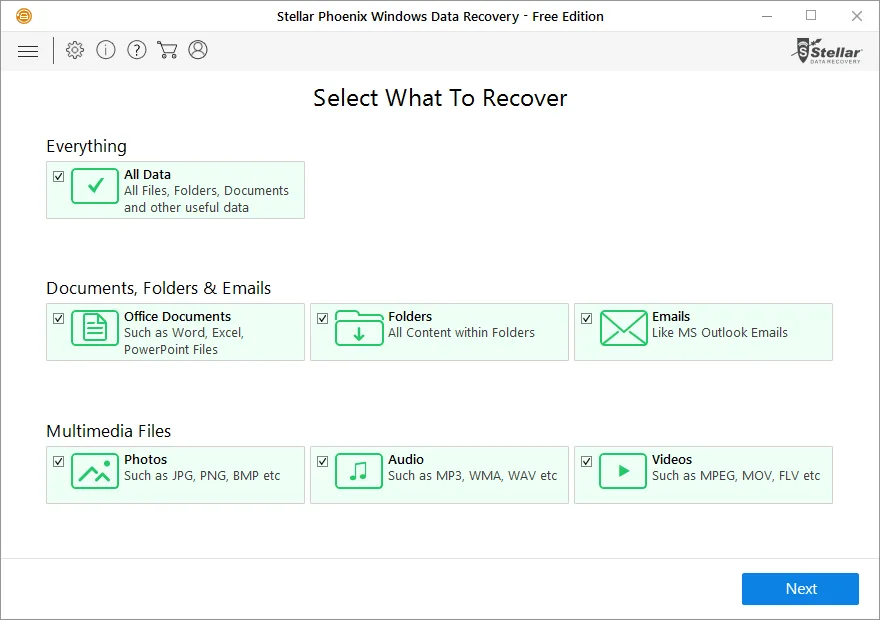
Cover image: Stellar Phoenix Windows Data Recovery Software - Main Interface by Stellar Data Recovery, licensed under BY-SA 3.0 via Openverse.