Here's a question I get asked at least once a week, usually by a friend who just got a breach notification email: "Do I need a password manager, an authenticator app, or both?" The confusion is understandable. Both tools protect your accounts, both live on your phone, and both have vendors telling you they're the one thing standing between you and disaster.
But they solve different problems. A password manager remembers and generates your credentials. An authenticator app proves it's actually you logging in, even if someone stole those credentials. According to Verizon's 2024 Data Breach Investigations Report, roughly 68% of breaches involved a human element, and stolen or reused passwords remain one of the most common entry points. Meanwhile, Microsoft has reported that enabling multi-factor authentication blocks over 99.2% of account compromise attacks. Those two numbers together tell you almost everything about why this debate is a false choice.
In this article I'll break down what each tool actually does, walk through a real scenario with real numbers, compare the leading options side by side, and give you a concrete setup you can follow tonight. By the end you'll know exactly which to use, and in most cases the honest answer is "both, but configured smartly."
Key Takeaways
- A password manager stores and generates unique passwords; an authenticator app generates time-based one-time codes (TOTP) for the second login step. They are complementary, not competing.
- Using only a password manager still leaves you vulnerable if a database of hashed passwords leaks. Using only an authenticator app still lets you reuse weak passwords everywhere.
- For most people, the strongest practical setup is a dedicated password manager plus a separate authenticator app, so a single breach doesn't unlock everything.
- Passkeys are quietly replacing both for supported services, but adoption is uneven, so you still need the classic tools for years to come.
- Never store your 2FA seeds in the same vault as your passwords if you can avoid it, and always save backup recovery codes offline.
What a Password Manager Actually Does
A password manager is an encrypted database for your login credentials. You memorize one strong master password, and the manager handles everything else: generating a 20-character random password for each site, autofilling it, and syncing it across devices.
The core value is uniqueness at scale. Human brains cannot remember 100 distinct passwords, so people reuse them. When one site leaks, attackers try that same email-and-password combo everywhere else. This is called credential stuffing, and it's brutally effective precisely because reuse is so common.
Modern password managers do more than store passwords:
- Password generation with configurable length and character sets.
- Breach monitoring that checks your credentials against known leaks.
- Secure notes and document storage for things like software licenses or recovery codes.
- Sharing credentials with family or team members without exposing the plaintext.
- Passkey storage, increasingly, since passkeys need a home too.
Popular choices include Bitwarden, 1Password, KeePassXC, and Proton Pass. If you self-host or care about auditability, open-source options are appealing, though you should still audit any open-source software before adding it to your stack rather than trusting the "open source equals safe" myth.
What an Authenticator App Actually Does
An authenticator app generates a short numeric code, usually six digits, that changes every 30 seconds. This is the "something you have" factor in multi-factor authentication. Even if an attacker knows your password, they can't log in without the code currently showing on your phone.
Most authenticator apps use the TOTP standard (Time-based One-Time Password, defined in RFC 6238). When you scan a QR code during 2FA setup, you're storing a shared secret. The app combines that secret with the current time to produce the code. No internet connection is required, which is why the codes still work on airplane mode.
Well-known authenticator apps include Google Authenticator, Microsoft Authenticator, Authy, Aegis (Android, open source), and Raivo (iOS). Some password managers also generate TOTP codes, which brings us to the central tension of this whole topic.
Why an authenticator beats SMS codes
SMS two-factor is better than nothing, but it's the weakest common form. SIM-swapping attacks let criminals port your number to a device they control, intercepting your codes. TOTP apps are immune to that because the secret never leaves your device. If a service only offers SMS, use it, but prefer app-based codes whenever available.
Password Manager vs Authenticator App: The Core Difference
Here's the distinction stated plainly. A password manager answers "what is my password?" An authenticator app answers "can you prove you're allowed to use it right now?" One is about secrecy, the other about verification.
The reason people confuse them is that many password managers now bundle a TOTP generator. Convenient, yes. But it collapses two independent security layers into one. If someone compromises your password vault, and that vault also holds your 2FA codes, your second factor is worthless. You've built a vault with two locks that share a single key.
| Criteria | Password Manager | Authenticator App |
|---|---|---|
| Primary job | Store and generate credentials | Generate second-factor codes |
| Protects against | Weak and reused passwords | Stolen passwords, phishing |
| What it holds | Usernames, passwords, notes, passkeys | TOTP secrets (seeds) |
| Works offline? | Partially (cached vault) | Yes, fully |
| Single point of failure risk | High if it also holds 2FA | Low when kept separate |
| Replaced by passkeys? | Partly (stores passkeys) | Yes, where passkeys are supported |
A Worked Example: The 47-Account Reality Check
Let's make this concrete. Say you're a typical knowledge worker with 47 online accounts across 12 services you actually care about: email, banking, two cloud drives, a couple of social networks, your domain registrar, GitHub, an e-commerce store admin, and so on.
Before adopting proper tools, your situation might look like this:
- You reuse roughly 5 passwords across those 47 accounts.
- Only 4 accounts have any 2FA, all via SMS.
- Two of your passwords appear in known breaches (you just don't know it yet).
Now walk through the upgrade:
- Install a password manager and import your existing logins from the browser. It flags that 2 passwords are breached and 5 are reused.
- Rotate the 7 problem passwords first. Generate 20-character unique passwords for each. Time cost: about 15 minutes.
- Prioritize the "crown jewel" accounts: email and banking. Email is the master key because password resets flow through it.
- Add app-based 2FA to your 5 most critical accounts using a separate authenticator app. Scan each QR code, store the resulting TOTP secret, and immediately save the backup recovery codes offline.
- Downgrade nothing to SMS. Where a service supports TOTP, switch away from SMS.
After one focused hour, your risk profile transforms. The 2 breached passwords no longer unlock anything. The 5 critical accounts now require a code an attacker cannot get from a leaked database. If you ever migrate managers later, follow a careful process to migrate passwords and passkeys between managers safely so nothing gets stranded or duplicated.
Should You Store 2FA Codes Inside Your Password Manager?
This is the most contested decision in the whole space, so let me give you my honest position rather than a wishy-washy "it depends."
For low-risk accounts (a forum, a newsletter, a loyalty program), storing TOTP in your password manager is fine. The convenience of one-tap autofill genuinely improves the odds you'll enable 2FA at all, and any 2FA beats none.
For high-risk accounts (email, banking, your domain registrar, your cloud infrastructure, GitHub or GitLab where your code lives), keep the second factor in a separate authenticator app. The whole point of a second factor is that it's independent. If your password vault is breached or your master password is phished, you want the codes to live somewhere else.
Think of it as a spectrum, not a rule. Consider what an attacker gains from compromising a single tool. If the answer is "everything," you've over-consolidated.
The phishing angle people forget
TOTP codes can still be phished in real time. A fake login page can ask for your password and your six-digit code, then relay both to the real site within the 30-second window. This is why passkeys and hardware security keys, which are bound to the legitimate domain, are stronger. But TOTP still raises the cost of attack dramatically compared to passwords alone.
Where Passkeys Fit In 2025
Passkeys are the technology that will eventually make this entire debate obsolete. A passkey is a cryptographic key pair. The private key stays on your device, the public key sits with the service. You authenticate with biometrics or a PIN, and there's no shared secret to phish, leak, or reuse.
The catch is coverage. In 2025, major players like Google, Apple, Microsoft, GitHub, and PayPal support passkeys, but the long tail of smaller services does not. You'll be juggling passkeys, passwords, and TOTP codes simultaneously for years. Practically speaking:
- Use passkeys wherever a service offers them for your important accounts.
- Keep a password manager for the hundreds of sites that still need passwords, and for storing passkeys that need to sync across devices.
- Keep an authenticator app for services that support TOTP but not passkeys yet.
Passkeys don't eliminate the need for good hygiene elsewhere in your stack. If you run websites, the security perimeter extends far beyond your personal logins into your server, CMS, and plugins.
Don't Stop at Personal Accounts: The Wider Security Picture
Password managers and authenticators protect you. But if you operate a WordPress site, a Joomla portal, or a Prestashop store, attackers target the software layer directly with brute-force attempts, malicious bots, and credential st
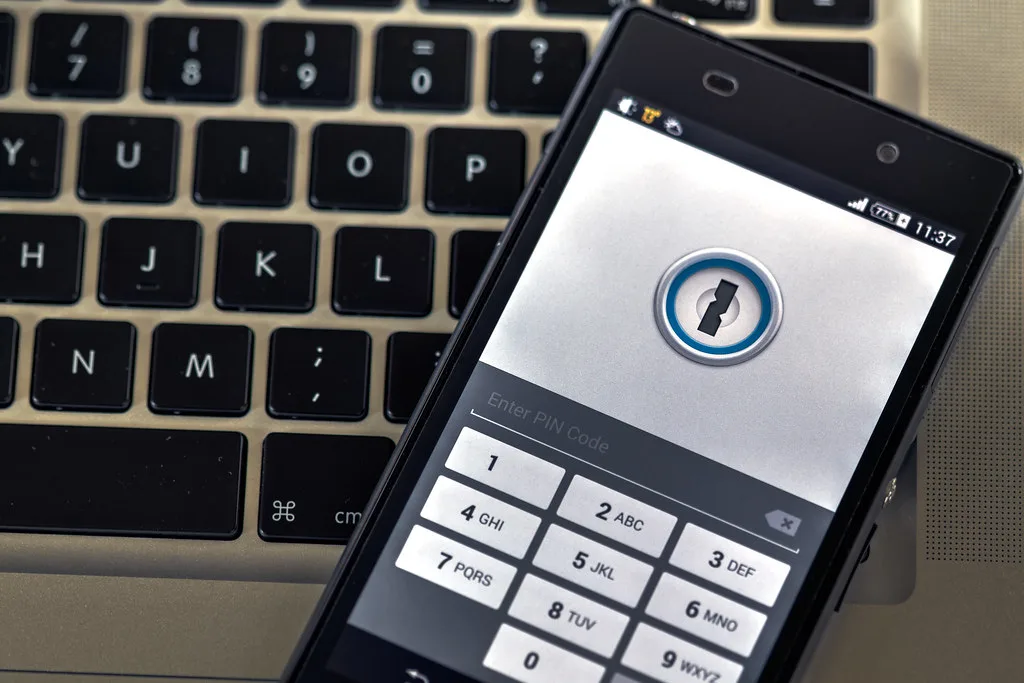
Cover image: Phone security by Ervins Strauhmanis, licensed under BY 2.0 via Openverse.