The scariest supply-chain attacks on WordPress don't come from sketchy plugins you'd never install. They come from plugins you already trust, delivered through the one action you've been trained to do without thinking: clicking "Update now." In 2024, an estimated 60% of hacked WordPress sites were compromised through outdated or tampered plugin code, and a growing slice of those involved updates that were legitimately signed into the ecosystem but poisoned somewhere along the way.
Here's the uncomfortable truth. When your dashboard says an update is available, you have almost no built-in way to confirm that the file you're about to install matches what the developer actually shipped. WordPress core has no mandatory code-signing requirement for third-party plugins. If an attacker breaches a developer's account, hijacks their release pipeline, or slips a payload into a nulled copy you downloaded from a forum, that malicious update flows straight into your production site with a friendly green checkmark.
This guide walks through how to verify WordPress plugin update integrity like a professional — before you click, not after your site starts redirecting visitors to a pharmacy scam. You'll learn how to fingerprint files with checksums, read a diff between two plugin versions, spot the behavioral red flags of a compromised release, and build a repeatable update workflow that catches tampering early.
Key Takeaways
- Never auto-update on production first. Test every update on a staging clone and compare it against the previous version.
- Checksums are your fastest integrity signal. A single mismatched SHA-256 hash means the file is not what the developer published.
- Diff the code, not just the version number. A "bug fix" release that adds obfuscated
eval()or new outbound HTTP calls deserves scrutiny.- Watch for new domains, base64 blobs, and file writes. These are the three most common markers of a poisoned update.
- Buy from a verified source. Nulled and "free premium" plugins are the single most common vector for tampered code.
- Keep clean backups. If verification fails, you want a known-good restore point ready in minutes.
Why plugin updates are a real attack surface
A plugin update is executable code running with full access to your database, your file system, and your visitors. That's what makes the update mechanism so attractive to attackers. Compromise one popular plugin and you don't hack one site — you hack every site that trusts that plugin's auto-update.
There are four realistic ways a plugin update gets compromised:
- Developer account takeover. An attacker phishes or brute-forces the developer's repository credentials and pushes a malicious release under their name.
- Abandoned plugin resale. A once-trustworthy developer sells the plugin to a shady buyer who monetizes the install base with injected ad code or backdoors.
- Build pipeline injection. The source code is clean, but a compromised CI system or dependency injects malware during packaging.
- Nulled distribution. You downloaded a premium plugin from a "free" site, and the ZIP was modified before it reached you.
That last one is the most common and the most preventable. If you rely on properly licensed plugins from a trustworthy marketplace, you eliminate an entire category of risk before it starts. Browsing a curated catalog like the WordPress plugins collection on LionScripts means you're getting the file the vendor actually published, not a repackaged copy laced with an extra payload.
What "verify plugin update integrity" actually means
Integrity verification answers one precise question: Is this file byte-for-byte identical to what the developer intended to release? It does not tell you whether the plugin is well-written or bug-free. It tells you whether the code has been altered in transit or at the source.
Three layers of verification, from fastest to most thorough:
- Hash verification — compare a cryptographic checksum of your file against the official one. Fast, binary answer.
- Signature verification — confirm the file was signed by the developer's private key. Stronger, but rare in the WordPress world.
- Source diffing — compare the actual code of the new version against the old one and read what changed. Slowest, most revealing.
For most site owners, layers 1 and 3 are the practical workhorses. Let's do a real example.
A worked example: fingerprinting an update before you install it
Say you run a store on WordPress with 14 active plugins. One of them, a contact form plugin, shows an update from version 5.7.1 to 5.7.2. The changelog just says "minor fixes." Here's how to verify it in under ten minutes.
Step 1: Download the update ZIP without installing it
Grab the new version from the official source as a ZIP file. Do not click "Update now" in the dashboard yet. You want the raw package on your local machine.
Step 2: Generate a SHA-256 checksum
On macOS or Linux, run:
shasum -a 256 contact-form-5.7.2.zip
On Windows PowerShell:
Get-FileHash contact-form-5.7.2.zip -Algorithm SHA256
You'll get a 64-character string like 9f2c...a1b3. If the developer publishes checksums on their release page or GitHub, compare the two strings character by character. A single mismatch means the file was altered. Stop and investigate.
Step 3: Extract and diff against the current version
Extract both the old (5.7.1) and new (5.7.2) versions into separate folders, then run a recursive diff:
diff -r contact-form-5.7.1/ contact-form-5.7.2/
For a genuine "minor fixes" release, you'd expect a handful of changed lines in one or two PHP files and an updated version header. If the diff shows a brand-new file, a modified .htaccess, or hundreds of changed lines in files unrelated to the changelog, that's your signal to dig deeper.
Step 4: Scan the changed files for danger signatures
Search the changed files for the functions attackers rely on:
grep -rniE "eval\(|base64_decode|gzinflate|str_rot13|create_function|file_get_contents\(.http|shell_exec|assert\(" contact-form-5.7.2/
Finding one of these isn't automatic proof of malice — some legitimate plugins use base64 for encoding assets. But a "minor bug fix" release that suddenly introduces eval(base64_decode(...)) or a call to an unfamiliar external URL is a five-alarm fire. Our deeper walkthrough on auditing a WordPress plugin for hidden backdoors covers how to read these patterns in context.
Before and after: what a clean vs. compromised diff looks like
Clean 5.7.2 diff: 3 files touched, 22 lines changed, version bumped, one nonce check tightened. Ships in minutes.
Compromised 5.7.2 diff: 3 legitimate files touched plus a new class-widget-loader.php containing a base64 blob that decodes to a remote file-fetch routine writing to wp-content/uploads/.cache.php. That extra file is the backdoor.
Manual verification vs. automated tools
Doing this by hand is a great skill, but nobody wants to run four commands for every update across a dozen sites. Here's how the common approaches stack up.
| Method | Speed | Catches tampered files | Catches behavior changes | Skill needed |
|---|---|---|---|---|
| Manual checksum + diff | Slow | Yes | Only if you read the code | High |
| File integrity monitoring plugin | Fast | Yes | Partial | Low |
| Staging test + malware scan | Medium | Yes | Yes | Medium |
| Trusting auto-update blindly | Instant | No | No | None |
The pragmatic answer is a blend: automated file-integrity monitoring for continuous coverage, plus a manual diff when a specific update looks suspicious. A hardening layer like eDarpan WordPress Protection can flag unexpected file changes and unauthorized writes to your wp-content directory, which is exactly where poisoned updates like to drop their payload. Pairing that with SiteGuard Pro gives you real-time alerting when files change outside a normal update window.
How to spot a compromised update by its behavior
Sometimes you can't read every line. In that case, behavioral red flags are your friend. After installing an update on a staging site (never production first), watch for these signals:
- New outbound connections. The plugin suddenly phones home to a domain that isn't the developer's. Watch your firewall or server logs.
- Unexpected new files. Files appearing in
uploads, random PHP files with hashed names, or modifications toindex.phpandwp-config.php. - New admin users. A poisoned update that creates a hidden administrator account is a classic persistence trick.
- Injected redirects or SEO spam. Test pages start redirecting or rendering hidden links to gambling and pharmacy sites.
- Cron jobs you didn't schedule. Check
wp-cronfor new recurring events. - Sudden performance drops. Cryptominers and spam bots eat CPU. An update that tanks your load time deserves inspection.
If you see repeated malicious traffic hammering a newly exposed endpoint, blocking the source buys you time to clean up. A tool like WordPress IP Blocker Pro lets you cut off attacker IPs and ranges at the door while you investigate the update.
Building a repeatable verification workflow
Verification only works if you actually do it every time. Turn it into a checklist so it becomes mu
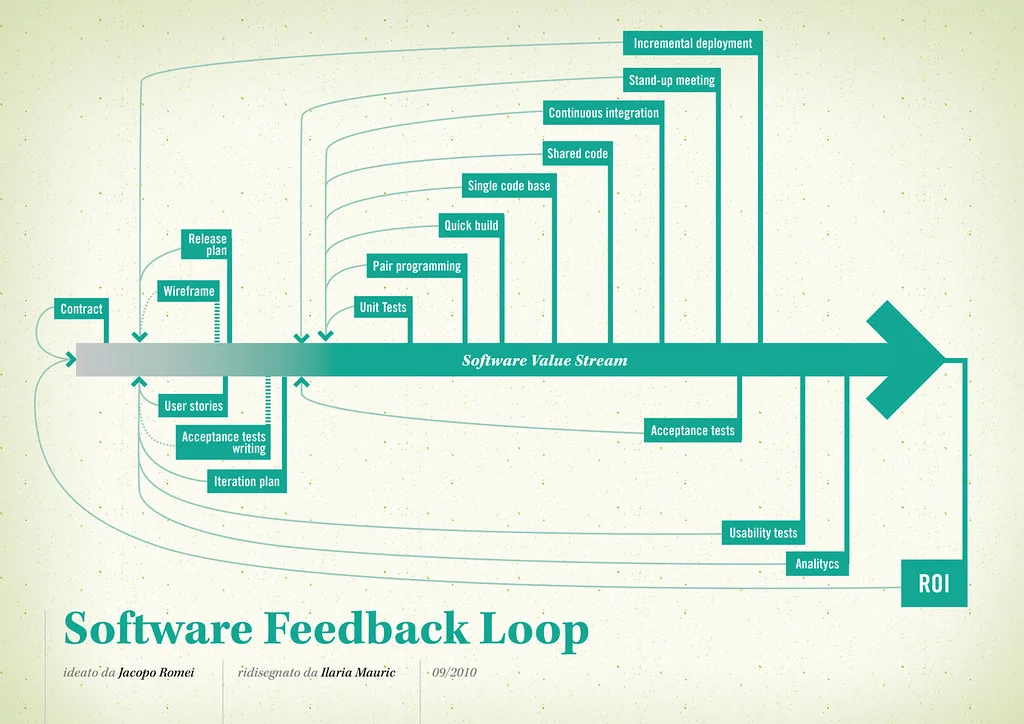
Cover image: Software value feedback loop by jakuza, licensed under BY-SA 2.0 via Openverse.