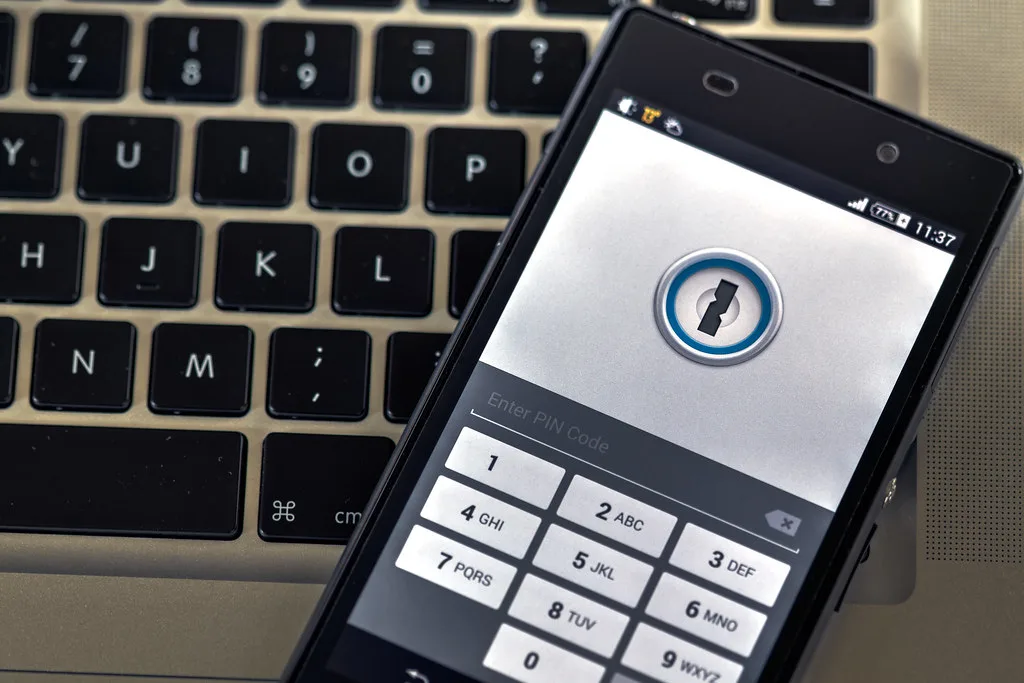
Most people with an iPhone and an Android phone in the same household have a quiet problem: two sets of passwords that never quite match. The Wi-Fi password lives in iCloud Keychain on one device and in a Google account on the other. Your banking app wants a fingerprint that works on only one of them. Your partner's logins are scattered across three notes apps and a sticky note. Choosing a password manager for Android and iPhone sounds like a simple decision, but the wrong pick can leave you locked out of accounts, or worse, with a vault that doesn't sync when you need it most.
Here is a number worth sitting with. Analyses of breach data have repeatedly shown that reused and weak passwords account for a large share of account takeovers, and the average person in a typical survey reports using only a handful of distinct passwords across dozens of services. The gap between "I have a password manager" and "my passwords are actually protected" is where most people get hurt. Picking the app is only half the job. Picking the one that fits both platforms, works with the autofill systems each phone uses, and survives a lost device is the part that decides whether you stay protected.
This guide walks through how to evaluate password managers for mixed Android and iPhone use in 2026. You will get a plain-language explanation of how sync and autofill actually work, a worked example with real numbers, a comparison table, a step-by-step migration plan, and the questions that matter before you pay for anything. We will also cover where passkeys fit in, because that changes the calculation more than most reviews admit.
Key Takeaways
- Pick a manager with native apps on both iOS and Android, plus working autofill in Safari, Chrome, and third-party apps on each platform.
- Check how the vault syncs. Cloud-synced managers are convenient across phones; local-only vaults are safer but make cross-platform use painful.
- Verify the account recovery and emergency access options before you store anything important. A vault you cannot recover is a vault you lose.
- Use a separate, long master password and turn on a second factor on the manager account itself.
- Migrate in stages: import, audit, rotate the weakest and most reused passwords first, then retire the old storage.
- Treat passkeys as a complement, not a replacement, at least for now. Your manager should be able to store them alongside passwords.
What a password manager for Android and iPhone actually has to do
A password manager is software that generates, stores, and fills in credentials for you, encrypting the whole vault with a key derived from a master password. On a single platform that job is straightforward. On two platforms it has four moving parts that need to agree with each other.
- Vault sync: the encrypted database has to appear on both devices, usually through the manager's own cloud servers.
- Autofill integration: iOS uses the Credential Provider extension and the AutoFill Passwords system; Android uses the Autofill framework and, increasingly, Credential Manager.
- Biometric unlock: Face ID or Touch ID on iPhone, fingerprint or face unlock on Android, both backed by the device's secure hardware.
- Browser and app coverage: autofill has to work in Safari and Chrome, in native apps like your bank, and in the browser inside other apps.
A manager that nails one of these and fumbles another will frustrate you daily. The most common complaint from people switching between platforms is not that the vault is insecure. It is that autofill silently stops working in a banking app on the Android side, and the user ends up copying passwords by hand, which is exactly the habit the manager was meant to eliminate.
Why this matters more than feature lists suggest
Feature tables tend to list "autofill" as a checkmark. That checkmark hides a lot. Autofill on iOS can be enabled system-wide in Settings, but some apps ignore it. On Android, the behavior varies by Android version, by manufacturer skin, and by whether the app uses a standard text field. Test autofill in the three apps you use most on each phone during a free trial. This single test will tell you more than any review score.
A worked example: 47 passwords across two phones
Consider a realistic setup. Maya uses an iPhone for work and an Android phone at home, shared with her partner Raj, who has his own Google account on the same device. Between them they have accounts across 12 services that matter: email (two), banking (three), shopping (four), a streaming service, a cloud drive, and a health portal. Counting every site and app login, they hold 47 credentials in total. Of those, 19 are reused across at least two services, and 6 are shorter than 10 characters.
Here is how Maya approached the decision, step by step:
- Listed hard requirements. Native iOS and Android apps, autofill in Safari and Chrome, sharing a vault with Raj for four shared accounts, and a recovery path if she lost her iPhone.
- Ran a trial on both devices. She tested autofill in her bank's app on Android, which failed in the first manager and worked in the second. That eliminated one contender.
- Checked the cost. Family plans in the category typically run in the range of a few dollars to around ten dollars a month for multiple users, so she compared the per-person price against a single-user plan plus a separate sharing workaround.
- Imported and audited. The audit flagged 19 reused and 6 weak passwords. She generated new 20-character passwords for the six weakest first, then the reused banking ones.
- Retired old storage. She deleted the plaintext notes file and turned off the old browser-saved passwords on both phones once autofill was confirmed.
The whole process took a little over two hours spread across an evening and the next morning. The lesson is not the specific product she chose. It is that the trial test, the one with a real bank app on a real Android device, eliminated a contender that looked fine on paper.
How the main options compare for mixed-platform households
Most password managers fall into three architectural camps: cloud-synced vaults with the vendor holding encrypted copies, self-hosted or local-first options where you control the storage, and platform-native managers built into iCloud Keychain or Google Password Manager. Each makes different tradeoffs on the same criteria.
| Criterion | Cloud-synced commercial manager | Local-first / open-source (e.g. KeePass family) | Platform-native (iCloud Keychain / Google Password Manager) |
|---|---|---|---|
| Works on both iPhone and Android | Yes, with native apps on each | Yes, but often through third-party apps with varying autofill quality | Partial: each stays largely inside its own ecosystem |
| Autofill reliability in native apps | Generally strong, varies by app | Depends heavily on the client app and OS version | Strong within its own platform, weaker across |
| Vault sharing with another person | Usually built in, often on paid tiers | Possible via manual file sync, awkward | Limited or not supported across platforms |
| Recovery if you lose a device | Account recovery plus emergency access options | Depends entirely on your own backup habits | Tied to your Apple or Google account recovery |
| Cost | Subscription, often a few dollars a month per user | Usually free or one-time, plus your time | Included with the platform account |
| Control over where data lives | Vendor servers, encrypted end-to-end | Full control on your own storage | Vendor-managed under the platform's terms |
For a household that genuinely crosses platforms, the cloud-synced commercial option wins on convenience and shared vaults. The local-first route is the right call if you are technical, value control, and are willing to set up your own sync. Platform-native managers are fine if everyone in the house is on one ecosystem, but they are a trap for mixed setups, because the moment you add a second platform you end up maintaining two sources of truth.
The non-negotiables: master password, second factor, and recovery
The security of a password manager reduces to three questions: how strong is the key protecting the vault, how is the manager account itself protected, and what happens when you lose access. Get these right and the rest is convenience.
Choose a master password you can type from memory
Your master password is the single key to everything, so make it long and memorable rather than complex and forgotten. A passphrase of four to six unrelated words is a practical target. Avoid reusing it anywhere. Some managers add a secret key or hardware key requirement on top; if yours offers that, understand that losing the secret key can make the vault unrecoverable.
Turn on a second factor for the manager account
- Use an authenticator app or a hardware security key rather than SMS where possible.
- Store recovery codes offline, in paper form, somewhere a family member can reach.
- Enable biometric unlock on each phone, but keep the master password as the fallback.
Test recovery before you need it
Simulate a lost phone. Log in on a fresh device using only your recovery path. If that path depends on a device you no longer have, or on an email account you cannot access, fix it now. Many people discover their recovery plan is broken only after they have already lost their phone, which is the worst possible time.
Where passkeys fit in, and why they do not replace your vault yet
Passkeys are phishing-resistant credentials stored on your device and synced through Apple or Google, and they are increasingly offered by major services. They remove the need to type a password at all, which is a real improvement. But passkeys do not yet cover the whole web, and many banking, utility, and older services still require passwords. For those, you still need a manager.
The practical answer is to use both. Let passkeys handle the services that support them, and let your manager store the rest. Confirm that your manager can store passkeys alongside passwords, because a manager that only holds passwords will leave you juggling two systems. For a deeper breakdown of this tradeoff, see our guide on Passkeys vs Password Managers in 2026: Which Should You Actually Use?
Practical tips for picking and running your manager well
Run a short evaluation before committing
- Install the manager on both your iPhone and your Android device.
- Enable autofill in Settings on each platform and grant the permissions the app asks for.
- Test autofill in your bank's app, your email app, and Chrome or Safari on a login page you use daily.
- Import a small set of passwords and run the built-in audit to see how it reports reuse and weakness.
- Check the export function. You want to be able to leave, with a clean export, at any time.
Watch the audit output, but do not trust it blindly
Breach-monitoring and